When Your 3D Printer Doesn't Detect G-code Files
A common problem when preparing a job for 3D printing is that the slicer or the machine itself cannot find the G-code file. Often, the root of the issue is not in the file itself, but in the operating system's configuration that manages file extensions. This can make a seemingly correct file unreadable for specialized software. 🔍
The Deception of the Hidden Extension
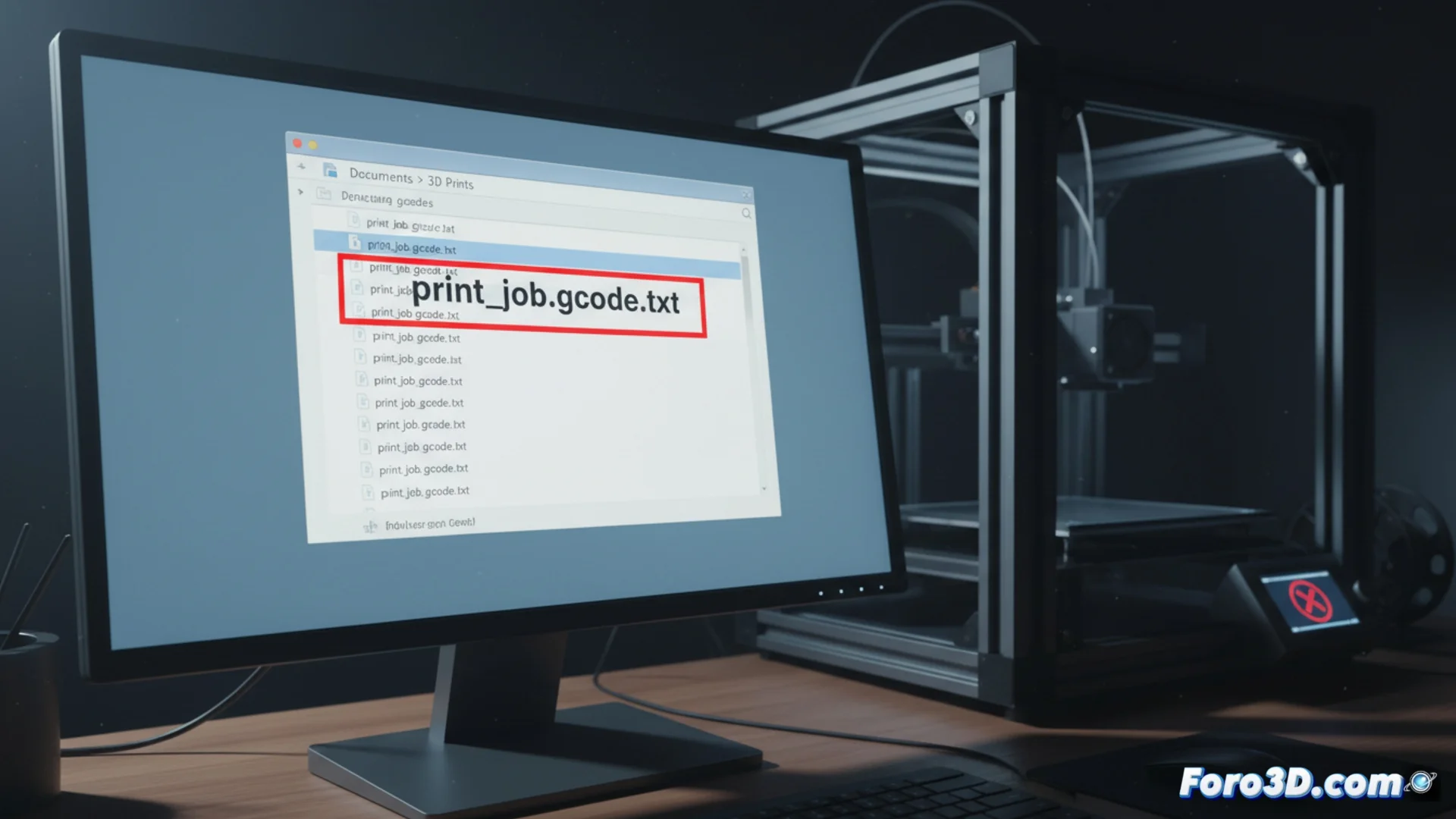
By default, Windows usually hides known file extensions to simplify the view. This "help" can cause confusion: a document you see as pieza_final.gcode might actually be saved as pieza_final.gcode.txt. The system silently adds the .txt extension, preventing any 3D printing application from interpreting it. The first step to resolve it is always to verify the real file name.
Steps to show and correct extensions in Windows:- Open the File Explorer and go to the top tab called "View".
- In the "Show/hide" options group, check the box "File name extensions".
- Once done, you'll see the full name. If ".gcode.txt" appears, select the file, press F2 to rename, and delete the ".txt" part.
- Ensure the name ends only in ".gcode" and confirm the file type change when the system prompts you.
The real challenge is sometimes not that the printer reads the G-code, but that we manage to decipher the instructions without losing patience.
Check the Location and Access Permissions
If the problem persists after correcting the extension, the next point to examine is where the file is stored. An excessively long directory path or one containing special characters (like accents, ñ's, or symbols) can cause conflicts and prevent the software from accessing the file.
Actions to ensure an accessible path:- Save your G-code file in a folder with a simple name, preferably in a top-level location like the Desktop or the root of a drive.
- Avoid nesting it in many subfolders with long or complex names.
- Check that you have read permissions for the destination folder. A denied access can make it seem to the slicer as if the file doesn't exist, even though you can see it.
Conclusion for a Smooth Workflow
To avoid these setbacks, adopt the habit of always verifying the real extension of your G-code files and storing them in simple paths with appropriate permissions. These two simple pre-checks can save you time from frustration and ensure your 3D printer receives the instructions correctly to produce your model. 🛠️