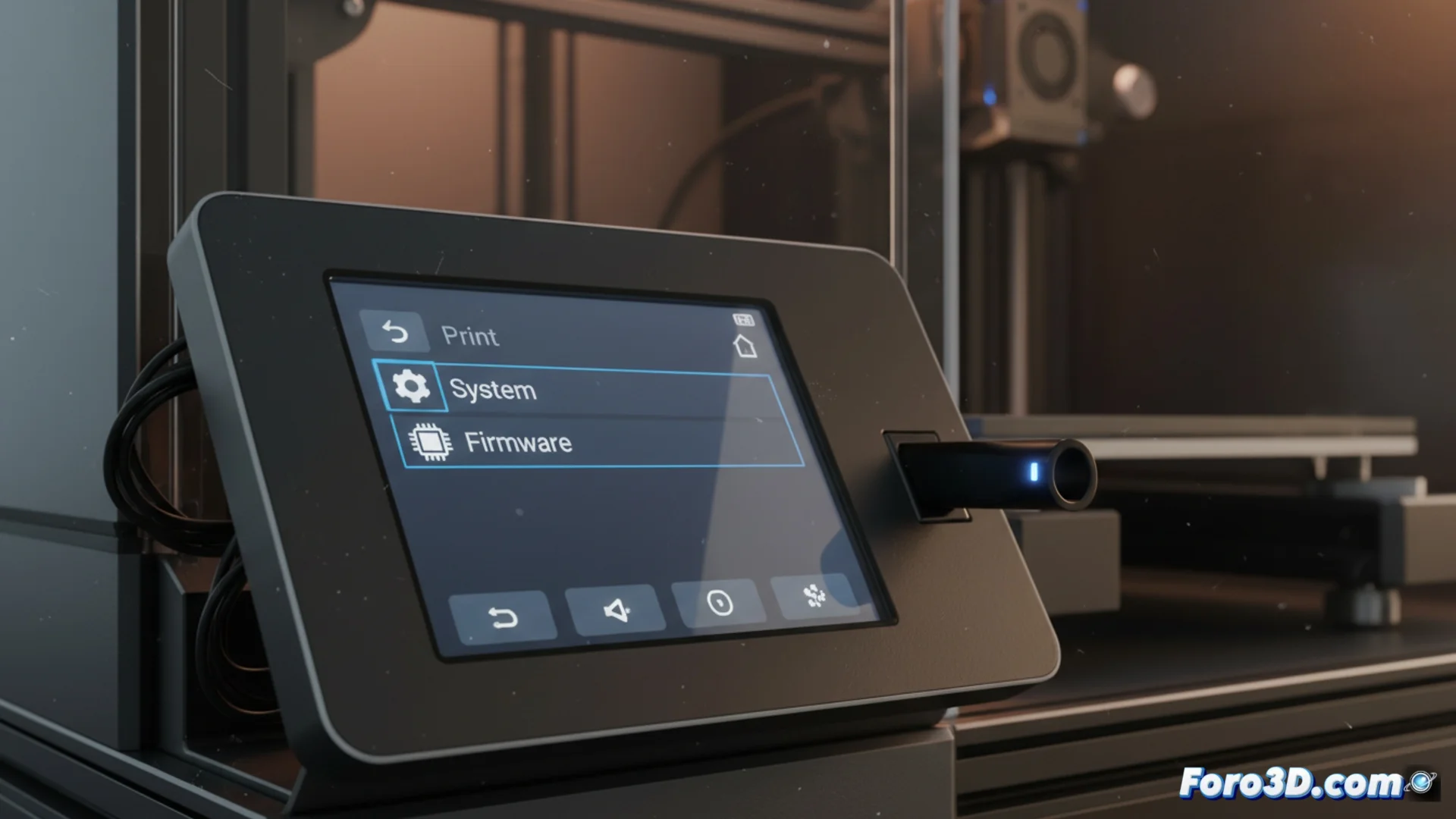
Update the Firmware of the Creality K1C Printer
Installing a new version of firmware on your Creality K1C is a key action to optimize its performance and access the latest features. This process, although simple, requires following precise steps to avoid setbacks. 🛠️
Essential Preparations Before Starting
The first thing is to download the correct firmware file. Always go to the official Creality website to get it, as using unverified versions can damage your printer's hardware. Confirm that your device's model exactly matches the one for the firmware you are going to install.
Materials Needed for the Update:- A USB memory with the file system formatted in FAT32.
- The firmware file, which normally has the .bin extension.
- The Creality K1C printer completely turned off.
Never turn on the machine before connecting the USB memory with the firmware. This order is crucial for the system to detect it correctly.
Execute the New Firmware Installation
With the file copied to the root of the USB and this connected to the K1C port, you can proceed. Turn on the printer and use the touch screen to navigate to the main menu.
Steps in the Printer Interface:- Access the System menu from the main screen.
- Select the option called Firmware or Update firmware.
- Choose the update option. The printer will scan the USB drive and start the process automatically.
Precautions During and After the Process
Once started, do not interrupt the power supply or turn off the machine. The screen will show the progress and notify when the operation is completely finished, which may take several minutes. This is the time to be patient and not touch any button. Upon completion, the printer will restart with the new software installed. ✅