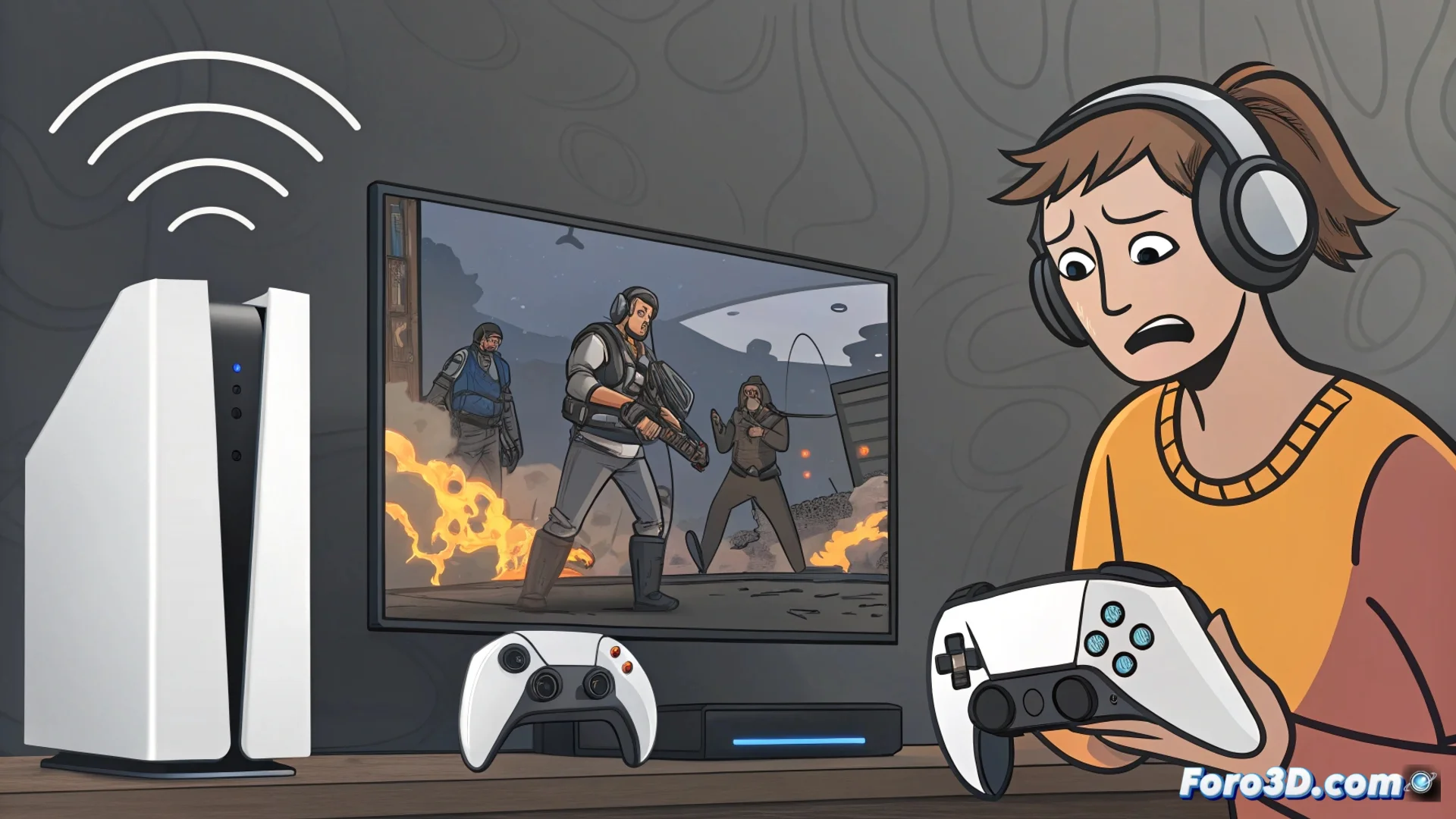
Troubleshoot Wi-Fi and Bluetooth Connectivity Issues on the PS5
PlayStation 5 users may find that their console has intermittent issues with wireless connections. These failures can disrupt online games, slow down downloads, or prevent reliable use of accessories like controllers or headphones. Identifying the cause is the first step to regaining a stable gaming experience 🎮.
Diagnose and Stabilize the Wi-Fi Connection
Before modifying the PS5 settings, it is crucial to check the status of your home network. Verify if other devices connect without issues to rule out a router failure. For a more stable connection, consider using an Ethernet cable or moving the console closer to the wireless access point.
PS5 Setup Steps:- Go to Settings > Network > Connection Settings.
- Select Set Up Internet Connection and choose the Custom option.
- Manually assign an IP address and switch the frequency band to 5 GHz, which usually has less interference than the 2.4 GHz band.
- If problems persist, try resetting the console's network settings from the same menu.
Wireless technology has its quirks. Sometimes, the router decides to take a break right in the middle of a crucial game.
Resolve Bluetooth Pairing Failures
Difficulties connecting or keeping devices like the DualSense controller or wireless headphones paired are common. These issues are often resolved with simple reset and re-pairing procedures.
Procedure for Bluetooth Devices:- Restart the console by unplugging it completely from the power source for a few minutes.
- Turn off the problematic Bluetooth device and then turn it back on in pairing mode.
- On the PS5, go to Settings > Accessories Devices and delete the problematic device's profile to pair it from scratch.
- Ensure there are no physical obstacles or nearby sources of interference, such as routers, microwaves, or other powerful transmitters.
Conclusion for Optimal Connection
Maintaining a stable connection on the PS5 requires checking both the console settings and the network environment. Using the 5 GHz band, minimizing interference, and restarting devices are effective actions. If failures continue after following these steps, it may indicate a hardware issue that requires contacting technical support. Implementing these solutions will allow you to enjoy smooth online gaming and reliable use of all your wireless accessories.