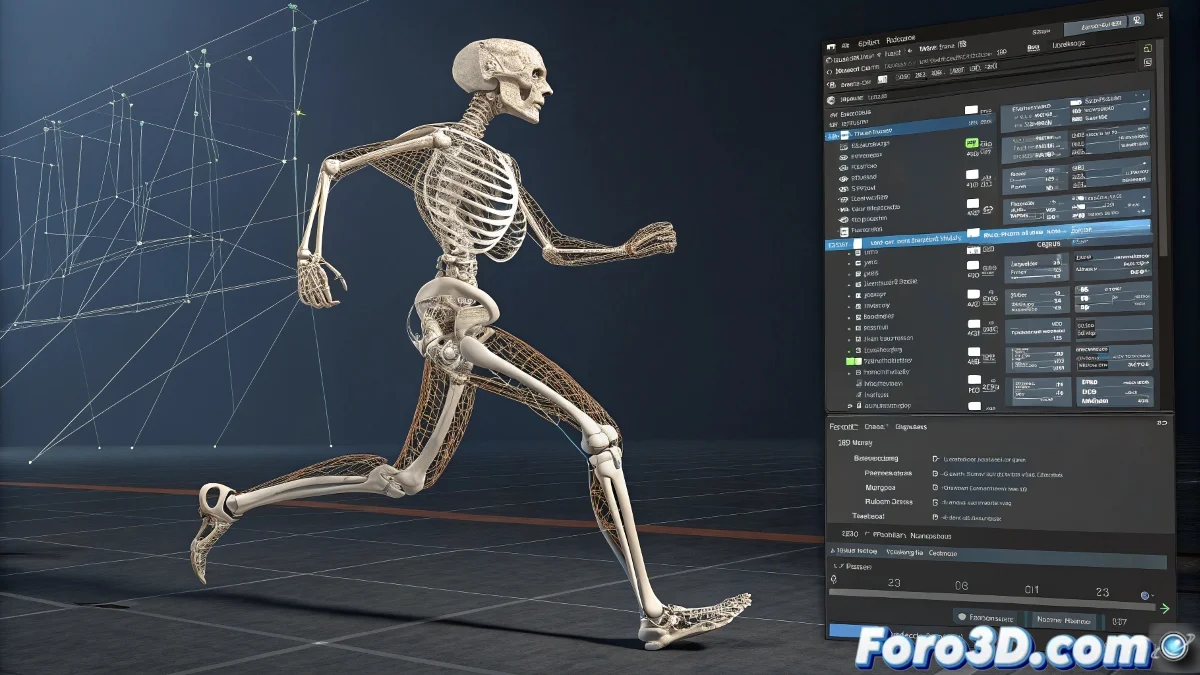
Avoiding Scale Issues When Using BVH Files
When applying a .bvh file to a humanoid model, scale and misalignment issues can appear faster than a spilled coffee on your desk ☕. This happens especially if the animation and the rig do not share the same units or proportions. Ensuring everything is on the same scale is the first step for a clean animation.
Scale Verification
Before importing the mocap, check that both the rig and the .bvh file are in the same unit of measurement. In Blender or Maya, you can adjust the import scale to match the model. This prevents the character from floating, deforming, or behaving like an out-of-control balloon 🎈.
Animation Retargeting
The bones of the rig and the mocap rarely match perfectly. This is where retargeting comes in: mapping each bone from the .bvh to the corresponding one in the rig. In Blender, you can use Motion Capture Tools or automatic Rigify, while in Maya, HumanIK works wonders by reassigning mocap data to the existing rig. It's like putting the right pieces into a three-dimensional puzzle 🧩.
Position and Offset Adjustments
Even with correct scale and retargeting, it may be necessary to move or rotate the character's root to match the start of the animation. Temporary constraints help align the initial position and prevent your model from flying off at the first frame 🚀.
Final Tips
Before merging, verify that the rig is clean, without prior deformations, with the correct hierarchy and appropriate scale. Test the animation on a short segment and use automatic retargeting tools to minimize errors. And if something is still off, you can always say it's artistic style 😅.