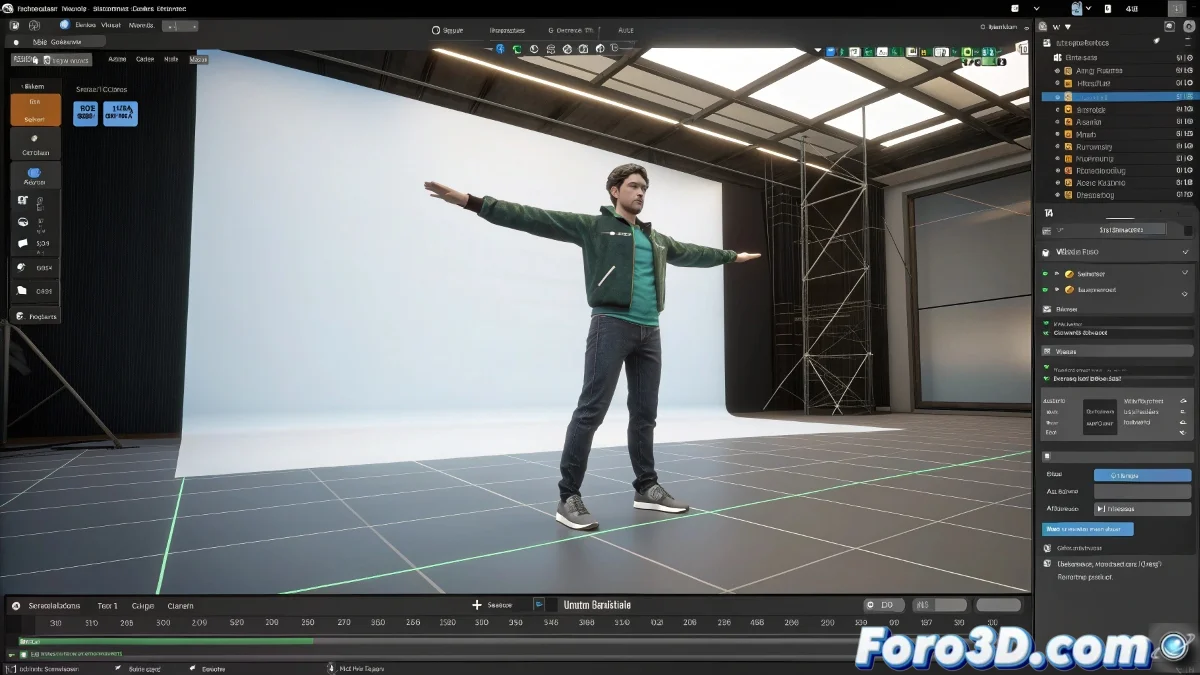
The Magic Mirror That Distorts in MotionBuilder
The Mirror function in MotionBuilder should be a productivity tool that doubles your effort, but it often feels like a funhouse mirror that distorts reality 🔮. The classic problem where the entire character rotates unexpectedly instead of symmetrically reflecting a pose is usually a cry for help from the software's internal axis system. MotionBuilder critically depends on consistent character orientation and precise mirror setup to function correctly, and any deviation in these fundamentals results in rotational chaos.
The Foundation of Everything: Correct Character Orientation
Before even thinking about touching the mirror button, the Character must be in its purest and aligned state. This means ensuring it's in a T-pose or neutral reference pose, and most importantly, that its main axis (usually Z) is perfectly aligned with MotionBuilder's global Z axis. Any residual rotation of the character in global space will confuse the mirror algorithm, causing it to try to correct the orientation of the entire skeleton instead of just reflecting individual bone rotations.
An misaligned character is like a crooked mirror; it will never reflect reality correctly.
Deciphering the Mirror Settings Configuration
The heart of the solution lies in the Mirror Settings dialog, accessible from the character control tools. Here, you must meticulously verify and configure which axis will be used for the reflection. For a standard left-right mirror, the X axis is the usual choice. But MotionBuilder also allows mirroring across other axes and offers options like Auto Mirror, which tries to guess the correct setup. If this option is active but misconfigured, it's a recipe for disaster. Manual precision is often more reliable than automatic in complex cases.
The Ghostly Role of Animation Layers
A frequent but less obvious culprit is the active animation layer. MotionBuilder might be applying the mirror to a layer that's not the one you're currently seeing or editing. Always check which layer is highlighted in the layer editor before executing the command. Additionally, ensure the mirror is being applied to the correct active character and not to a duplicated version or a different rig control that may be present in the scene. Consistency in selection is key.
Workflow for a Flawless Mirror
Follow these steps in order to tame the mirror function:
- Reset and Alignment: use Reset Character Orientation or manually ensure the character is in T-pose and aligned with the global axes.
- Mirror Settings Verification: open Mirror Settings and manually configure the reflection axis (e.g., X for Left/Right).
- Layer and Character Selection: confirm that the correct animation layer and target character are selected.
- Test and Adjust: apply the mirror to a simple pose first and observe the result. If it rotates, check the root or hips bone orientation of the character.
- Use of Poses: save the original pose as a pose asset before mirroring, for an easy backup.
With this methodical approach, the mirror will stop being a lottery and become the reliable tool it should be. And when it finally works, that perfect symmetry will be as satisfying as finding the sunny side of the street 😉.