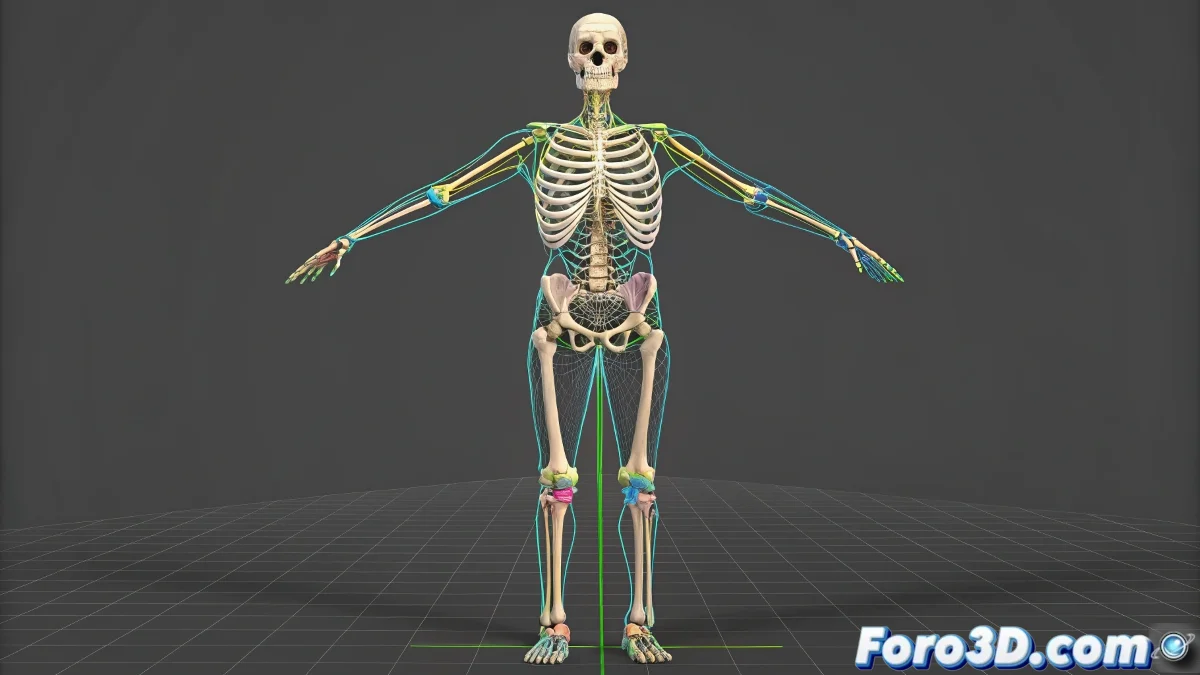
The Broken Mirror When Mirror Mode Only Works Halfway
The Mirror Mode in 3ds Max is one of those tools that promises to save you hours of tedious work, until you decide to use it and discover that only half of your character wants to cooperate 🪞. It's frustrating when the upper part mirrors perfectly, but the legs refuse to align, leaving your model with symmetry worthy of a horror movie. The heart of this problem almost always beats in the depths of the rig: inconsistent names, capricious bone orientations, and unbalanced weight assignments.
The First Clue: Naming Convention
Mirror Mode critically depends on the software being able to identify what is left and what is right. It does this through bone names. If your left leg is called Leg_L and the right one RightLeg, 3ds Max won't be able to recognize them as opposites. The convention must be strict and consistent. Common prefixes are L_ / R_ or Left / Right. Use the Rename Objects utility or a script to standardize all names before even applying skin. A wrong name is like a misspelled surname on an airplane ticket; it will leave you stranded.
Inconsistent bone names are the nightmare of Mirror Mode, confusing it more than a map without a legend.
Bone Orientation: The Rig's Internal Map
Even with perfect names, if the bones are not symmetrically oriented, the mirror will fail. Open the Figure Mode of your Biped or check the rotation of your custom bones. Ensure that the left thigh bone and the right one have their axis pointing in opposite but equivalent directions. A foolproof method is to select pairs of left/right bones and use the Mirror tool in the bone panel to guarantee that their transformations are exact mirror images. Symmetry is not a suggestion; it is a requirement.
Weights and Envelopes: The Territory of Chaos
The Skin Modifier and its weights are often the biggest culprit. If the leg vertices have messy weight assignments—like being influenced by spine bones or having orphaned weights—Mirror Mode won't have a clean base to work with. Before applying mirror, select the vertices of one leg and check in the Weight Tool panel that their influences are clean and only come from the bones of that same leg. Clean any strange weights. Sometimes, it's faster to remove the skin from the legs and reassign it from scratch than to try to fix an existing mess.
Workflow for a Flawless Mirror
Follow this methodical checklist to banish mirror problems:
- Name Audit: verify and correct that all left/right bones use the same naming convention.
- Symmetric Orientation: use mirror or alignment tools to ensure that paired bones are mirror images.
- Weight Cleanup: before mirroring, ensure the "good" leg's weights are clean and well assigned.
- Selective Test: apply the mirror to a small selection of vertices first to test the result.
- Post-Mirror Adjustment: after mirroring, always check the reflected leg and manually adjust any weird weights.
Mastering this process will turn Mirror Mode from a source of frustration into your best ally for efficiency. And when it finally works, that perfect symmetry will be as satisfying as finding the sunny side of the street on a winter day 😉.