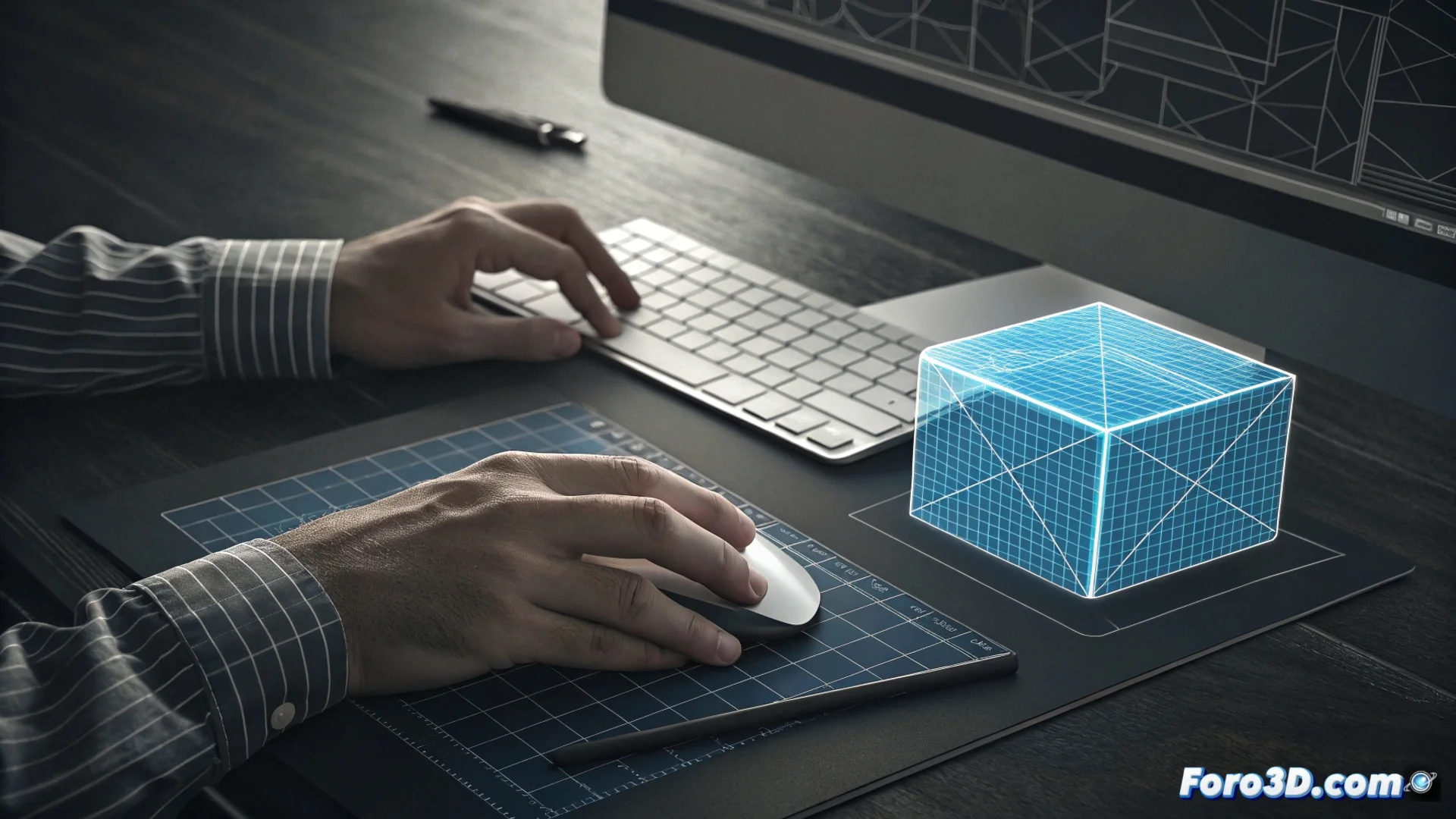
The SketchUp Push/Pull Tool for 3D Modeling
At the core of SketchUp lies a feature that defines its usage philosophy: the Push/Pull tool. This feature instantly converts any flat surface into a three-dimensional volume, eliminating technical barriers to shape ideas. 🛠️
How the Extrusion Process Works
The mechanism is intentionally simple. After selecting a face with the appropriate tool, you activate Push/Pull and click on it. As you move the cursor, the geometry extrudes perpendicularly, generating a prism. For precise control, you can enter a numerical value in the measurements box. An advanced workflow involves clicking on another face to automatically match heights.
Key Steps to Use Push/Pull:- Select a flat face with the selection tool.
- Activate Push/Pull and click on the selected face.
- Drag the cursor to define the height or type an exact value.
Push/Pull eliminates intermediate steps, allowing the designer to model directly on the existing geometry.
Advantages for Conceptual Design
This tool is essential for exploring forms with agility. Instead of relying on complex commands, you transform concepts into volumes with simple gestures. It's ideal for giving thickness to a wall, height to a slab, or creating voids within solids, such as windows in a facade. 🏗️
Common Practical Applications:- Giving volume to architectural floor plans.
- Creating recesses for doors and windows in a block.
- Adjusting the height of elements interactively and visually.
Precautions and Typical Errors
To achieve consistent results, it is crucial to apply the tool only to flat faces. Attempting to extrude a curved or poorly defined surface can generate corrupt geometry and topological issues that distort the model. Verifying that the source face is completely flat avoids these setbacks and maintains the project's integrity. ✅