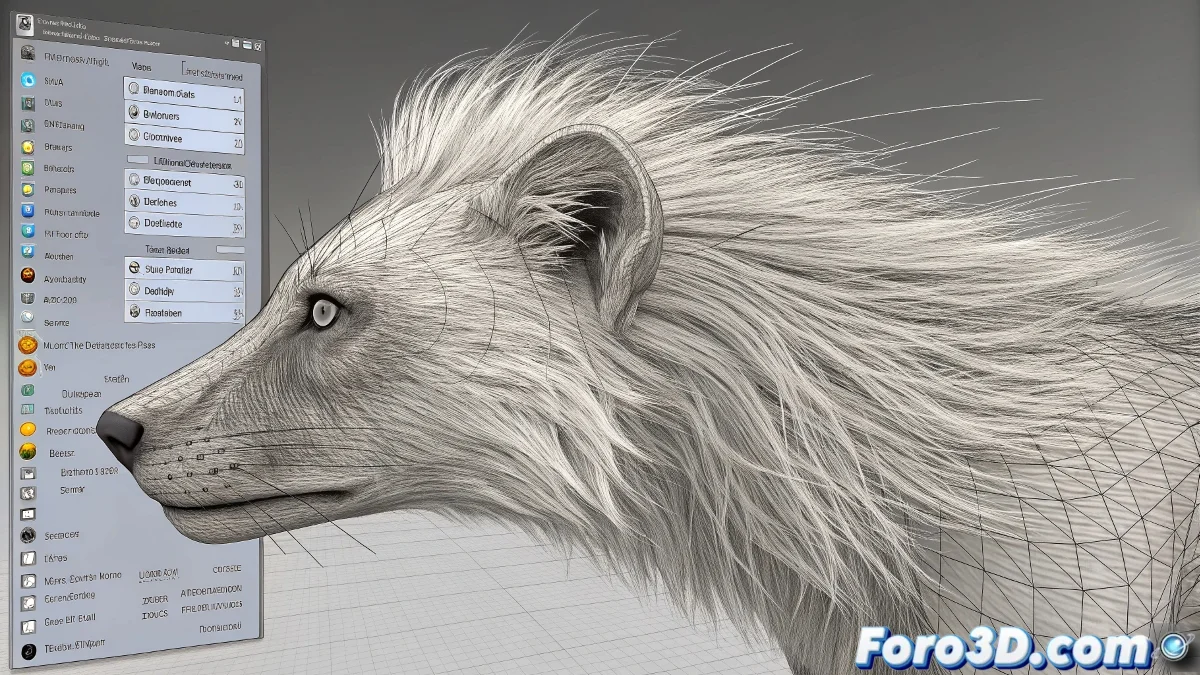
When the Modifier Decides to Play Hide and Seek
The classic ghostly Hair and Fur problem is one of those mysteries that has caused more sleepless hours than failed renders. The red hairs appear in the viewport, but the modifier is conspicuously absent from the stack, leaving the user with the feeling of seeing capillary ghosts. This situation usually occurs when 3ds Max decides that some modifiers are too shy to show up in public.
The frustration is understandable, especially when tutorials work perfectly with sample files. The difference is often in specific scene or viewport configurations that interact peculiarly with certain modifiers.
The Modifier Hijacking in the Stack
The most common problem occurs when the Hair and Fur modifier is applied, but automatically goes into an invisible state in the stack. This can happen due to conflicts with other modifiers in the stack, especially when MeshSmooth or TurboSmooth are applied afterward. The order of modifiers is crucial for the proper functioning of the hair system.
The immediate solution is to select the object and carefully review each level of the stack. Sometimes, Hair and Fur is present but collapsed or minimized. Other times, it has been applied to a sub-object selection instead of the entire object.
- Check all stack levels expanded
- Verify if sub-object selection is active
- Check the modifier order
- Look for collapsed or hidden modifiers
A missing modifier is like a rebellious hair: it's always there, but not where you expect it
Modifier Rescue Methods
When manual searching fails, there are more aggressive techniques to regain control. The most effective method is to access the Modifier List and type Hair and Fur manually. If the system detects that an instance already exists, it may offer options to recover it or replace it.
Another strategy is to use the object's context menu and look for Object Properties to check if the modifier is applied but with visibility disabled. In extreme cases, it may be necessary to collapse the stack to the Unwrap UVW level and reapply everything from scratch.
- Search manually in Modifier List
- Check mesh Object Properties
- Reset object's XForm
- Collapse and rebuild the stack
Prevention of the Ghostly Problem
To avoid future disappearances, it is recommended to follow a specific order in the modifier stack. Hair and Fur should be applied after the mapping coordinates but before the subdivision surfaces. Unwrap UVW is particularly sensitive and must be perfectly configured before adding the hair system.
The viewport configuration also influences. Some graphics drivers or hardware settings can cause certain modifiers not to display correctly. Switching between display modes or updating drivers can resolve these visual conflicts.
- Apply modifiers in the correct order
- Check viewport configuration
- Update graphics drivers
- Use scene states for backups
Ghost-Proof Workflow
The safest strategy involves saving incremental versions before applying Hair and Fur. This way, if the modifier decides to disappear, you can return to a stable point without losing work. It is also useful to work with XRefs for the hair, separating it from the main mesh and minimizing conflicts.
For complex projects, consider using Isolate Selection mode when working with Hair and Fur. This reduces interference from other objects and modifiers in the scene, creating a more stable environment for the hair system.
- Save versions before applying hair
- Use XRefs for complex systems
- Work in Isolate Selection mode
- Document the successful stack order
Solving this mystery provides that unique satisfaction of someone who has beaten the interface at its own game. Because in the 3D world, sometimes the biggest challenge is not creating realistic hair, but convincing the software to show you where the switch is to control it 😏