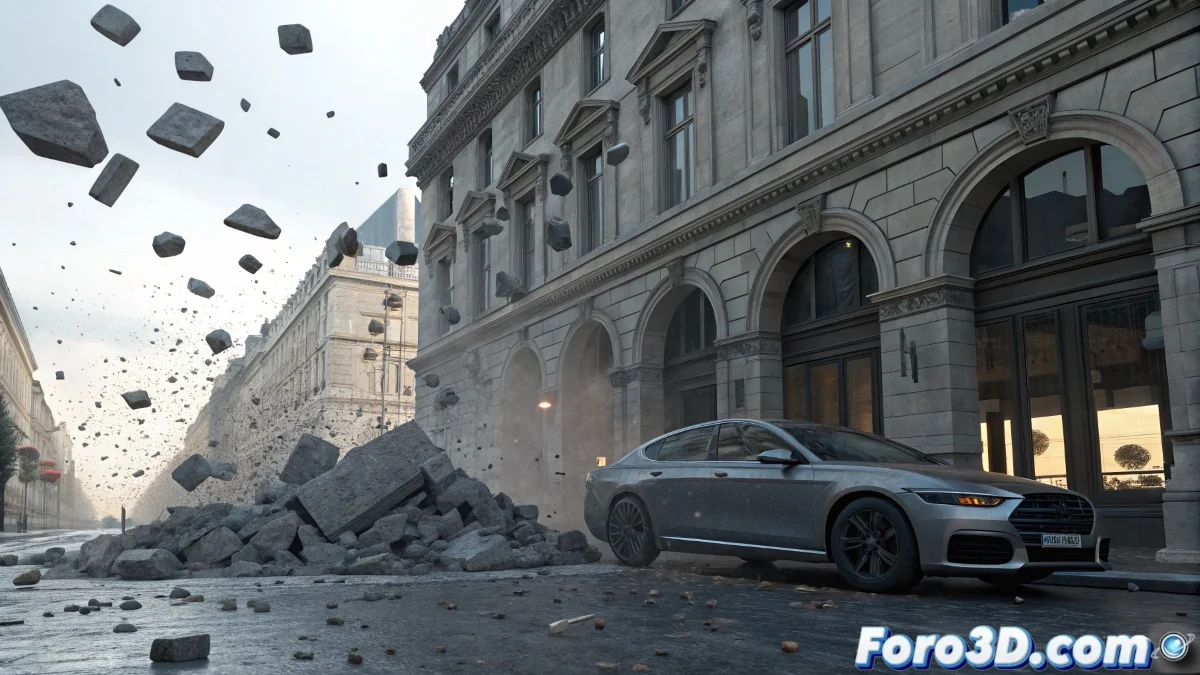
When Objects Decide to Become Ghosts
The problem of the cube passing through the floor in RayFire is as common as it is frustrating, especially when you're just starting with this powerful plugin. The paradox of having an object marked as unyielding that should be impenetrable, but behaves as if it were air, usually stems from several simultaneous factors that need fine-tuning. You're not alone in this battle against rebellious physics.
The second issue with inactive objects that resist being selected is usually simpler to solve, but equally baffling when you don't know the specific trick that RayFire expects you to use. Both issues have solutions once you understand the logic behind the system.
Solution to Objects Passing Through Floors
The main problem usually lies in the collision settings rather than the selection of unyielding objects. First, check that the floor has sufficient thickness - RayFire can have issues with extremely thin surfaces. A minimum thickness of 5-10 units is usually safe.
Then, in the floor object's properties, make sure it's set as Concave in the collision type, especially if it's a large plane. Unyielding objects need Concave collision to work properly, while dynamic objects usually use Convex.
- Adequate floor thickness (minimum 5 units)
- Concave collision type for unyielding objects
- Check real scene scale
- Appropriate Collision Offset in global settings
In RayFire, even the most solid floor can become a ghost if not properly convinced
Correct Setup for Realistic Demolition
For objects to demolish instead of pushing, you need to adjust two critical parameters: Impact Force and Fragility. In the properties of the objects to demolish, increase Fragility to values between 50-80 so they break easily on impact. The Impact Force of the impacting object must be sufficient to exceed this threshold.
Additionally, enable the Demolish by Kinematic Objects option in the Physics panel to allow moving objects to cause destruction. Without this option enabled, only objects specifically marked as demolishers will be able to break other objects.
- High Fragility on objects to demolish (50-80)
- Sufficient Impact Force on impacting object
- Demolish by Kinematic Objects enabled
- Velocity Threshold adjusted according to scale
Solution to Selection Issues in Inactive Objects
The mystery of objects not being added to inactive objects usually has two main causes. First, check that the objects are not already in another RayFire category (like dynamic or sleeping objects). An object cannot be in multiple categories simultaneously.
Second, use the correct selection method: click the Pick button in the inactive objects section, do not try to drag and drop. Then select the objects in the viewport or from the name list. If the objects are instances, make sure to select the master instance.
- Use Pick button, do not drag and drop
- Check that objects are not in other categories
- Select by name if there are picking issues
- Review instances and references
Verified Step-by-Step Workflow
To ensure success, follow this specific order: First, add all static objects (floor, walls) to Unyielding Objects. Then, the objects to demolish go to Dynamic Objects. Finally, any object that should remain immobile but can be destroyed goes to Inactive Objects.
Before running the simulation, always use Preview to check collisions. Preview mode visually shows how RayFire interprets collision geometries, allowing you to detect issues before the full calculation.
- Specific setup order
- Use Preview to check collisions
- Test with simple geometries first
- Save successful setup as preset
Solving these initial issues will turn you into the master of digital destruction, capable of demolishing from a simple cube to entire skyscrapers with surgical precision. Because in the world of RayFire, even the most persistent ghost can learn to obey the laws of physics with the right setup 😏