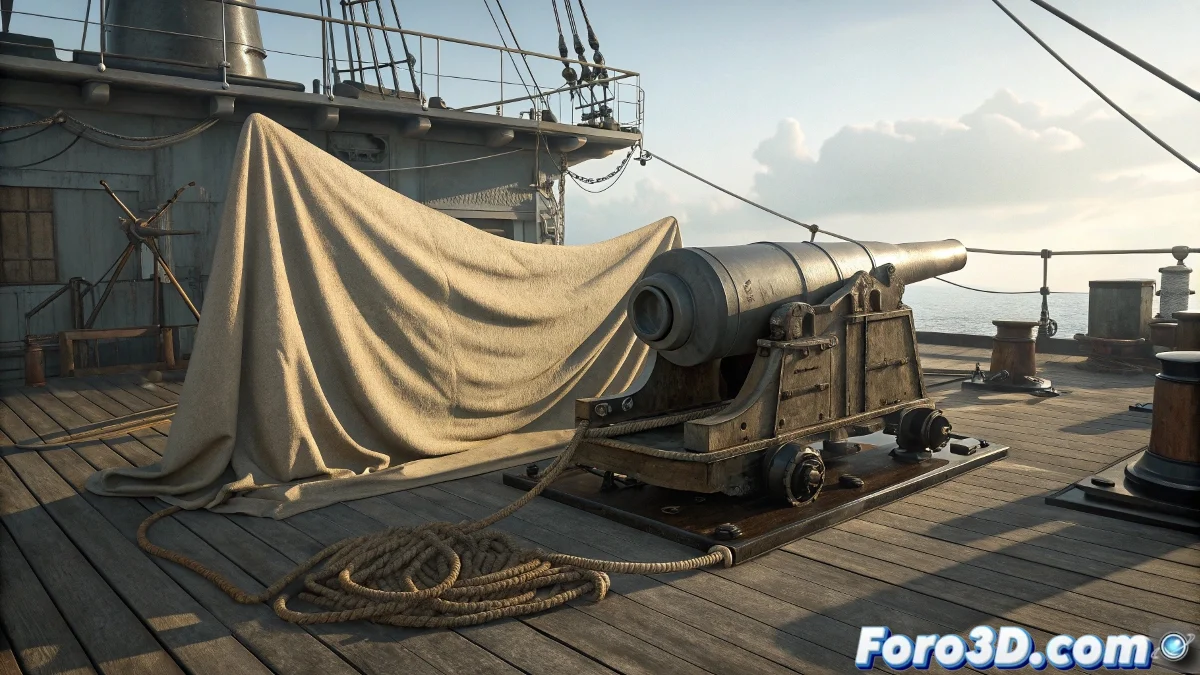
When Your Fabric in 3ds Max Has More Freedom Than a Pirate 🏴☠️
Trying to tie a sail to an old ship with the Cloth modifier can turn into an epic battle. No matter how many vertex groups and colliding objects you assign, the fabric seems determined to dance to the beat of its own drum. But don't throw your computer overboard just yet, here's the solution.
The Recipe for Tying Fabrics That Actually Obey
- Prepare Your Vertices: Meticulously select the anchor vertices and create a specific group
- Assign Correctly: In the Cloth > Group panel, choose Node and select the anchor object
- Clean Transformations: Apply Reset XForm to all involved objects
- Modifier Order: Place Cloth after any deformer but before Smooth
Setting up Cloth correctly is like mooring a ship: if you don't tie good knots, you'll end up sailing adrift.
3 Reasons Why Your Fabric Rebels
- Dirty Transformations: Unapplied scales or rotations on anchor objects
- Poorly Assigned Groups: Vertices that don't actually belong to the anchor group
- Misconfigured Collisions: Objects that should collide but aren't on the list
Plan B: When Cloth Acts Like a Rebellious Corsair
If it still doesn't work after all that:
- Try Marvelous Designer for complex simulation
- Export as an animated mesh and apply Skin Wrap in Max
- Consider tyFlow for more controllable simulations
And remember: if your fabric simulation seems possessed, it's not a bug... it's the polygons celebrating their independence party. With these tricks, at least you'll be able to negotiate a truce with them. ⛵
Final Tip: If all else fails, you can always say it's a ghost ship. Stylized rendering covers a multitude of simulated sins!