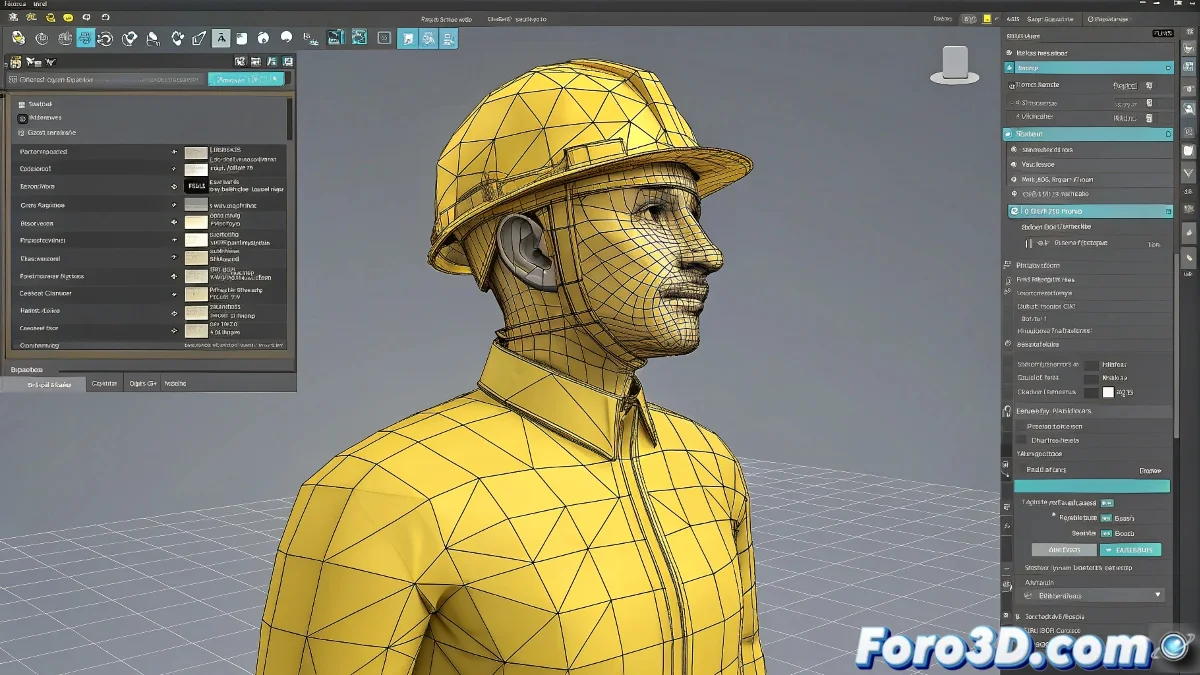
When Maya Decides Your Entire Model is an Indivisible Block 🧱
You're there, happily modeling, when suddenly you try to move a simple vertex and... the whole object moves with you! Before questioning your sanity, understand that Maya is just being Maya, and it has its peculiar ways of "helping".
Quick Problem Diagnosis
- Yellow outline = Object mode (full selection)
- Blue/green outline = Component mode (vertices/edges/faces)
- Gradual deformation = Soft Selection accidentally enabled
- Blocked movement = Frozen attributes in Channel Box
Step-by-Step Solutions
1. Switch to Component Mode Correctly
- Right-click on the object
- Choose Vertex, Edge or Face from the radial menu
- Alternatively, press F8 to toggle between modes
- Verify that the outline is blue/green, not yellow
2. Disable Soft Selection (Beginners' Nightmare)
- Press the B key to toggle
- Or look for the Soft Selection icon in the toolbar
- If you see an influence circle when selecting, it's enabled
"Soft Selection is like the friend who never lets you do things alone... sometimes it helps, but sometimes it just gets in the way" - 3D Modeler
3. Check Locked Attributes
- Open the Channel Box (Ctrl+A)
- Look for grayed-out attributes (translate, rotate, scale)
- Right-click → Unlock Selected if they are locked
- Check if the object is in a group with transformations
Prevention for the Future
- Useful Shortcuts:
- F8 = Toggle object/component mode
- F9 = Vertex mode
- F10 = Edge mode
- F11 = Face mode
- Customize markers for your favorite tools
- Save versions before making big changes
When Nothing Works... Plan B
- Export the object as OBJ
- Import into a new scene
- Combine all transformations
- Freeze transformations (Modify → Freeze Transformations)
Remember: struggling with selection in Maya is an initiation rite. Everyone goes through it, and in the end you end up learning more shortcuts than you ever imagined needing. Persist! Soon you'll be moving vertices with the precision of a digital surgeon. 🏥