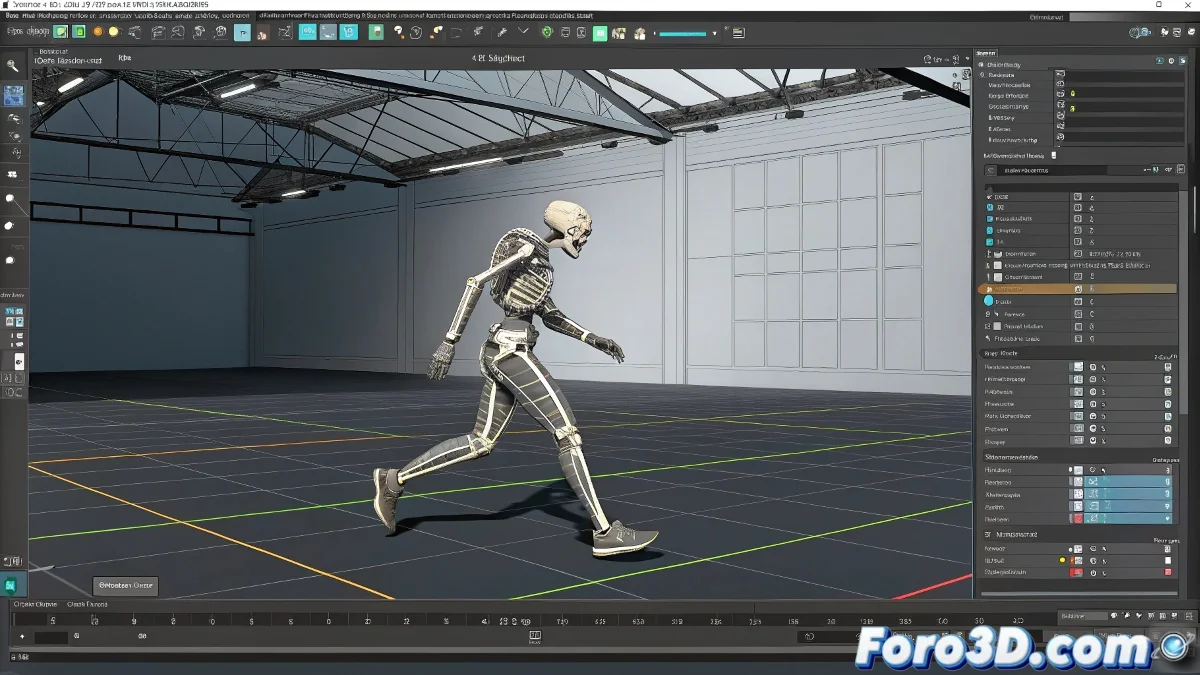
Why Does Your Character in 3ds Max Seem to Want to Dig to the Center of the Earth? 🌍
If when playing certain animation clips in Biped, your model decides to imitate a mole instead of moving gracefully, you're not alone. This problem, as common as it is frustrating, is usually due to poor handling of the root track or unfriendly transitions between clips.
The pelvis (or COM) is like your character's GPS: if it's not properly calibrated, it will end up in the wrong place.
Solutions to Stop Your Character from Sinking
Here are some ways to prevent your 3D creation from ending up in the depths of the scene:
- Check Relative Vertical Motion mode: In the Mixer, make sure the problematic clip is not in Absolute. This small detail can make the difference between smooth movement and a one-way trip underground. 🏗️
- Use Match Transforms: This tool adjusts the position of the new clip to match the end of the previous one. Basically, it tells your character: Hey, there are no mines here, stay on the surface.
- Add blends between clips: A smooth transition avoids abrupt jumps. Think of it as putting a pillow between two animations that don't get along.
Is the Mixer Not Cooperating? Try These Alternatives
If Biped's Mixer is giving you more trouble than a cat in a porcelain shop, consider other options:
- Animation Layers: Allows overlaying animations without losing your mind (or vertical position).
- CAT Rigs: More versatile and with better control for complex animations. 🐱
- Pose Presets: Save key poses and use them directly in the main timeline.
Remember, in the world of 3D animation, the only things that should sink are your mistakes... and maybe that coffee you've been drinking for three hours. ☕