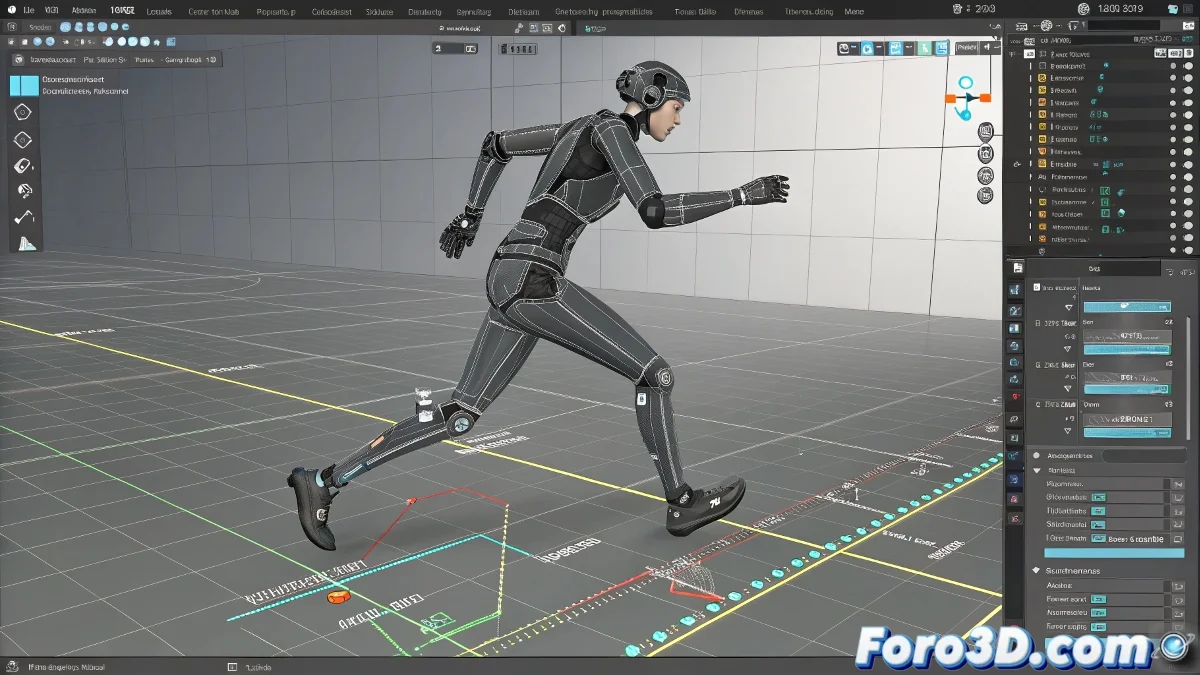
When your Biped decides to be a statue instead of animating 🗿💃
The Biped system in 3ds Max can be your best ally... or turn into that nightmare where the arms don't move and the footsteps magically disappear. But don't throw your keyboard yet, we have the solution to bring your character back to life.
"A poorly configured Biped is like a broken ventriloquist dummy: it neither speaks nor moves, but embarrasses you just the same" — Frustrated animator.
Diagnosis and step-by-step solution
- The magic switch: Figure Mode vs Motion Mode
- Figure Mode ONLY for adjusting proportions
- Motion Mode FOR ANIMATING (always disable Figure Mode)
- "Figurine" icon off = animation mode active
- Problems with static arms
- Open Track View > Curve Editor
- Check that rotation controllers are not locked
- Switch to Euler XYZ if they are in quaternions
- Check hidden constraints in the stack
Advanced solutions
- Ghost Footsteps:
- Create new footsteps from scratch
- Use the "Create Multiple Footsteps" button
- Verify that the Biped is in the correct initial position
- Problems with Physique:
- Reassign the Physique modifier
- Adjust stiffness parameters in Vertex sub-object
- Try "Reinitialize" in the Physique panel
When everything fails
Drastic measures that work:
- Save and restart 3ds Max (yes, the classic "turn it off and on again")
- Create a new Biped and transfer the animation
- Export/import the character as FBX
- Update to the latest version (if using 3ds Max 2011, consider upgrading)
Remember: mastering Biped is like taming a tiger - it requires patience, but when you achieve it, you get spectacular results. 🐅✨
PS: If after everything your character is still motionless, you can always sell it as "cutting-edge digital sculpture". Contemporary art accepts everything.