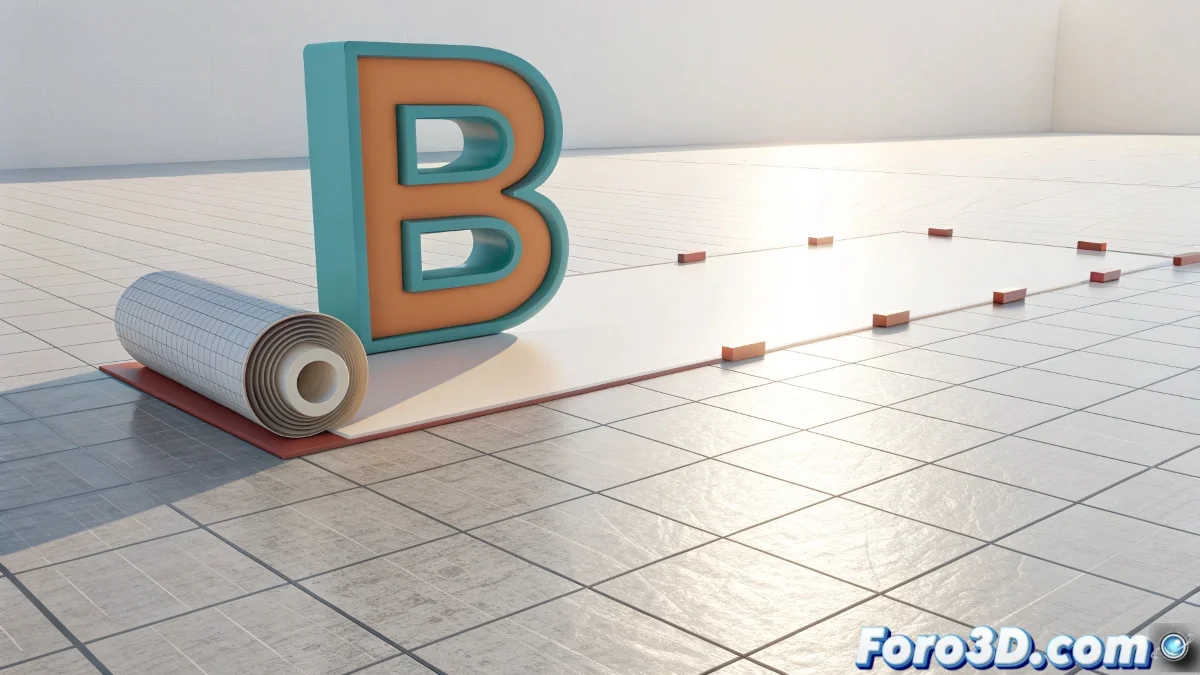
When Your Letter Needs to Roll Like a Circus Star 🎪🔠
Making a letter roll along its outline in Blender is like teaching a book to do somersaults: it requires technique, patience, and a bit of digital magic. Here are two foolproof methods to achieve it, from perfect artistic control to the controlled chaos of real physics.
"A well-rolling letter is like a good joke: timing is everything" — Typographic Animator.
Method 1: Artistic Precision with Drivers
- Prepare your letter:
- Convert text to mesh (Alt+C)
- Adjust the pivot to the lower contact point
- Calculate the "effective rolling radius"
- Magical mathematical connection:
- Add driver to X location
- Use the formula:
rotation_z * (perimeter/360) - Adjust multipliers to avoid slipping
Method 2: Wild Physics with Rigid Body
- Basic setup:
- Enable Rigid Body (Active) for the letter
- Use Collision Shape: Mesh (maximum precision)
- Disable Deactivation for continuous movement
- Perfect launch:
- Add initial force or impulse with Empty
- Experiment with friction values (0.4-0.8)
- Use Time Scale to adjust speed
Professional Tricks
For studio-quality results:
- Hybrid combination: Use physics as base and adjust manually
- Shape Keys: For deformations during rolling
- Constraints: Limit axes for specific movements
- Guide Empty: Create curved path with Path Constraint
Solution for Problematic Letters
When physics rebels (letters with holes like B, A, D):
- Use Collision Shape: Convex Hull (for stable simulation)
- Create simplified version only for collisions
- Manually animate problematic frames
With these methods, your letter will roll smoother than a bowling ball... though it probably won't knock down any pins. 🎳✏️
P.S.: If your "O" letter decides to behave like a perfect hoop, enjoy the moment. It's its day of glory.