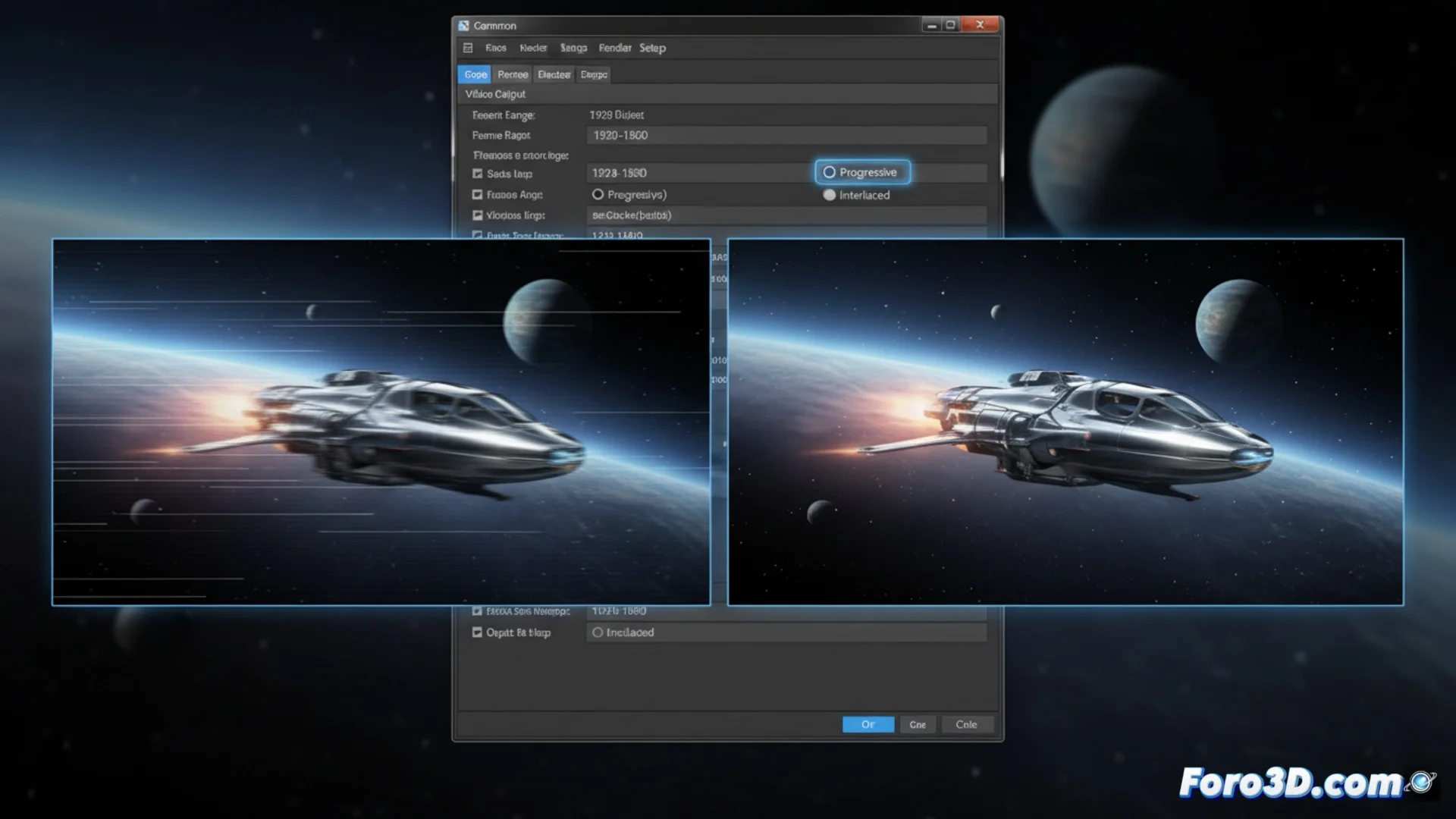
Prevent 3ds Max from Generating Interlaced Frames When Rendering
When processing an animation in 3ds Max, you may get a visually defective result if the software generates interlaced frames. This issue, which manifests as visible horizontal lines during movement, usually occurs when choosing old video formats or enabling specific field settings. To achieve optimal quality, it is essential to configure the render engine to produce a progressive sequence. 🎬
Adjust the Render Engine for Progressive Output
The main solution lies in the Render Setup window. Go to the Common tab and locate the Render Output section. When you click Files... to define the file path and name, a format selector opens. If you choose a container like AVI or MOV, a Setup button will appear. Clicking it will give you access to the codec-specific parameters. In this new window, you must disable any checkbox that mentions Interlaced or Fields. Instead, enable the Progressive mode or the option that says Frames (no fields). This change ensures that each frame is represented complete in a single instant, eliminating the sweep effect. 🔧
Key steps in the setup:- Open the Render Setup dialog and navigate to the Common tab.
- In Render Output, click Files... and select the desired video format.
- Use the codec's Setup button to disable Interlaced and select Progressive.
Configuring the render for progressive frames is the fundamental action to avoid the typical visual degradation of interlacing.
Opt to Render Image Sequences
The most robust method to completely bypass this issue is to avoid rendering directly to a compressed video file. In the same save dialog, select an image format per frame, such as TGA, PNG, or EXR. This approach generates a folder with individual images, one for each instant of the animation, which eliminates any possibility of interlacing being introduced. Later, you can combine these images into a clean video using post-production software like Adobe After Effects, DaVinci Resolve, or the video tools included in 3ds Max. This workflow is preferred in professional environments because it provides absolute control over compression and final quality. 🖼️
Advantages of using image sequences:- Eliminates definitively the risk of getting interlaced video.
- Provides maximum control over compression and quality in post-production.
- It is the professional standard for producing high-fidelity animations.
Review Your Settings if You See Artifacts
If your rendered animation shows a line effect or looks like an old television broadcast in scenes with fast movement, the source is almost certainly in the field settings. It is very likely that, without realizing it, you have enabled the interlacing option at some step in the process. Meticulously reviewing the output settings in the Render Setup and preferring rendering to image sequences are the most effective strategies to ensure a sharp and professional visual result. Remember that a small adjustment in the settings can make a big difference in the final quality of your project. ✅