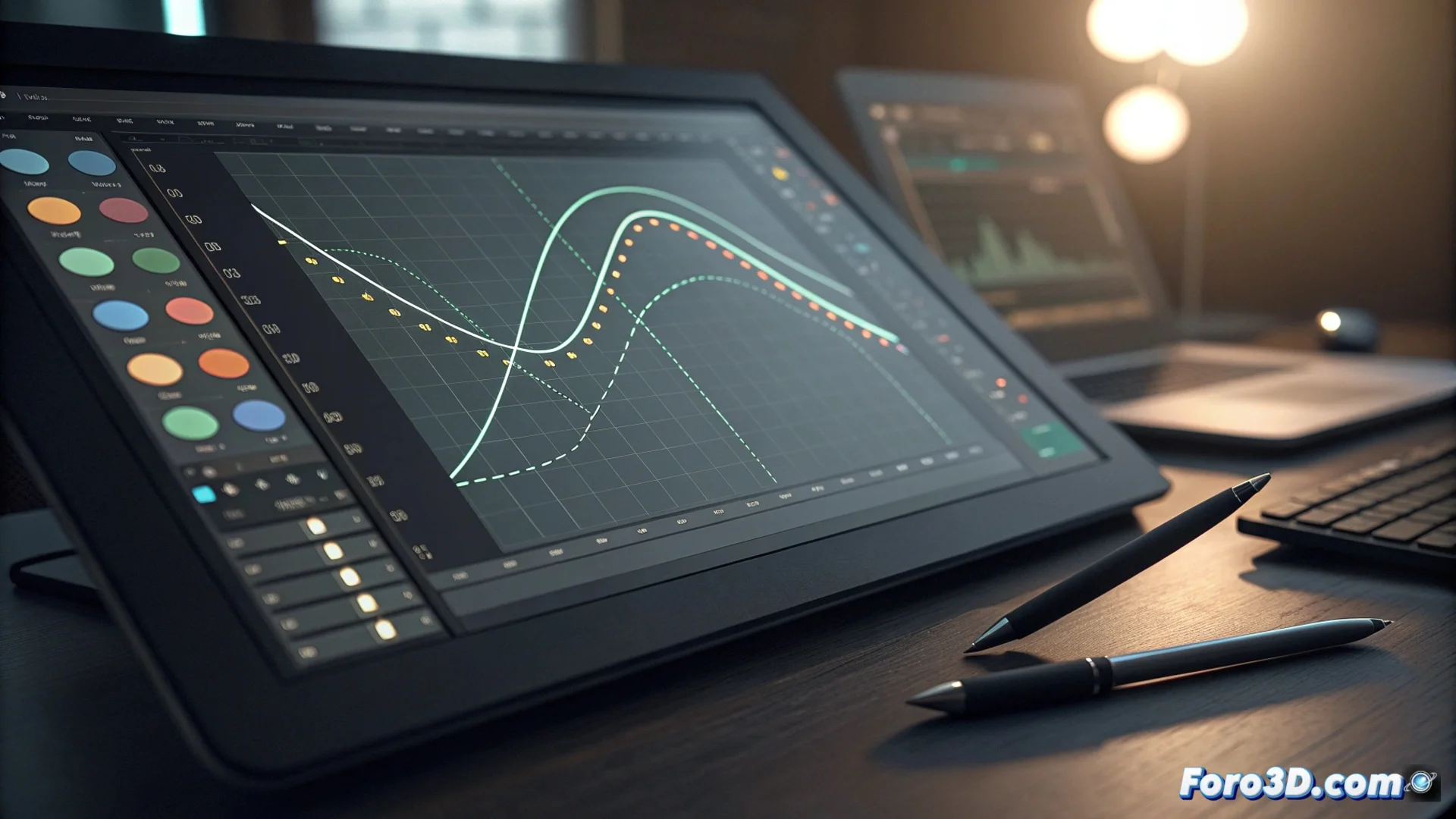
The OpenToonz Function Editor: Control Animation Interpolation
In the workflow for animating with OpenToonz, the Function Editor stands out as a central tool. This module allows viewing and modifying the interpolation curves of any animatable parameter, such as an element's position or opacity. Graphing these values over time provides meticulous control over how the animation evolves between two keyframes, allowing adjustments to acceleration, deceleration, and smoothness of movements. The result is more organic and dynamic animations that avoid linear and mechanical transitions. 🎬
Accessing and Using the Function Editor
To open the Function Editor, select an animated parameter on the timeline and choose the corresponding option from the menu or use a keyboard shortcut. The window displays a grid where the horizontal axis represents time in frames and the vertical axis the parameter value. Each keyframe appears as a control point on the curve. Manipulating these points or their tangent handles defines how the curve enters and exits the keyframe, thus altering the interpolation. This allows creating smooth, linear, or stepped curves, offering significant flexibility.
Key Elements of the Editor:- Time and Value Grid: Provides the visual framework for editing parameter evolution.
- Control Points: Represent keyframes and are the main nodes for manipulating the curve.
- Tangent Handles: Control the slope and length of the curve at the entry and exit of each key point.
Mastering this editor is a crucial step, although sometimes more time can be spent polishing a motion curve than drawing the keyframe itself.
Types of Interpolation and How to Apply Them
OpenToonz includes several predefined interpolation types, such as linear, smooth, and hold, which are applied from the context menu. However, the real power lies in manually editing Bézier curves. A concave curve can simulate an object accelerating as it leaves a point, while a convex one can indicate deceleration as it approaches the next. Adjusting the length and angle of the tangent handles is essential for fine-tuning the pace. This is fundamental for giving weight and realism to movements, as almost nothing in nature moves at constant speed.
Practical Applications of Curves:- Accelerate and Decelerate: Use Bézier curves to simulate inertia and gravity in movements.
- Abrupt Movements: Employ hold interpolation or stepped curves for mechanical actions or impacts.
- Smooth Transitions: Create fluid curves for organic movements, like a character's sway.
Integrating the Editor into Your Animation Workflow
Effectively incorporating the Function Editor involves a constant back-and-forth between the animation viewer and the curve graph. This iterative process is key to achieving perfect fluidity. Understanding how each curve adjustment affects the on-screen movement allows animators to go beyond simply placing keyframes and start truly directing the feel and rhythm of the animation. Mastering this module transforms interpolation from an automatic process into a top-tier expressive tool. 🛠️