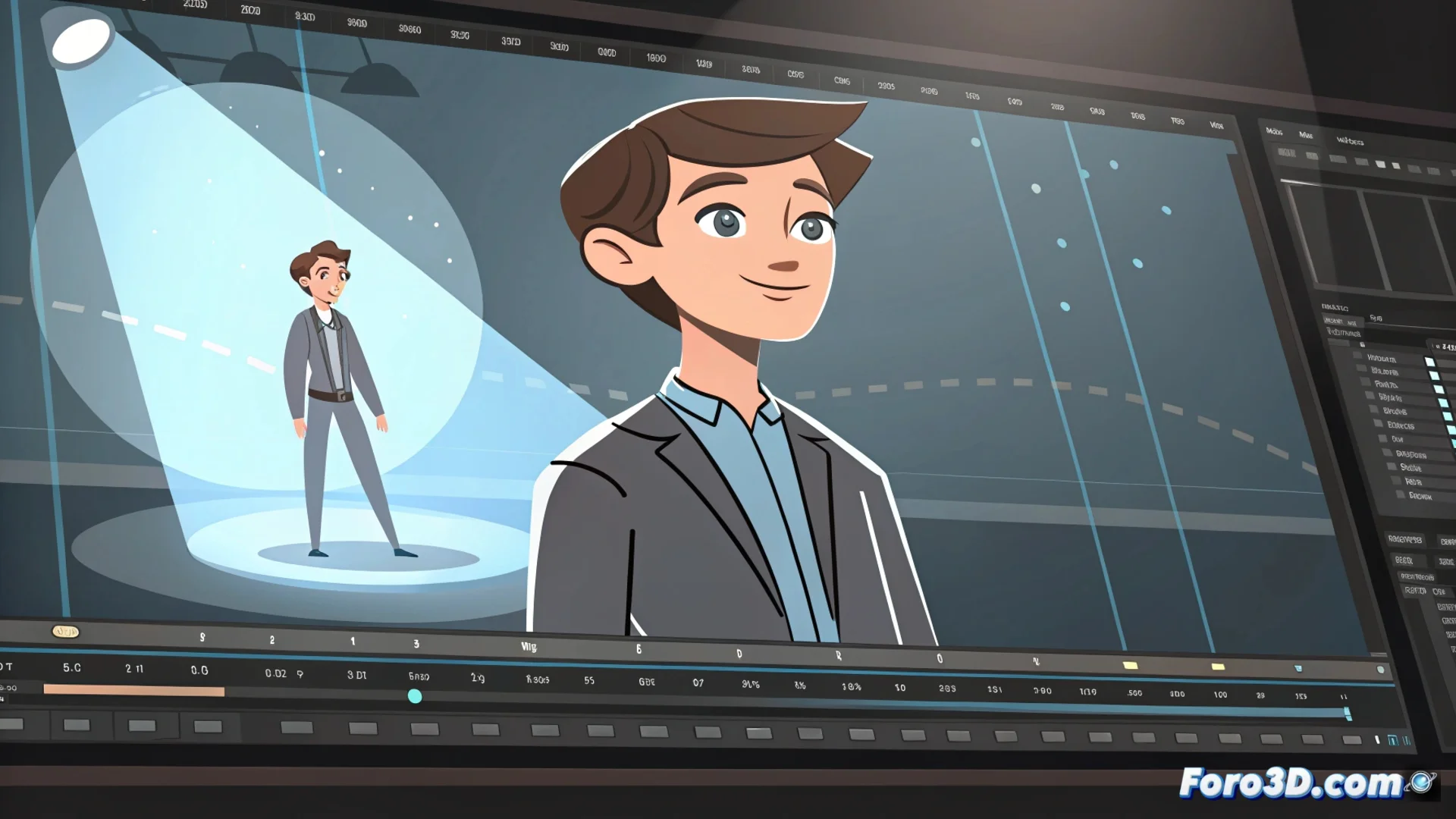
How to Use Motion Tweening in Adobe Animate
Adobe Animate includes a key feature for efficient animation: motion tweening. This tool automatically calculates the frames between two defined states of a symbol, generating smooth transitions for position, scale, or rotation. It is essential for optimizing the 2D animation workflow. 🎬
Setting Up a Tween Step by Step
The process to create an interpolated animation is systematic. First, place an instance of a symbol, such as a movie clip, on the initial frame of the timeline. Then, right-click on that frame and choose Create Classic Tween or Create Motion Tween. Next, move to a later frame, modify the symbol's properties (such as its position), and Animate will generate all the intermediate frames. You can edit the motion path directly on the stage by dragging the control points.
Key properties you can animate:- Position and transformation: Move, scale, or rotate the symbol between two points.
- Color and transparency: Modify hue, saturation, or alpha value over time.
- Filter effects: Apply and animate a blur or shadow to add depth.
A common mistake is trying to tween objects that are not symbols, which can force an automatic conversion or fail. Always convert your elements to symbols first for precise control.
Adjusting the Animation's Pace and Dynamics
Beyond moving an object, tweens allow fine control over its behavior. Use the properties panel or motion editor to apply acceleration effects, known as easing. An ease in makes the animation start slow and then accelerate, while an ease out produces deceleration at the end. These adjustments add realism and dynamism, preventing movements from appearing mechanical or linear.
Advantages of using motion tweens:- Saves time: Eliminates the need to manually draw or position each individual frame.
- Easy to edit: Modify the initial or final keyframe and the entire animation updates instantly.
- Complex animations: Allows combining multiple properties (like rotating while changing color) in a single tween.
Practical Considerations and Best Practices
To avoid common issues, ensure the layer contains only the symbol you want to animate. Tweens work best with Movie Clip or Graphic symbols. Remember that you can create multiple tweens on different layers to animate several elements independently. This technique is the foundation for producing clean and professional animations in web, interactive, or video projects. ✅