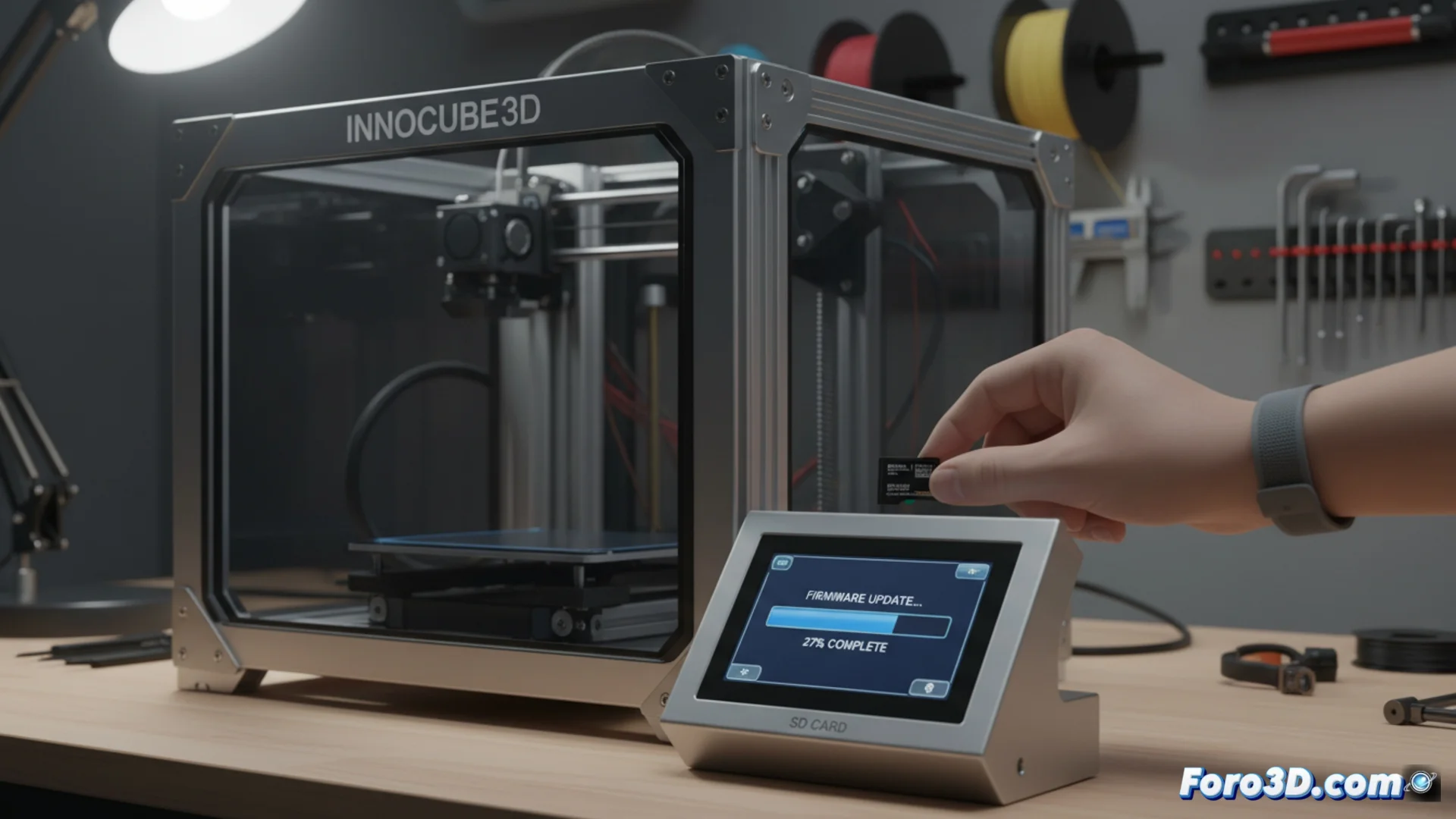
How to Update the Firmware on the INNOCUBE3D IDEX Printer
Keeping your printer's firmware up to date is key to accessing new features and stability improvements. This process, although straightforward, requires following precise steps to avoid errors. 🛠️
Obtain and Prepare the Necessary Files
The first step is to download the firmware package from the manufacturer's official website. Make sure to select the exact version corresponding to your INNOCUBE3D IDEX model. Additionally, you will need a microSD card formatted with the FAT32 file system.
Essential Preparations:- Obtain the main file, which usually has a .bin extension, and any attached configuration files.
- Format the memory card to remove previous data and ensure compatibility.
- Have a card reader handy to connect the microSD to your computer.
Patience is your best ally: never interrupt the update process once it has started.
Transfer the Files and Start the Update
Copy the downloaded firmware files directly to the root of the microSD card. Do not place them in any subfolder. Then, safely eject the storage device from your operating system.
Steps to Execute the Update:- With the printer completely turned off, insert the microSD card into its designated slot.
- Turn on the printer. The system will automatically detect the new firmware and begin installing it.
- During this time, the screen may show progress or remain inactive; it is crucial not to disconnect the power or remove the card.
Finalize and Verify
The process may take several minutes. When finished, the printer will restart by itself. At that point, you can remove the microSD card. Sometimes, the biggest challenge is not following the technical steps, but locating that memory card that seems to hide when you need it most. ✅