How to Update the Firmware on the Diggro Alpha-5 Printer
Keeping the firmware of your 3D printer up to date is key to accessing new features and improving its stability. This process, although simple, requires following precise steps to avoid errors. We explain how to do it on the Diggro Alpha-5 safely 🛠️.
Obtain and Verify the Firmware File
The first step is to download the update file. Always go to the manufacturer's website or an authorized distributor. It is essential to confirm that the version you download is compatible with your exact printer model; using an incorrect file can cause serious failures.
Key Initial Steps:- Download the file from official sources.
- Verify that the version matches your Alpha-5 model.
- The file usually has extensions like .bin or .gcode.
Never modify the firmware file name or place it inside a folder on the SD card.
Prepare the Installation Medium
You will need an SD memory card. For the printer to recognize it, you must format it using the FAT32 file system. Other formats like NTFS or exFAT may not work. Once ready, copy the downloaded firmware file directly to the root of the card.
Preparation Checklist:- Format the SD card in FAT32.
- Copy the .bin or .gcode file to the root (not inside subfolders).
- Keep the original file name.
Execute the Update
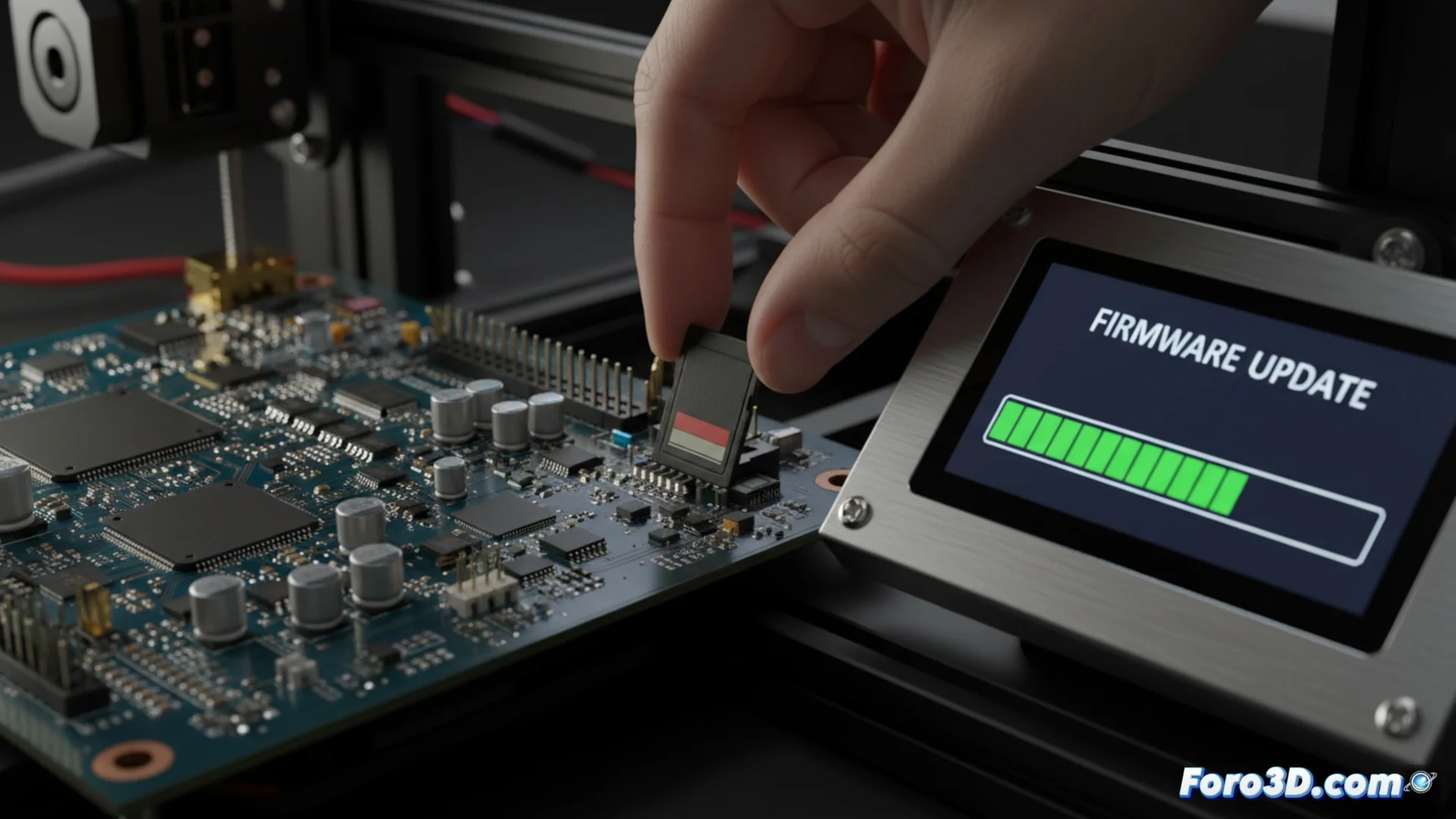
With the card prepared, turn off the Alpha-5 printer completely. Insert the SD card into its slot and then turn on the device. The system will automatically detect the new firmware and begin to install it. This process can take several minutes; it is crucial not to turn off the machine or remove the card during this time. The printer will restart on its own when finished.
The most complicated part is waiting without interrupting, even if the screen appears frozen. Patience is essential to avoid damaging the internal software. Once completed, remove the SD card and verify that the new firmware version has loaded correctly in the settings menu. ✅