How to Update the Firmware on a Creality Ender 3 V3 KE Printer
Keeping the firmware of your printer updated is key to fixing bugs and accessing new features. This process, although simple, requires following precise steps to avoid issues. 🛠️
Download the Correct Firmware File
The first step is to obtain the official file from Creality's website. It is essential to select the exact model of your printer to avoid incompatibilities. The file usually has the .bin extension and you must ensure it is the latest version available.
Steps to download:- Visit the support or downloads section of Creality's website.
- Locate and select the Ender 3 V3 KE model.
- Download the most up-to-date .bin firmware file.
Never use a firmware file intended for another printer model, you could damage the system.
Prepare the microSD Card for the Update
You need a properly formatted microSD card. It must use the FAT32 file system and have a maximum capacity of 32 GB so that the printer recognizes it without issues.
Procedure to prepare the card:- Format the microSD card on your computer, selecting FAT32.
- Copy the downloaded .bin file directly to the root of the card, without putting it in folders.
- Safely eject the card from the operating system to protect the data.
Perform the Update on the Printer
With the file ready on the card, it's time to proceed with the installation on the machine. This process is automatic, but must not be interrupted.
Update sequence:- Completely turn off the Ender 3 V3 KE printer.
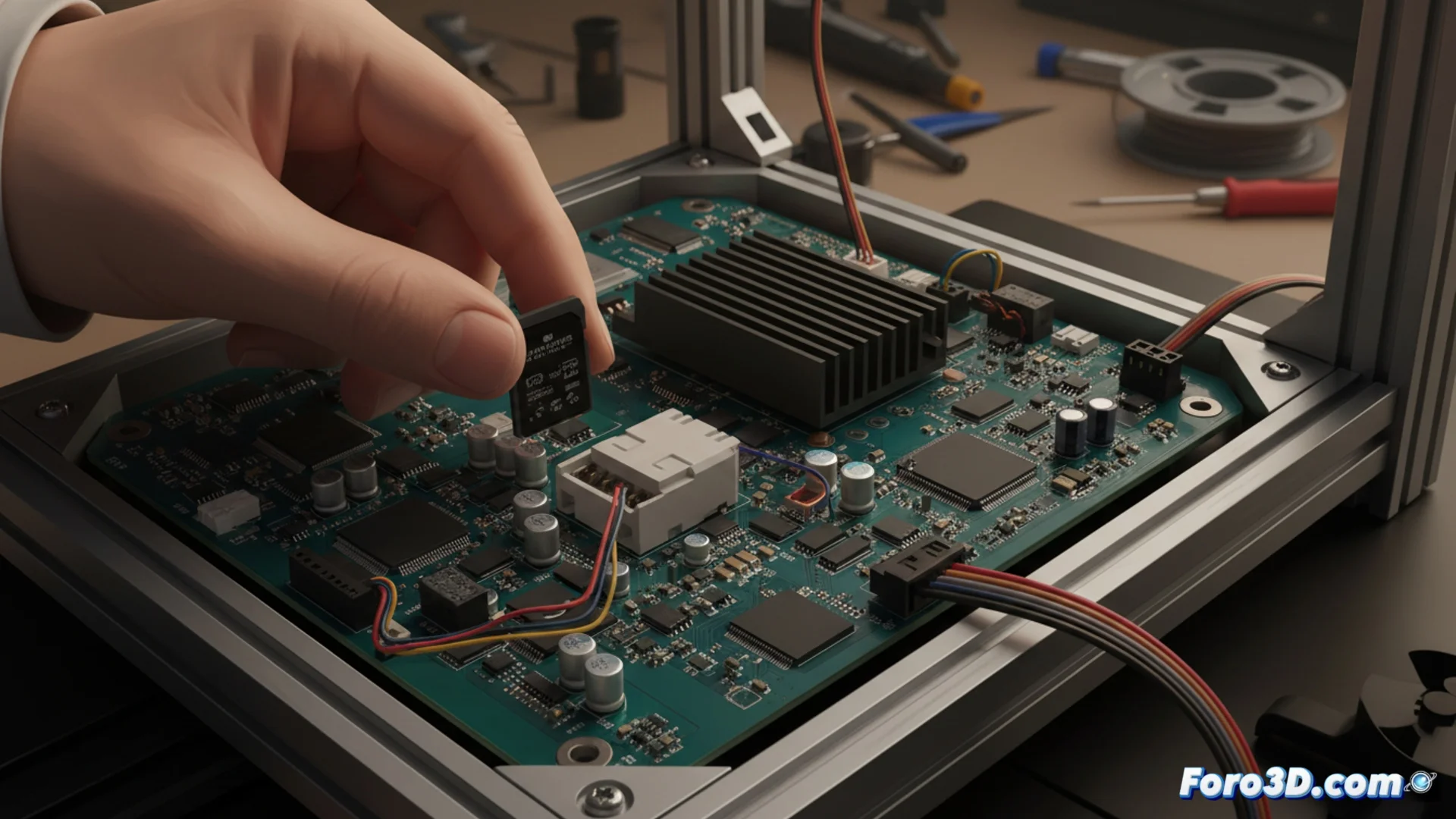
- Insert the prepared microSD card into its slot.
- Turn on the printer. The system will detect the new file and start updating automatically.
- Watch the screen, where a progress bar or messages will indicate the progress.
Do not turn off the printer or remove the microSD card until the process is completely finished and the machine restarts on its own. Patience is essential here. ⏳
Troubleshoot After Updating
If after restarting the screen stays on a blue color, don't panic. It is a common issue that is usually resolved easily with a manual restart of the printer. In most cases, with a second power-on, the system starts normally and the update will have been successful.