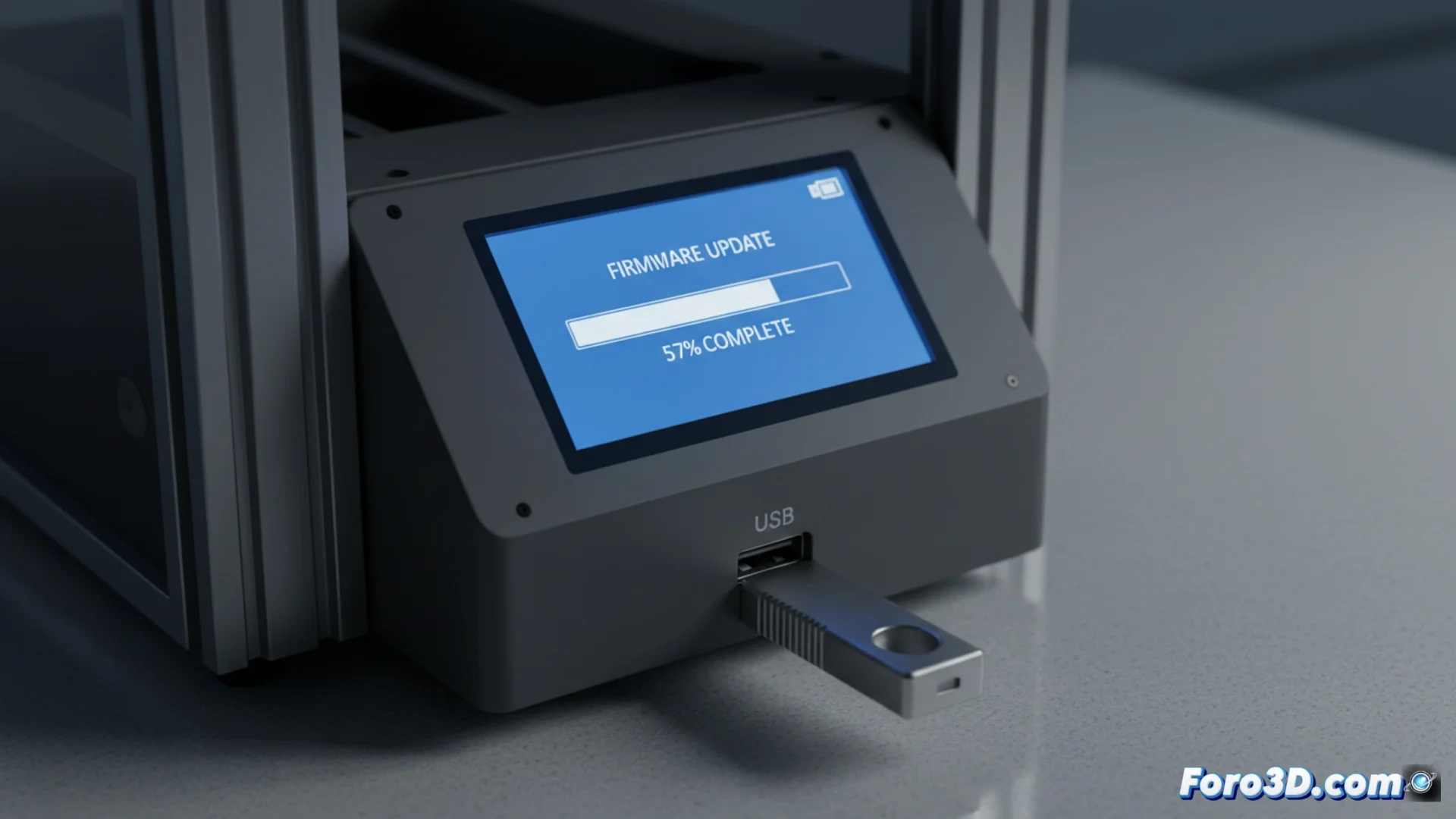
How to Update the Firmware of the Nova3d Elfin LCD 2K Printer
Keeping the firmware of your 3D printer up to date is key to accessing new features and fixes. This process, although simple, requires following precise steps to avoid mishaps. 🛠️
Obtain and Prepare the Files
The first step is to get the official file from the Nova3D website. It is essential to select the exact version that corresponds to your Elfin LCD 2K model. Then, format a USB drive with the FAT32 file system and copy the firmware file to its root directory.
Critical Initial Steps:
- Download the correct firmware for your specific model from the official source.
- Use a USB drive formatted in FAT32 and place the file in the root.
- Verify the integrity of the downloaded file before proceeding.
An interrupted update can turn your printer into an elegant technological paperweight, so keep your finger away from the switch.
Run the Installation from the Printer
With the machine turned off, connect the USB drive. Turn on the printer and, using the touch screen, navigate to the settings or tools menu. There you will find the option to update the internal software.
Update Process:- The printer automatically detects the valid file on the USB drive.
- Start the process from the menu. The screen will show a progress bar.
- Do not turn off or disconnect the power under any circumstances during this phase.
Finalize and Verify
Once finished, the machine will restart automatically. It is important to enter the settings menu again to confirm that the firmware version has been updated correctly. If the process fails, try another USB drive or download the file again. ✅