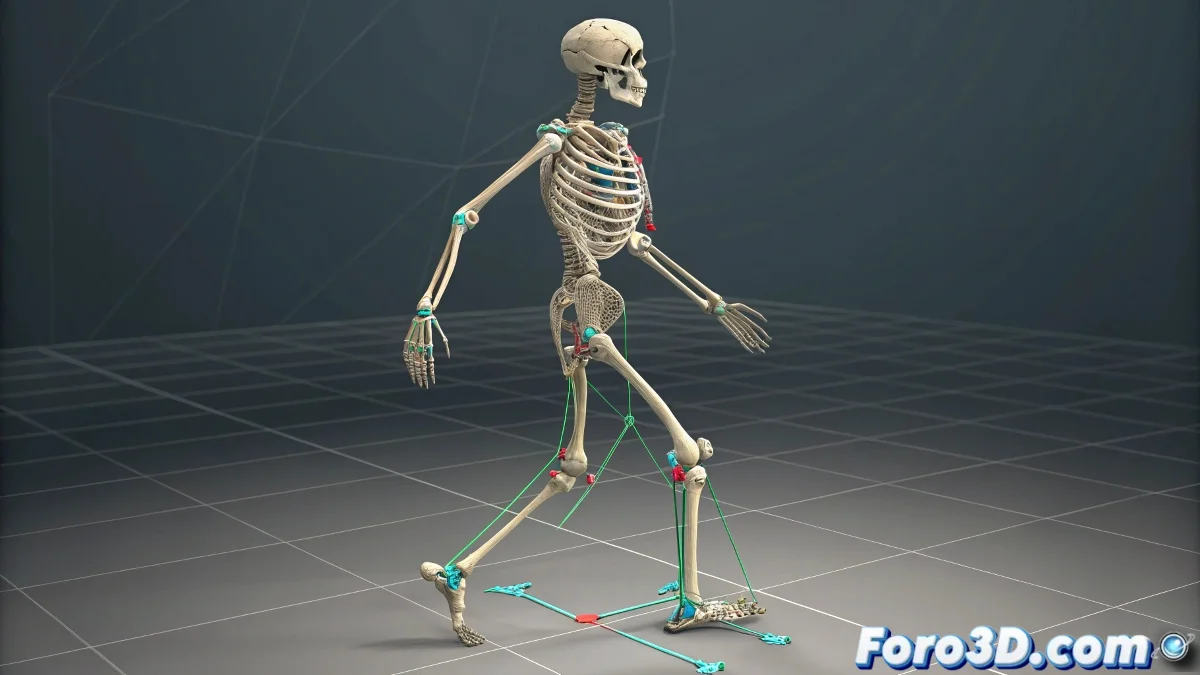
Solving Deformation Problems in Character Rigs
What a rebellious bone! 😠 When a single bone decides to dance its own merengue in the middle of your perfect rig, it's time to intervene. This classic problem usually has a solution, although it sometimes requires the patience of a Buddhist monk.
Common Causes of Incorrect Deformations
The problem may originate from:
- Poorly assigned vertex weights: The vertices are following the wrong bone 🎯
- Incorrect hierarchy: The bone parenting is not properly configured
- Issues with controllers: Constraints or IK are interfering
- Corrupted Skin modifier: Sometimes the modifier needs a reset
"A rig with deformation problems is like a poorly fitted suit: everything looks good until you try to move"
Step-by-Step Solutions (for current 3ds Max)
- Check the Skin modifier: Use Edit Envelopes to verify the influences
- Test temporary Skin Wrap: To isolate the problem
- Use painting tools: The Weight Tool is your best friend
- Verify constraints: Make sure there are no contradictory limitations
For stubborn cases, the new Weight Painting tool in recent versions of 3ds Max can be your salvation. It allows more precise adjustments with symmetry and advanced filtering options. 🎨
If all else fails, consider using Character Creator or Mixamo for more stable rigs, especially if working with human characters. Sometimes, starting over is faster than fixing a corrupted rig (though we won't admit it out loud).
Remember: a good rigger is not measured by their successes, but by how they solve their failures. Go get that naughty bone! 💪