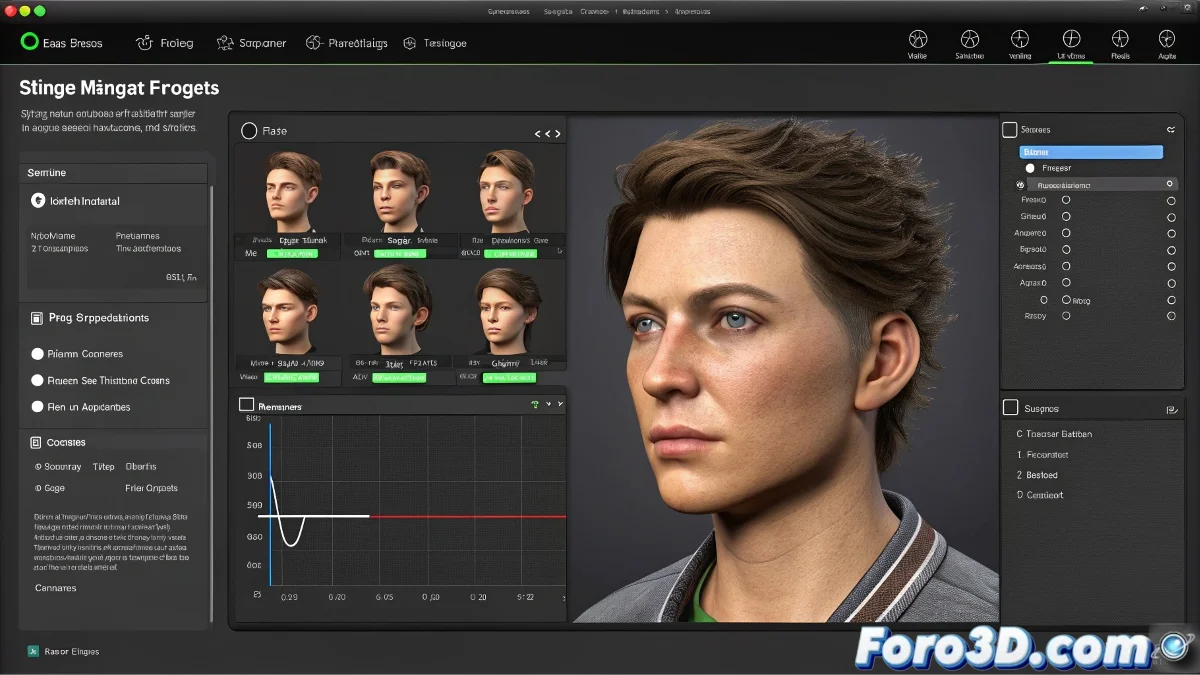
How to Transfer Animations from the Shape Manager to the Timeline in Softimage
In Softimage, the Shape Manager is used to create and manage facial deformations using shapes or morph targets, such as moving an eyebrow or creating a smile. Once you have those movements created, the next step is to animate them over time to integrate them into your project. This is achieved by transferring those shapes to the Timeline, where Softimage records the changes on each frame. And no, you don't need to be an animation expert to do it! 😊
Steps to Animate Shapes on the Timeline
To begin, make sure the shapes are created and visible in the Shape Manager. Then, follow these steps:
- Select the shape you want to animate.
- Move the Timeline cursor to the frame where you want that movement to begin or have a certain value.
- Adjust the value of the shape (usually between 0 and 1).
- With the shape selected, press the S key to insert a keyframe.
Repeat this process on the key frames to create the movement animation. This way, Softimage automatically interpolates the values between those keyframes, making the character perform the expression or movement you created with the shapes.
Curve Editing
If you want to view or edit these curves, you can open the Curve Editor to adjust the smoothness and timing. This allows you to refine the animation to achieve the desired effect.
Don't worry if at first it seems like you're just pressing buttons randomly, that's normal. The Shape Manager with animation on the Timeline is one of those things that seems complicated until you realize it's just a matter of saving each movement at a specific moment. And remember, if your character makes weird faces, it's because they're practicing for the next blockbuster! 🎬
With these steps, you will be able to transfer animations from the Shape Manager to the Timeline in Softimage effectively and creatively. And remember, if something doesn't turn out as expected, you can always blame the rebellious keyframes! 😉