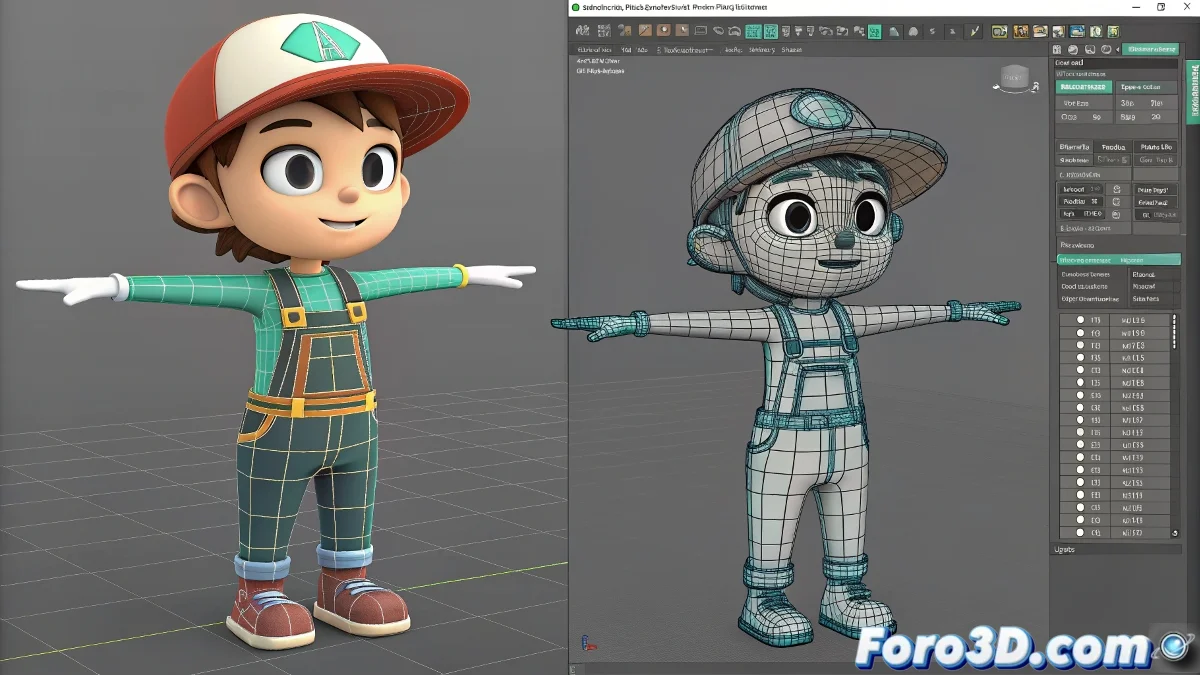
When Your Character Arrives in Max Flattened and Without Dignity
Exporting from Maya to 3ds Max using FBX might seem simple, until your character appears as if it's been through a hydraulic press 🧃. The culprit is the bind pose-mismatched matrices error, which occurs when Max doesn't correctly interpret the original skinning pose that Maya knew and respected.
Exporting from Maya Without Losing Bones or Patience
Before clicking Export FBX, make sure to follow these steps to avoid the drama:
- Return to the original bind pose (yes, that classic T-pose).
- Select the skeleton and, only if you're sure, carefully do a Freeze Transformations.
- In the FBX export window, enable:
- Bake Animation, even if there's no animation (yes, it sounds weird but it helps).
- Deformed Models > Skins.
- Disable Add Leaf Bones, unless you're a fan of decorative bones 🦴.
Oh, and always use FBX versions that are compatible between Maya and Max. Nothing like a version mismatch to ruin your day.
Importing into Max Without Everything Exploding
In 3ds Max, don't trust the default import button. Enable these options in the FBX panel:
- Preserve Edge Orientation.
- Convert Deforming Dummies to Bones, if your rig includes controllers.
- Still seeing the bind pose warning? Try enabling Resample All Animations and disabling Apply Transformations.
With any luck, your character won't come out with arms where legs should be 🤞.
Emergency Solutions for Desperate Situations
If nothing works, you can always use Blender as a bridge: export to FBX from Maya, import it into Blender (which sometimes interprets the matrix better), and then export it from there to Max. It might seem like black magic, but it works more often than it should 🧙♂️.
Don't need the rig? Export as Alembic. Goodbye bones, but hello correctly deformed mesh.
Wasn't FBX from Autodesk?
The most ironic thing about this is that FBX is from Autodesk, just like Maya and Max... and yet, passing a file between them is like sending a fax to Mars 📠🪐.
So next time you export your rig, remember: it's not just a click, it's a ritual. And like any ritual, if you skip a step... you'll probably summon a deformation demon. 😈