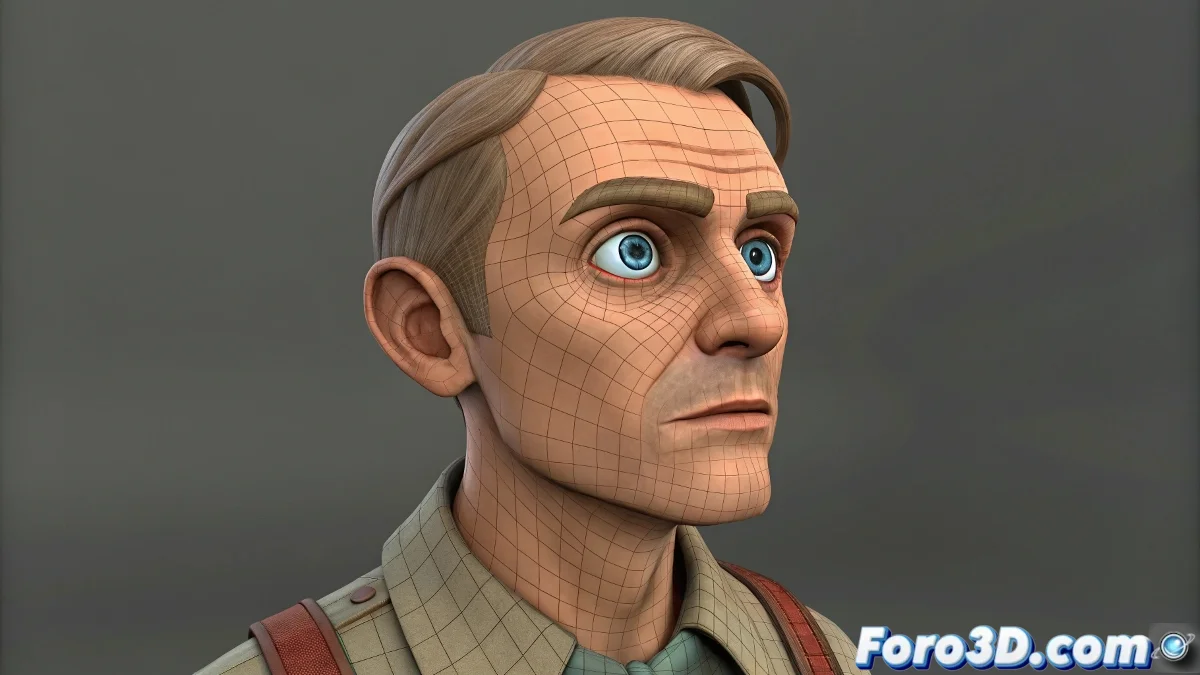
How to Maintain the Correct Rotation Axis When Animating Look-At Eyes in Biped
Animating eyes with a Look At Constraint in 3ds Max seems straightforward... until the character decides to move and the eyeballs start spinning as if they were on a roller coaster 🎢. The problem isn't eye strain, it's the bad reference for the rotation axis.
The Root of the Problem
When the character moves, the constraint only controls the orientation, but does not adjust the eye's local axis. The result: eyes that follow the target but with a rotation that's more frightening than realistic 👀.
How to Prevent Eyes from Going Haywire
- Link the eyes directly to the character's head, not to the world or to external dummies.
- Place an intermediate helper between the eye and the Look At target to better manage the rotation.
- Activate the Use Local Rotation Axis option within the constraint if you want the orientation calculation to be more consistent.
- If all else fails, resort to the classic Affect Pivot Only and adjust the axis manually before applying Freeze Transform 🛠️.
Additional Tips for Precise Control
Don't be afraid to experiment with the object hierarchy in your scene. Sometimes, creating a chain of controllers can save hours of frustration. Also, make sure the constraint's target also moves relative to the character's head to avoid unexpected shifts.
Fun Fact: If after all this your eyes are still spinning in a devilish way, maybe it's time to consider if your character wants to star in the next horror movie... or simply needs a virtual exorcism 😅.
In Summary, Eyes in Place and No Drama
With a good hierarchy setup and well-aligned pivots, your eyes will follow the target precisely and without surprises. And if something goes wrong, you can always justify it by saying it was a creative effect 🎨.