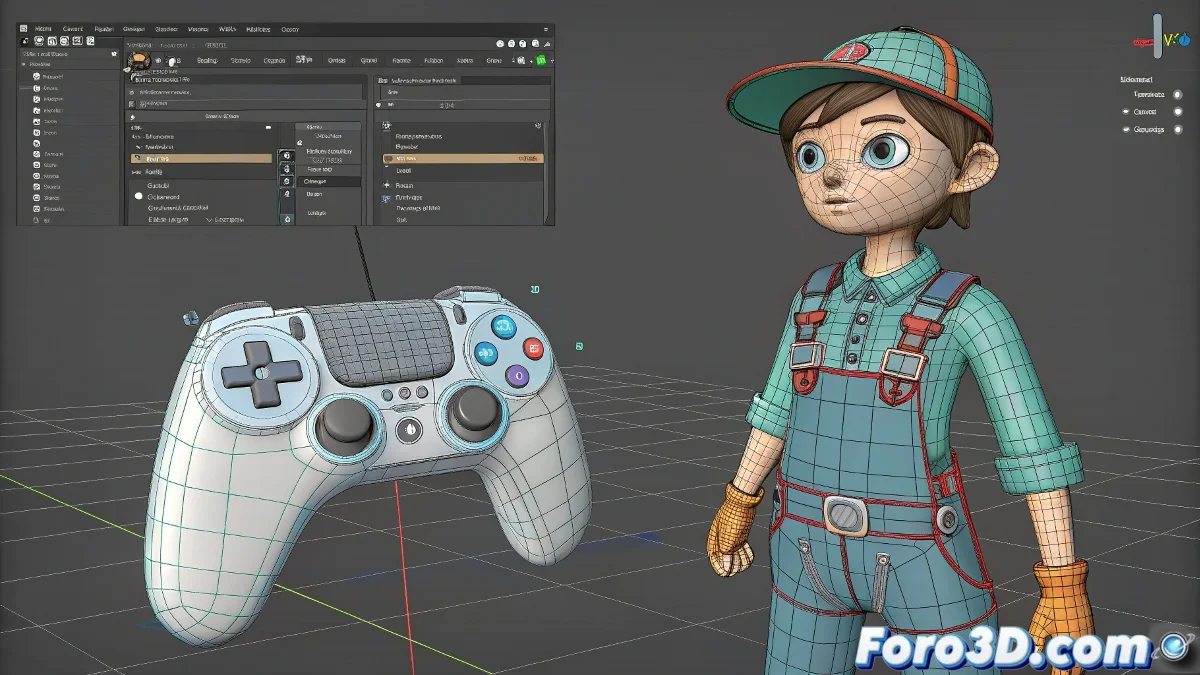
The Waist Drama That Ruins Your Rig
If your character has ever ended up twisted like a pretzel after moving the waist controller, you're not alone. It's a classic mistake: directly parenting the waist to the main controller without considering the hierarchy. Result: the system collapses, the skinning cries, and you... well, you do too 😩.
The Correct Hierarchy to Avoid a Bone Apocalypse
In a well-structured rig, the main controller should be at the top of the hierarchy, not receiving influences from already skinned bones. For the waist, instead of direct parenting, use constraints like:
- Position Constraint to maintain position relative to the main controller
- Orientation Constraint so it rotates, but without inheriting destructive transformations
This way you can move the entire character and still manipulate the waist without breaking the mesh like a wet paper figure 📏.
Pro Solution: Use Null Groups or Helpers
An elegant and safe way to handle this is to encapsulate the waist controller within a helper or null group. That group is parented to the main controller, but the inner controller retains its transformational integrity intact. 💡
In Blender this would be done with Child Of; in 3ds Max you can use a Link Constraint if you need the link to change over time. Ideal for animations where the character gets in a car or magically levitates!
It's Not Just About Moving... But About Not Breaking
Rigging is like cooking with dynamite: everything seems fine... until you make a bad connection and boom!, waist goes into orbit.
So now you know: parent with your head, use constraints, group intelligently, and avoid hierarchical chaos. Your rig (and your mental health) will thank you. Because nobody wants to see their character with their waist pointing to infinity while waving hello 👋.