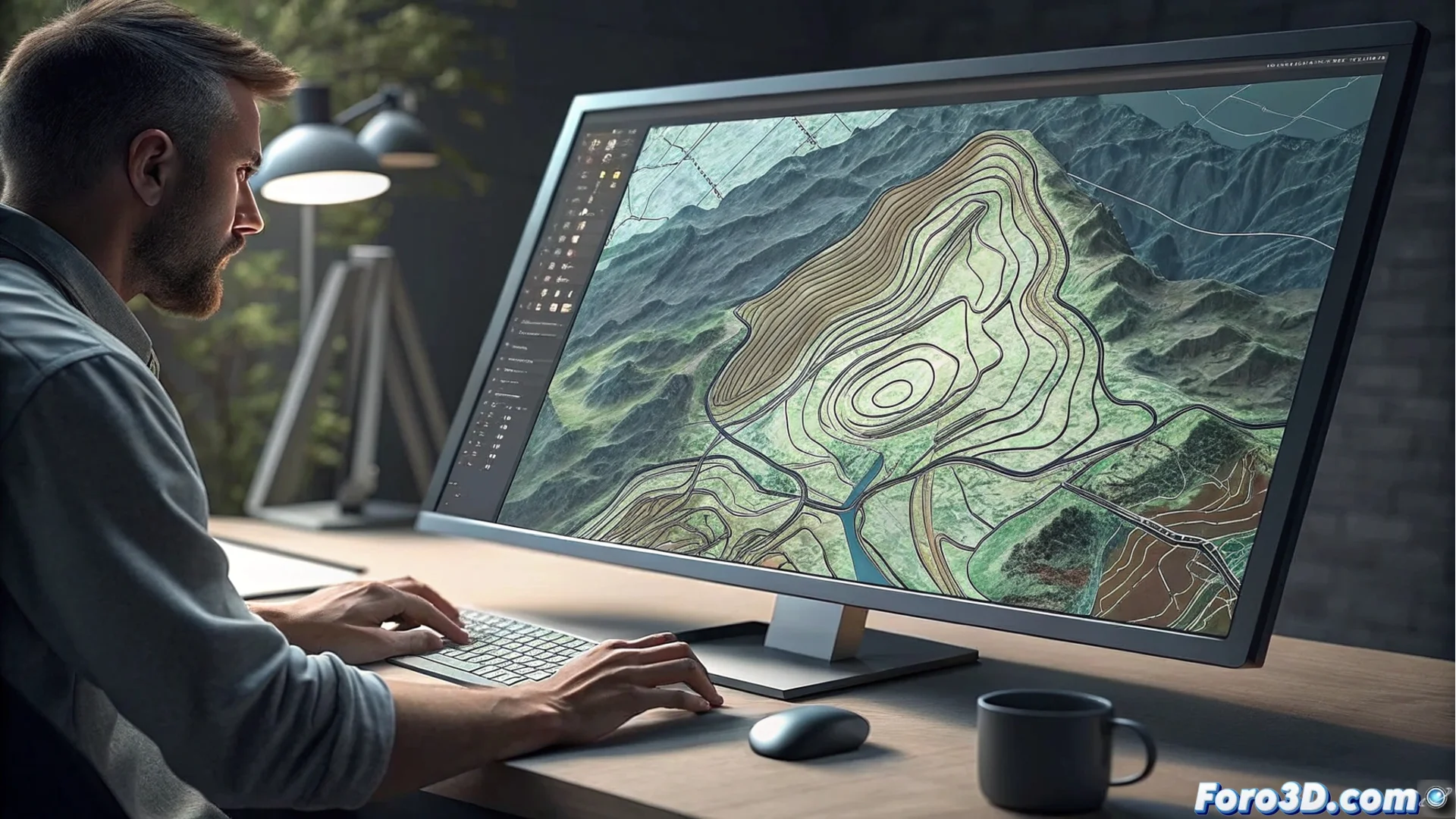
How to Insert and Export Maps from WMS Servers in AutoCAD Map
AutoCAD Map integrates Geographic Information System (GIS) tools that allow linking external cartographic data. A key function is connecting to WMS servers to bring topographic maps directly into the workspace, enriching drawings with precise geographic information 🗺️.
Establishing the Connection with the WMS Server
The first step requires the WMS service URL and, if necessary, access credentials. Within AutoCAD Map, go to the Plan tab, located on the ribbon. In the Data group, click the Connect button. This opens a dialog box where you must select Add WMS service. Enter the full server URL and click Connect for the software to query and list all available layers offered by the server.
Essential Preparations for Connecting:- Have the correct URL of the WMS service from the map provider at hand.
- Check if the server requires a username and password to authorize access.
- Locate the Connect command within the Data group on the Plan tab.
The speed to load the layers depends entirely on the remote server and the extent of the requested area; sometimes, the wait can feel like downloading with old technology.
Selecting and Adjusting Cartographic Layers
After connecting, a list of available layers is displayed. You can select multiple at once, such as contour line layers, hydrography networks, or administrative boundaries. A critical step is to configure the coordinate system to match that of your current drawing and avoid displacements. After confirming the selection, the map image is inserted as a raster reference. This object can be moved, scaled, and adjusted in the workspace according to project needs.
Key Aspects When Configuring Layers:- Review and match the coordinate system of the layer with that of the drawing.
- Select multiple thematic layers for a comprehensive representation of the terrain.
- The inserted layer behaves like a referenced image, allowing adjustment of its scale and position.
Generating a Georeferenced File for Sharing
To extract and save the map information in an externally usable format, use the Export Map tool. In its dialog box, you define the specific area of interest, the output resolution, and the file format, such as GeoTIFF or JPEG. AutoCAD Map processes the request and generates a new file containing the portion of the topographic map with all its embedded geographic metadata. This file can be used in other GIS software or shared with collaborators, maintaining georeferencing integrity.