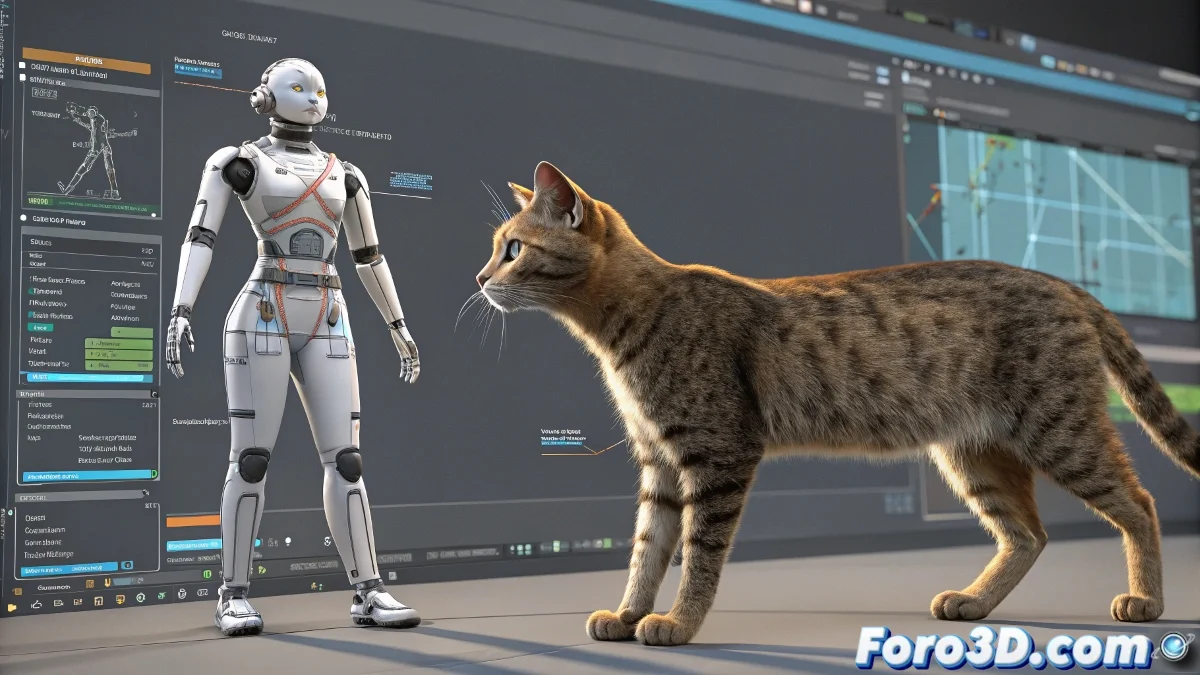
How to Import .BVH Animations in 3ds Max Using the CAT System
When you try to import a .bvh animation into 3ds Max and encounter errors, the software is likely having difficulty mapping the animation to the Biped skeleton. This is because 3ds Max expects a specific structure and naming conventions that don't always match those in the .bvh file.
Modern Solution with the CAT System
Instead of relying on the Biped system, it is recommended to use the CAT system (Character Animation Toolkit), which is integrated into the more recent versions of 3ds Max. This system offers greater flexibility and is more compatible with modern formats like .FBX and .BVH.
- Import your .BVH file: Directly into a new 3ds Max scene.
- Verify the bone hierarchy: If the skeleton appears but without movement, the problem may be with the names.
- Create a CAT rig: Use the option Animation > CAT Objects > CATParent.
Adjust the CAT skeleton to match the proportions of the imported skeleton. Use the Motion Capture tool in CAT to perform retargeting from the BVH skeleton to the CAT rig. Once the animation is transferred, you can export it as FBX, or convert the rig to Biped using tools like MotionBuilder or Cascadeur.
Modern Alternative with Mixamo
A cleaner and more practical option is to use Mixamo, which allows you to generate human animations with a standard skeleton, export them in .FBX, and import them directly into 3ds Max. From there, you can use the CAT system or deformers with Skin Wrap if you are working with third-party models.
In the end, what seemed like a simple task of importing an animation becomes a compatibility challenge. But with the right tools, even digital skeletons can find their way.