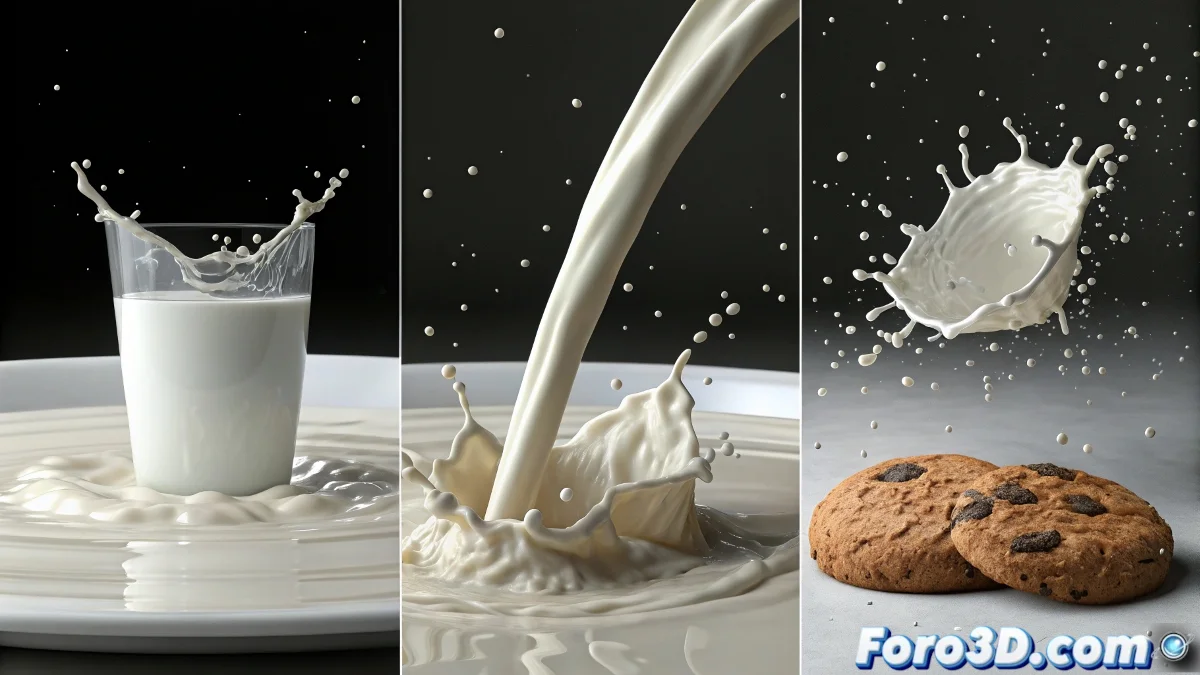
The Challenge of Virtual Milk for Academic Projects
We perfectly understand your situation: tight deadlines, new software that seems designed to confuse, and the pressure of your final project depending on getting that perfect milk effect. The good news is that with RealFlow you can achieve convincing results without needing to become an expert in fluid dynamics.
To pour milk from a pitcher into a bowl you need to master three basic concepts: the emitter that creates the liquid, the collider that contains it, and the properties that make it look like milk instead of water. All of this is simpler than it seems once you understand the logic.
In RealFlow, milk is basically water with attitude and a color change
Quick Setup for Milk Pouring
Follow these steps in order and you'll have your simulation running in less than an hour. Don't skip steps and you'll see how everything starts to make sense.
- Create the emitter at the pitcher's spout: use a small circle emitter oriented downwards
- Convert the bowl into a collider: select the bowl and add particle interaction as a collider
- Adjust gravity: keeping the default value of 9.8 is fine to start
- Configure the pitcher's animation: the emitter will automatically follow its movement
Properties to Make It Look Like Milk
The secret lies in density and color. Water has a density of 1, but milk needs around 1.03 to move more slowly and with more body.
For the color, don't use pure white or it will look like paint. A slightly creamy white with very little transparency works better 😊
- Density: adjust to 1.03 in the liquid properties
- Viscosity: slightly increase to 2.0 for more thickness
- Surface tension: 5.0 for more cohesive droplets
- Color: RGB 0.95, 0.94, 0.92 for a milky white
Simplified Step-by-Step Tutorial
Start with a simple test scene before working on your final animation. A cube as a pitcher and a sphere as a bowl will let you experiment without fear of breaking your project.
The initial position is configured simply by placing the emitter where you want the simulation to start. RealFlow will automatically respect the position and animation of your objects.
- Open your scene with the animated pitcher and bowl
- Create a circle emitter at the pitcher's spout
- Select the bowl and right-click > Add RealFlow Particle Interaction
- In properties, mark as collider and adjust resolution to 256
Optimization for Fast Rendering
Since you have limited time, configure the simulation to be efficient. You don't need millions of particles for a simple milk pour.
Use a moderate resolution and simulate only the necessary frames. You can start the simulation a few frames before the pour and end it when the bowl has enough liquid.
- Resolution: 60-80 for decent quality without waiting hours
- Simulate only from the frame where the pour begins
- Use fast meshing to convert particles into a mesh
- Export as OBJ for easy import into Maya
Specific Resources for Your Project
Search on YouTube for RealFlow basic liquid pouring tutorial or RealFlow milk simulation for beginners. Tutorials under 15 minutes are often more useful than hour-long ones when you're starting out.
Don't worry about creating the most realistic effect in the world. For a university project, if it looks convincing and fulfills its narrative function, it will be more than enough.</