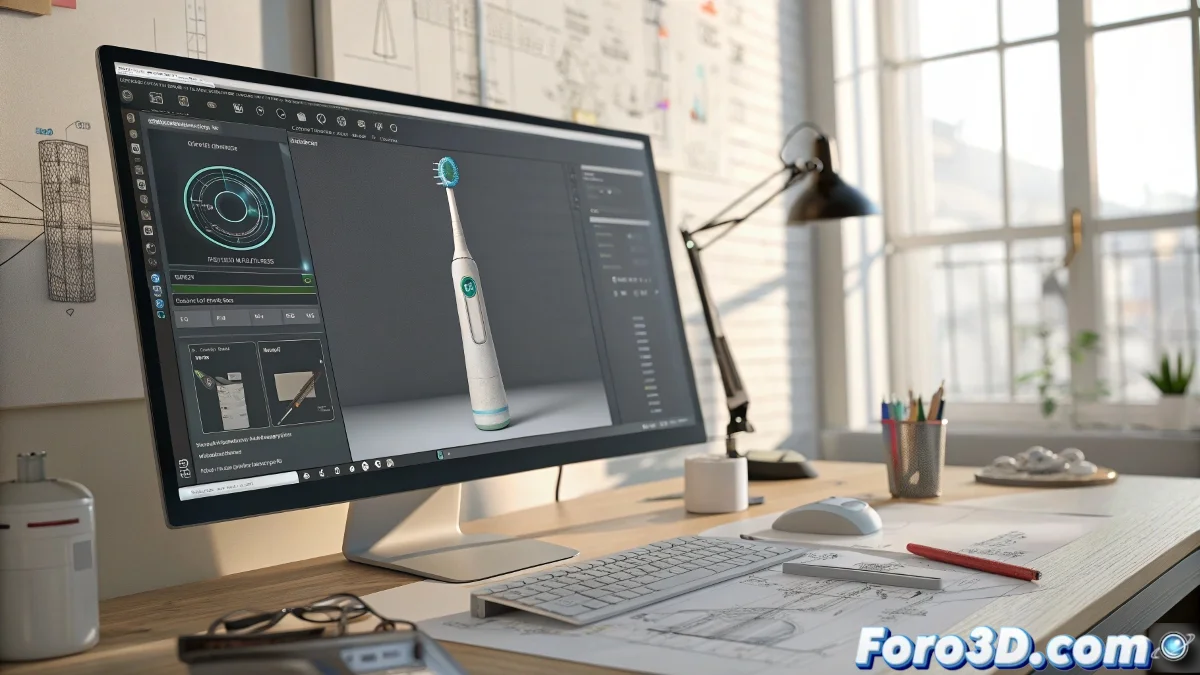
The Boundary Between Modeling and Interaction
Creating a detailed model in 3ds Max, like your toothbrush, is only half the journey 🪥. The frustration arises when you discover you can't simply grab and rotate it with the mouse as if it were a real object. This is because 3ds Max is a creation and preview tool, not a real-time engine. The true interactive magic happens when you export your creation to an environment specifically designed to respond to user input in real time.
Exporting Your Model Towards Interactive Freedom
The bridge to interaction is export. Industry-standard formats like FBX and glTF are your best allies. Exporting your model to one of these formats preserves the mesh, materials, UVs, and basic transformations. Once outside of 3ds Max, this file becomes an asset you can import into game engines like Unity or Unreal Engine, or upload to web platforms like Sketchfab, where it will gain interactive superpowers.
A model in 3ds Max without export is like a car in a showroom, it can be admired but not driven.
Bringing the Model to Life in a Game Engine
In Unity, the process is quite straightforward. Import the FBX file into your project. Then, to add interactivity, you need a small C# script that is attached to the object. This script can contain functions that translate mouse movement (Input.GetAxis("Mouse X")) into object rotation or translation. For those less familiar with programming, Unreal Engine offers a visual alternative with its Blueprints system, allowing you to connect nodes to create "drag and rotate" logic without writing a single line of code.
The Quick Option: Sketchfab for the Web
If your goal is to quickly share an interactive model online without diving into game engines, Sketchfab is the perfect solution. You just need to upload your model (it supports FBX, glTF, and others), adjust the materials and lighting in its online viewer, and configure the interaction options. In minutes, you'll have a link you can share where anyone can rotate, zoom, and pan around your model directly in their web browser 🌐.
Recommended Workflow
For an efficient and headache-free result, follow these steps:
- Optimize the model in 3ds Max: reduce unnecessary polygons and ensure materials are compatible (PBR for best results).
- Export in FBX or glTF: check that the scale and rotation export correctly.
- Choose your target platform: Unity/Unreal for maximum interactivity and customization, Sketchfab for speed and ease of use.
- Implement the interaction: either with a simple script or with Blueprints.
- Test thoroughly: interaction can feel different on various devices and browsers.
In the end, being able to spin your toothbrush with the mouse is so satisfying it almost justifies the whole process. And who knows, maybe it's the first step towards the first virtual reality dental hygiene simulator 😉.