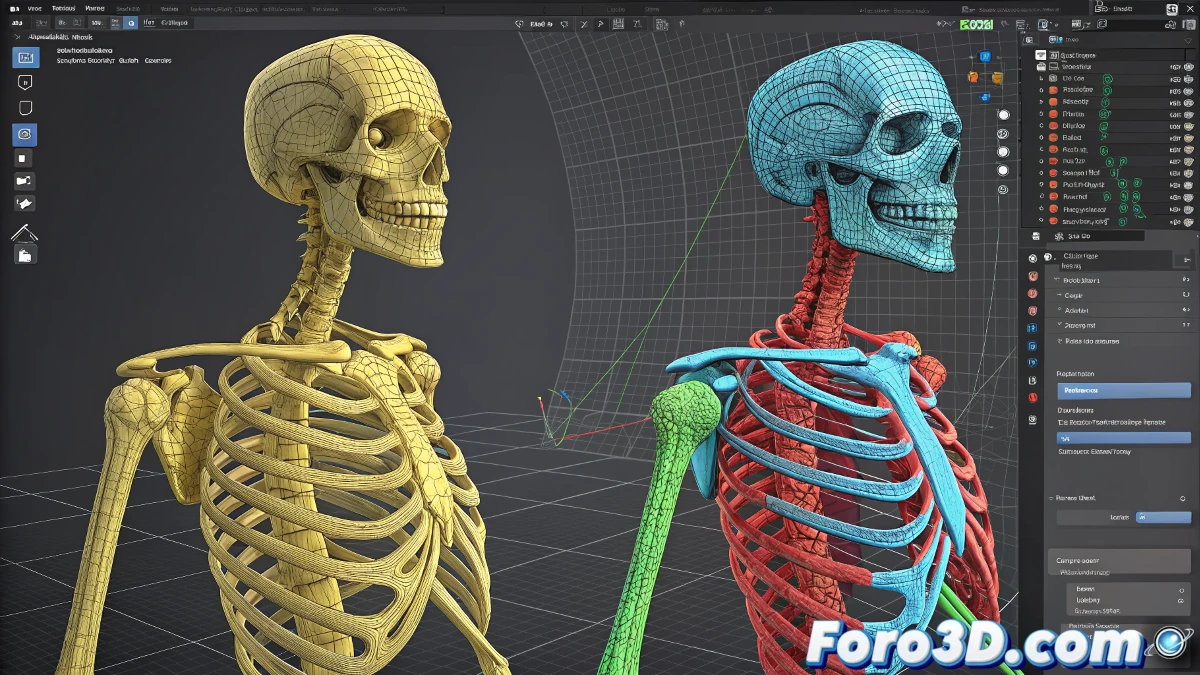
In the world of 3D design, visual clarity is essential. When working with tools like Blender, especially in advanced versions like 3.5.1, it's common to encounter situations where interface elements don't stand out enough. This was the case for a user who, after creating a character with its complete rig, faced a seemingly simple but crucial problem: the controls of their rig, generated with Rigify, were yellow and blended in with the model's mesh.
The Challenge of Low-Visibility Controls
The user, after searching for tutorials without success, decided to ask for help on a specialized forum. They attached an image to illustrate their problem: the yellow controls were lost among the character's geometry, making them difficult to manipulate. The question was clear: Is there any way to change the color of these controls so they stand out more?
"Try in the 3D view, select the bones (controls) you want to modify. You can do this in Pose mode (press Ctrl + Tab and select 'Pose' if you're not in that mode)."
This was the initial response they received, accompanied by a link to a video tutorial. Although the video quality wasn't optimal, the content turned out to be exactly what they needed.
Steps to Change the Color of Controls
For those facing a similar problem, here is a quick guide:
- Select the controls: In the 3D view, identify the bones or controls you want to modify.
- Activate Pose mode: Press Ctrl + Tab and select "Pose" if you're not in that mode.
- Change the color: Look in the bone properties for the option to change their color. This may vary depending on the Rigify configuration.
The Importance of Customization
In complex projects, small details like the color of controls can make the difference between a smooth workflow and a frustrating one. Customizing these elements not only improves visibility but also allows for faster identification of rig parts, optimizing work time.
Furthermore, this customization reflects the adaptability of tools like Blender, which allow users to adjust the interface and visual elements according to their specific needs.
Additional Tips
- Experiment with contrasting colors: Choose shades that clearly stand out against your model's mesh.
- Use keyboard shortcuts: Learning quick commands can speed up the selection and modification process.
- Consult the community: Forums and tutorials, although not always perfect, are often an invaluable source of practical solutions.
Ultimately, the ability to customize controls in Blender not only solves visibility problems but also empowers 3D artists to work more efficiently and creatively. As the user aptly said at the end of their query: "It's exactly what I needed".