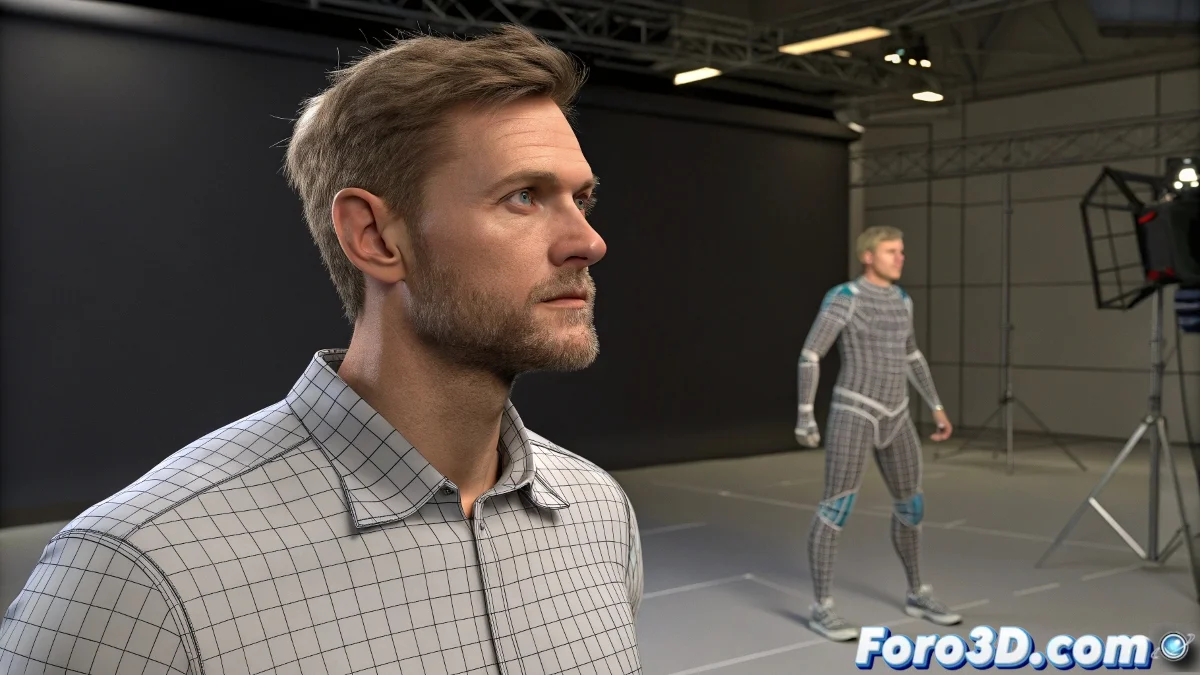
When You Want Your AXYZ Character to Dance Like Michael Jackson
You have a beautiful model from AXYZ Design and a .bip file with movements that would make any mocap artist cry with emotion... how do you marry them? 🕺 It's easier than it looks, though with its tricks so it doesn't end up looking like an episode of The Walking Dead.
The Binding Ritual (Step by Step)
- Create your Biped in Systems > Biped (make sure no one sees you do it, it's our secret)
- Load the .bip from the Motion Panel (the runner icon, not the athlete)
- Adjust the scale in Figure Mode until it looks like the Biped is wearing the character as pajamas
- Apply Skin and assign bones as if they were wedding sponsors
A poorly scaled Biped is like a child in adult clothes: funny for others, tragic for the one who has to animate it.
Mistakes That Will Turn Your Animation into Unintentional Comedy
- Not using Figure Mode before loading the animation (hello, stretchy arms)
- Forgetting that AXYZ characters usually come in T-pose (the universal "look at me" pose)
- Not saving a base scene with the skinning already applied (yes, you'll regret it)
Magician's Tricks for Professional Results
If you want to impress (or at least not embarrass yourself):
- Use Skin Wrap temporarily to adjust the mesh to the Biped
- Try Motion Mixer if you're combining several .bip files
- Adjust the rotation limits in the Biped to avoid impossible poses
Fun fact: 90% of .bip animation problems are solved by checking three things: scale, initial position, and... yes, having saved beforehand. The remaining 10% requires chocolate. 🍫
And when everything finally works, that 3-second animation that was so hard to get will be so perfect that even the character seems to smile... or maybe it's just stuck like that from the last skinning error. Who knows. 3D art is mysterious like that. 😉