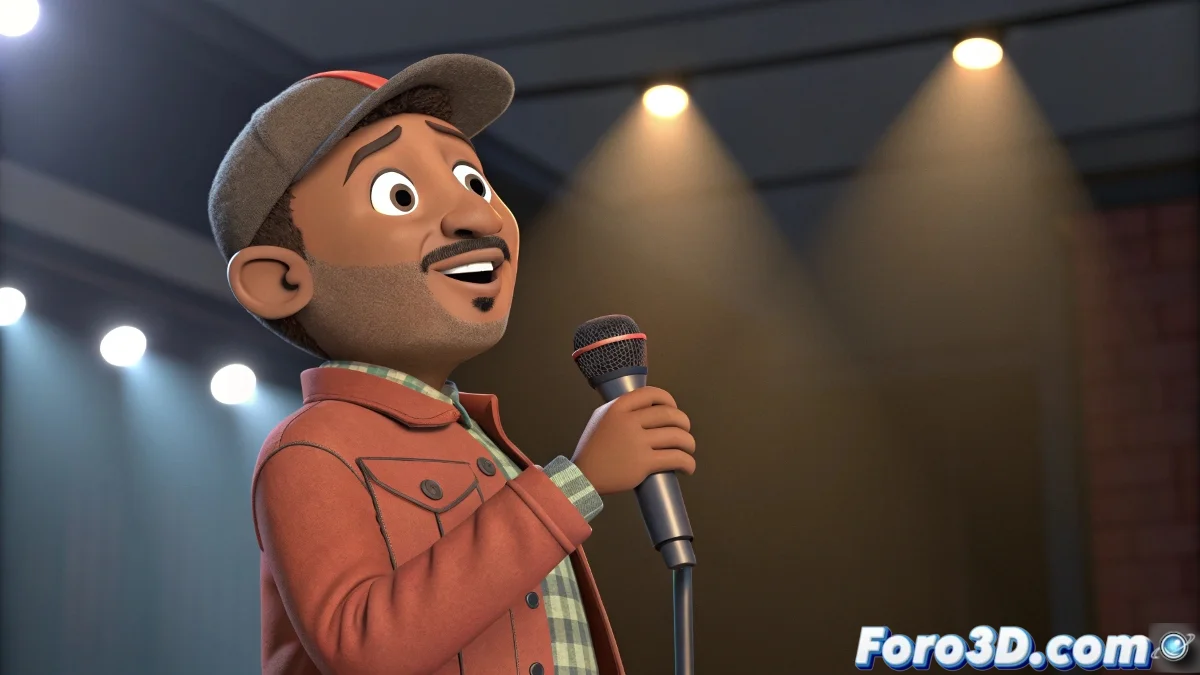
The Render Ghost When Props Rebel
You've meticulously animated your scene in 3ds Max: the character grabs the microphone with precision, every movement full of intention. But when rendering the full range, horror takes hold: the microphone floats half a meter from the hand as if possessed by a ghost 👻. This classic 3ds Max bug occurs because the render engine, when processing multiple frames, doesn't always evaluate constraints and links dependencies with the same fidelity as during real-time preview. The result is a broken animation and immense frustration.
The Root of the Evil: Constraints and Animation Cache
The heart of the problem beats in how 3ds Max handles the animation cache during batch rendering. Elements that depend on others—like a microphone linked to the hand with a Position Constraint—may not update their transformation correctly frame by frame if the constraint evaluation isn't properly forced. Often, the error is subtle: a missing key in the initial frame, a misconfigured constraint priority, or simply a glitch in the way Max caches data to speed up rendering, sacrificing accuracy for speed.
Rendering with active constraints is like sending your distracted friend to buy several products; they might forget some.
Solution 1: Healing with Bake Animation
The most robust and definitive solution is Bake Animation. This process converts all constraint-dependent animation into simple, absolute keyframes. Select the problematic prop (the microphone), go to Animation > Bone Tools > Bake Animation. In the dialog box, specify the frame range and click OK. 3ds Max will calculate the object's position and rotation in each frame and create explicit keys, completely eliminating the constraint dependency. It's like going from a recipe with ingredients that need preparation to a precooked meal—ready to consume (render) without surprises.
Solution 2: Good Rendering and Export Practices
If you prefer to keep constraints alive for future edits, adopt these practices to minimize risks:
- Force a full preview: before rendering, move the timeline from frame 0 to the end. This helps preload the cache.
- Verify initial keys: ensure there's a key at frame 0 for all constrained objects and their parents.
- Render to image sequence: never render directly to an AVI or MP4 video. Use formats like PNG, TGA, or EXR. If a frame goes wrong, you'll only have to re-render that frame, not the entire animation.
- Test render: render a small critical range (where the prop moves) first to confirm everything works.
Recommended Workflow for Clean Renders
To avoid headaches in final renders, follow this pipeline:
- Animation and constraints: animate and link your props as needed for agility.
- Bake critical elements: before the final render, bake all props that depend on constraints. Especially those with complex motion.
- Export to sequence: set up the render to save individual frames in a folder.
- Post-production: compile the image sequence into a video using compositing software like After Effects or DaVinci Resolve.
By adopting this approach, you'll transform your rendering process from a game of Russian roulette into a reliable and predictable procedure. And when that microphone stays firmly in place in every frame, you'll be able to animate with the confidence that what you see is what you get 😉.