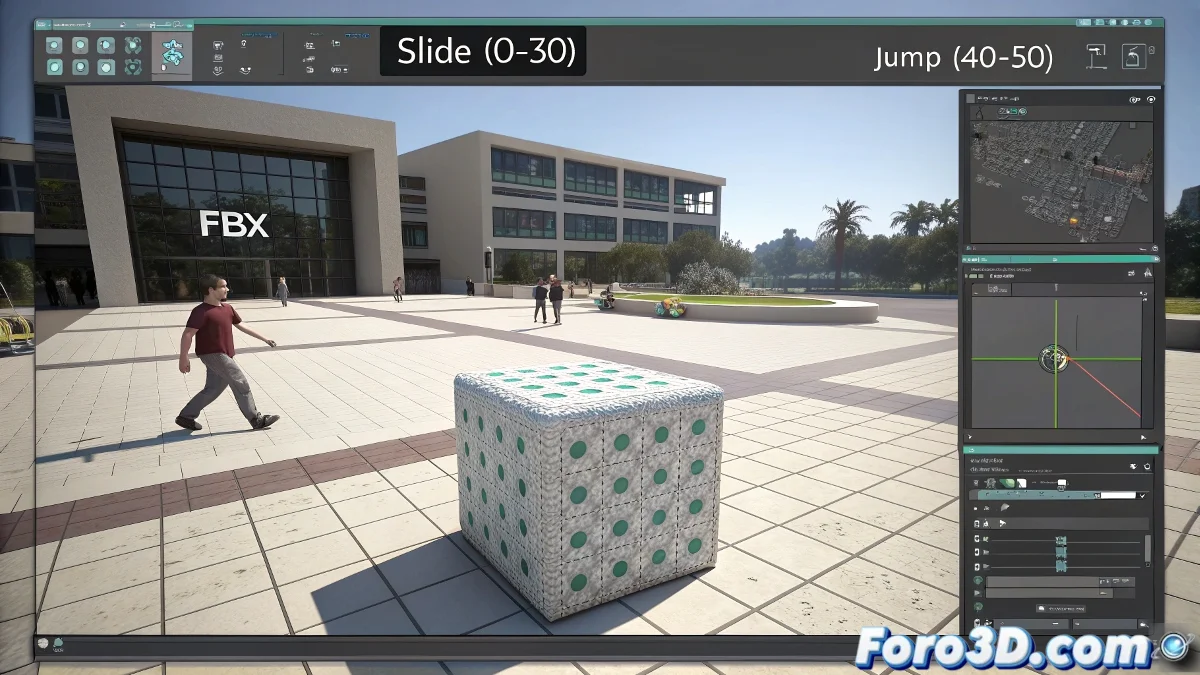
When Your 3ds Max Animation Gets Lost in Unity 🕵️♂️
Exporting animations to Unity should be as easy as copying a file... but we all know reality is different. The classic "it works on my machine" turns into "why doesn't it move in Unity?" when these key steps are missing 🚨.
Preparation Before the Journey to Unity
Before exporting from 3ds Max, make sure that:
- The animation is actually applied (not just in the timeline)
- The keyframes are where they should be (like breadcrumbs for the path)
- You have checked Bake Animation in the FBX export (the equivalent of saying "yes, I want animation")
"In the 3D world, exporting without checking is like jumping into a pool without looking if it has water"
The Import Ritual in Unity
Once in Unity territory, the magical process includes:
- Defining the correct Rig type (Generic or Humanoid)
- Creating animation clips with names you'll remember later
- Setting up loops if you need infinite repetition (like that walk cycle that never ends)
The most critical step: create an Animator Controller and assign it. Without this, your model will be like a pretty but uncomfortable piece of furniture 🛋️.
The Final Touch: Triggers and Scripts
To bring everything to life, you need:
- Transitions between animated states
- Calls from scripts with Animator.Play()
- Parameters that trigger the transitions (like a light switch, but for animations)
If after all this your animation still doesn't work, you can always say it's experimental abstract art. After all, in game development sometimes the bug is the feature 😉.