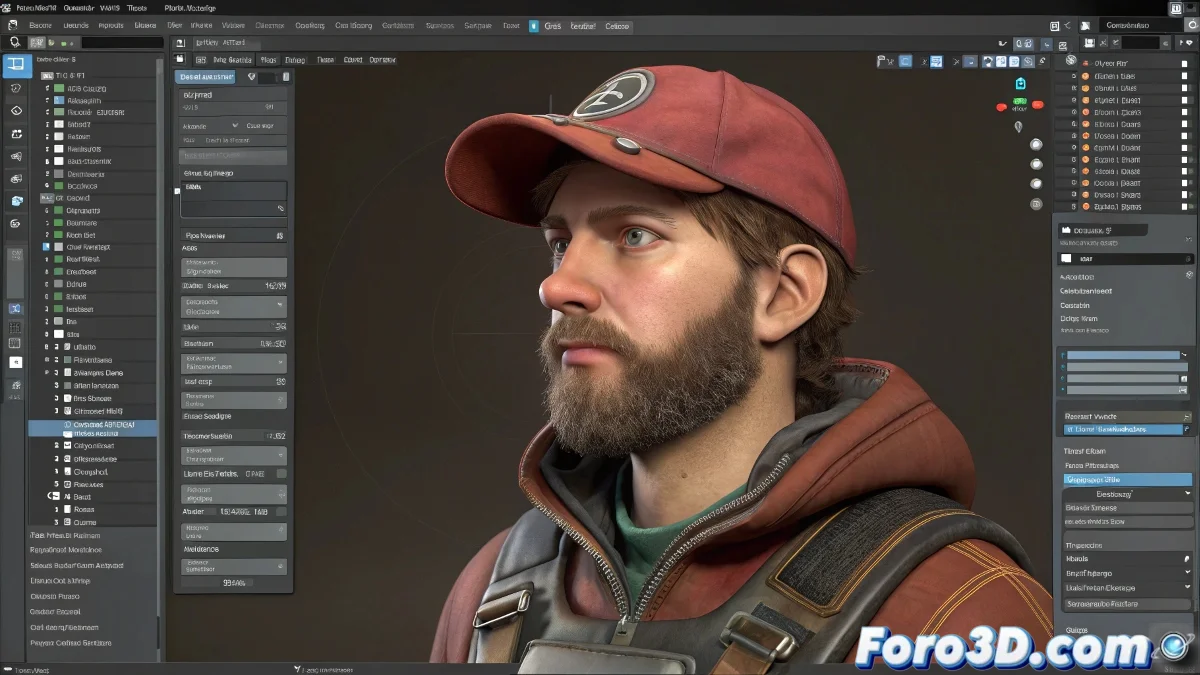
The Animated Character's Journey to Unity
Taking a rigged and animated character from creation software like 3ds Max or Maya to the Unity 3D engine is a fundamental ritual in video game development 🎮. The FBX format acts as the universal bridge that transports not only the mesh and skeleton, but also the entire performance recorded in frames. The magic lies in packaging multiple animations—walking, running, jumping—into a single file, which Unity then intelligently breaks down into independent clips ready to be used by animators and programmers.
Preparing the Luggage: Packaging Animations in FBX
The process begins in the source 3D software. Once the character is fully rigged and all animations are finalized, it is crucial to define clear frame ranges for each action. For example, frames 1-30 for "Idle", 31-60 for "Walk", and 61-90 for "Run". This organization is the key for Unity to correctly interpret the data. When exporting, select the FBX option and ensure the Animations checkbox is checked, thus exporting the entire timeline into the file.
Exporting animations without defined ranges is like sending a book without chapters; the reader will get lost.
Arrival at Unity: Unpacking and Configuring
When dragging the FBX file into the Unity project, the work is not finished, but enters a configuration phase. In Unity's Inspector, selecting the FBX, you find the Animation tab. This is where each clip is defined. Using the pre-established frame ranges, create a new clip for each animation, giving it a clear name and verifying that the loop time and other properties are correctly configured. Unity previews each clip automatically, allowing fine-tuning of the import.
Maintaining Consistency: The Golden Rule of the Rig
The most common and catastrophic error is changing the rig structure between animations. The skeleton must be identical in all animated clips exported in the same FBX. This means the same number of bones, same names, and same hierarchy. If a bone is added, renamed, or removed between the "Walk" and "Jump" animations, Unity will go crazy trying to reconcile the differences, resulting in broken clips or grotesque deformations. Consistency is the foundation of a clean import.
Recommended Workflow for Flawless Export
Follow these steps to ensure a smooth journey for your character:
- Stable and Clean Rig: finalize and test the rig completely before animating.
- Clear Frame Ranges: in your 3D software, mark or note the start and end frames of each animation.
- FBX Export with Animations: verify that all relevant options (bones, skinning, animations) are enabled.
- Import and Configuration in Unity: review each imported clip, adjust compression if necessary, and test each one on a GameObject.
- Integration Test: connect the clips with an Animator Controller to verify transitions in the game.
Mastering this workflow will allow you to move between art and engine with confidence, ensuring that the artistic vision of your animations remains intact in the final game. And if an arm twists strangely, you can always say it's a mystical stretching feature 😉.