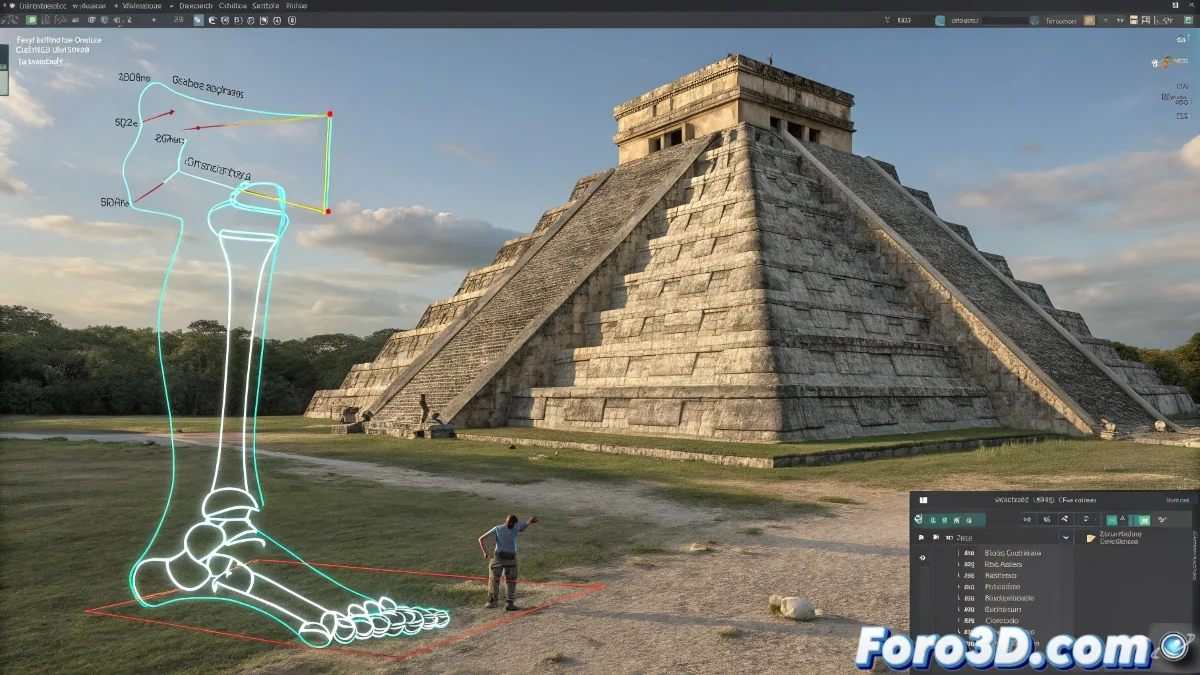
When Your Bone in Maya Decides to Breakdance Instead of Walking 🕺👣
Discovering that your foot joint rotates on the wrong axis is like finding out your dog has learned to walk on its front paws: surprising, but completely useless for what you need. Here's how to get it back to normal without losing your sanity.
"A poorly oriented joint is like a broken GPS: it takes you everywhere except where you need to go" — Rigger who lost a week of work.
Step by Step to Correct the Orientation
- Problem Diagnosis:
- Select the problematic joint
- Activate "Display > Transform Display > Local Rotation Axes"
- Compare with the equivalent joint on the other foot
- Professional Correction:
- Go to Skeleton > Orient Joint
- First try "Orient to World"
- If it fails, use "Orient Joint Options" for manual adjustment
- Ensure the main rotation axis (usually Y or Z) points correctly
Advanced Tricks for Stubborn Cases
- Hierarchical Orientation:
- Check the orientation of the parent joints
- Sometimes the problem comes from above
- Backup Controllers:
- Create an auxiliary controller
- Use constraints to force the correct rotation
- Perfect for already animated rigs
What NOT to Do
Common mistakes that make the problem worse:
- Unbinding the skin prematurely
- Manually rotating joints without correcting orientation
- Ignoring the complete rig hierarchy
- Using Freeze Transformations without understanding the consequences
Final Verification
After correcting:
- Test all possible rotations
- Check the skinning with extreme poses
- Compare with the opposite side of the body
- Save a backup version before making massive changes
With these steps, your joint will stop behaving like a rebellious teenager and become an obedient bone again. As the experts say: "The difference between a good rig and a bad rig is in the degrees of rotation... and in the artist's patience". 🦴✨
P.S.: If after all this your character still walks like a drunk duck, check if you haven't accidentally swapped the X and Z axes. It's always the X and Z axes.