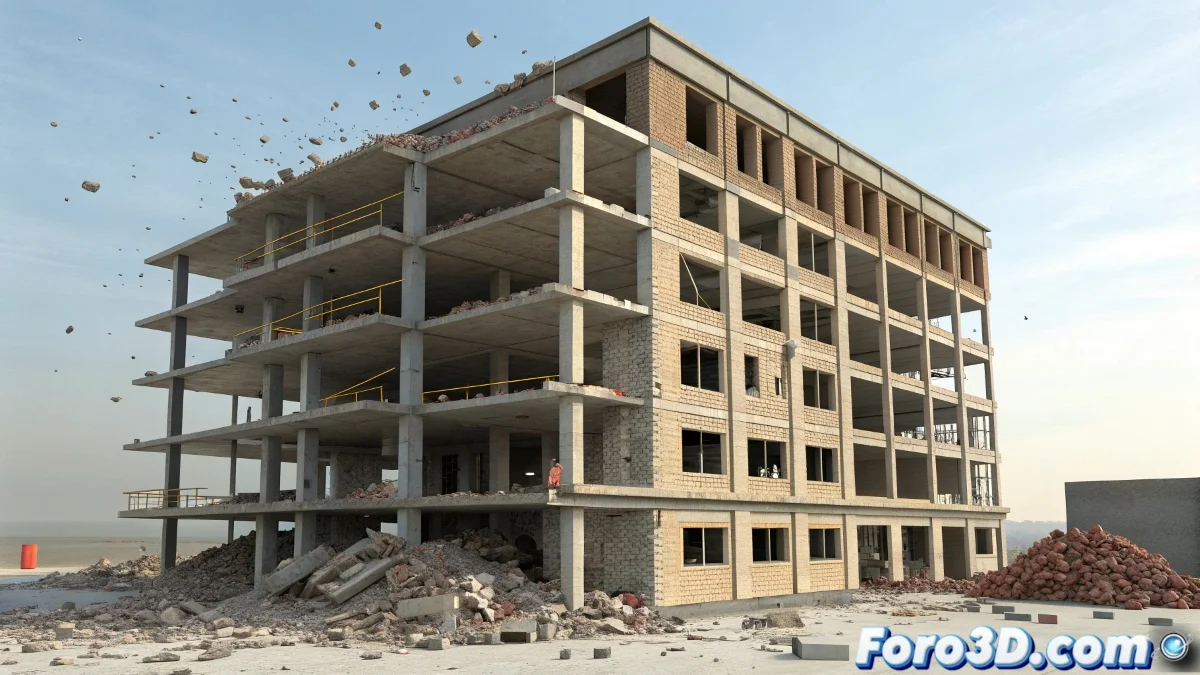
The Art of Controlled Digital Destruction
Who hasn't dreamed of tearing down a building without the real-world consequences? 🌆 In 3ds Max, this destructive power is at your fingertips using the MassFX physics engine. The key is not to model a solid building, but to build it like a puzzle of independent pieces that can collapse in a kinematically believable way. From a controlled demolition to a chaotic earthquake collapse, everything is possible with a proper setup of rigid bodies, collisions, and forces.
Preparation: Modeling for Chaos
The first step is strategic: modeling. Your building should not be a single mesh, but a collection of separate blocks or panels. Think about how buildings are actually constructed—bricks, beams, slabs—and emulate that structure. You can use Booleans or procedural cuts to divide a large geometry into smaller pieces. They don't need to be thousands; with a few dozen well-positioned pieces, a very effective illusion can be achieved. Assign a different material to each type of element (concrete, glass, metal) so the final render is more believable.
Modeling for a demolition simulation is like building with Lego, but with the plan for a giant to kick it over later.
The Heart of the Simulation: Configuring MassFX
Once you have the pieces, it's time to give them physical properties. Select all the blocks of your building and in the MassFX panel, click on Rigid Body. Make sure the type is Dynamic so they fall due to gravity. Then, create a large plane to act as the ground, and assign it a Rigid Body of type Static. Now, the basic ingredients are ready: dynamic objects that will fall and a static object for them to collide with. In the Simulation tab, configure gravity (usually -9.8 on the Z axis) and click Play to see your first basic collapse.
Refining Reality: Mass, Friction, and Bounce
The default simulation often feels floaty or unrealistic. This is where fine-tuning makes the difference. Select key pieces and in their Rigid Body properties, adjust parameters such as:
- Mass: assign more mass to concrete blocks than to glass ones.
- Friction: a high value will make the blocks slide less upon collision.
- Bounce: reduce this value to prevent debris from bouncing like rubber balls.
You can use the MassFX Material Editor to create presets of physical materials (e.g., "Concrete", "Glass") and quickly apply them to multiple objects.
Triggering Chaos with Forces and Explosions
To make the collapse not start solely by gravity, add a trigger element. Use a Force space warp like Vortex or Drag to simulate wind or drag. For an explosion, the PBomb (Pressure Bomb) space warp is classic, but MassFX has its own Effectors. Place an explosion effector at the base of the building, adjust its radius and strength, and connect it to the rigid bodies. When you run the simulation, the explosion will apply an initial driving force, blowing out the foundations and initiating a more cinematic chain reaction.
Workflow for an Efficient Simulation
Physics simulations can be heavy. Follow these tips to keep calculation times manageable:
- Geometry Optimization: use low-poly versions of your blocks for the simulation and then render the high-poly versions.
- Layered Simulation: don't simulate everything at once