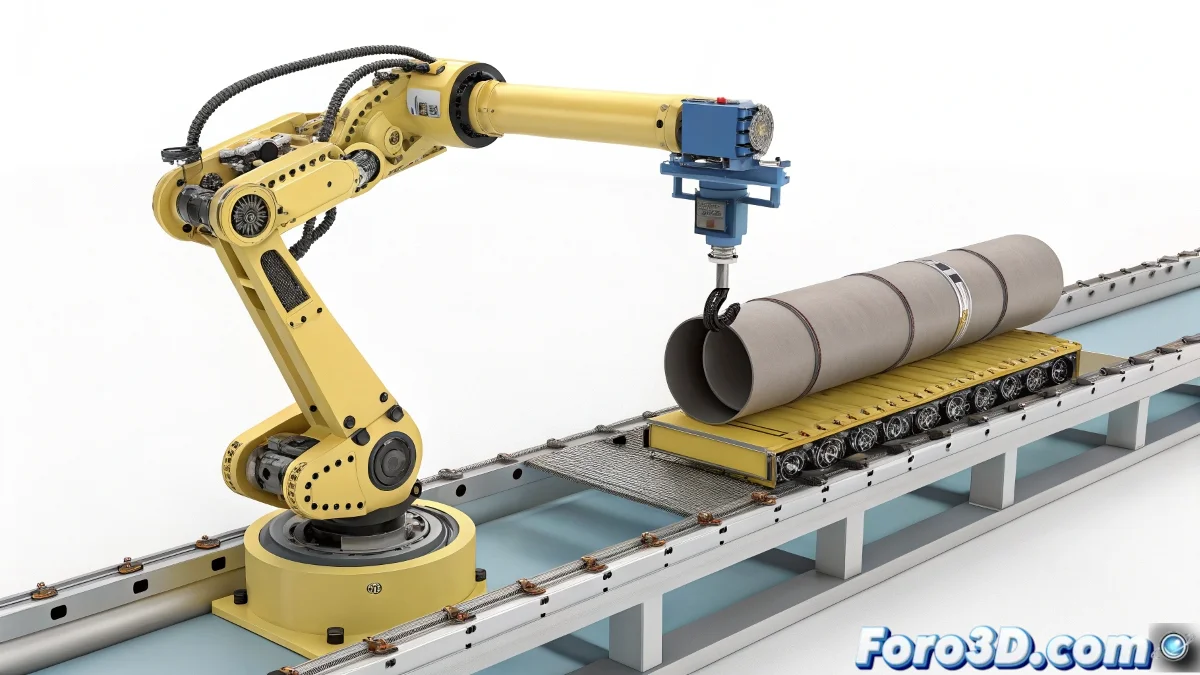
When Your IK Tube Decides to Dance Salsa Without Warning 💃
Animating a robotic arm in 3ds Max, everything seems perfect… until the tube that should move gracefully starts jumping as if it had electric shocks. The culprit: inverse kinematics (IK) combined with interpolations that misinterpret your intentions. But don't throw your keyboard yet, there is a solution.
Path Constraint: The Leash for Your Rebellious Tube
The most reliable technique is to convert the desired path into a spline and use Path Constraint. This way you control:
- The exact trajectory (no detours due to IK).
- The speed via the percentage of advance (no sudden accelerations).
- Bezier Corner points for precise direction changes ✨.
A tube on Path Constraint is like a train on rails: it goes where you want, not where the IK thinks is convenient.
Dummies and Link Constraint: The Art of Animated Handoff
If the tube must attach to the arm at a certain moment:
- Link a dummy to the gripper (the animation's "goalkeeper").
- Use Link Constraint to transfer the tube to the dummy when necessary.
- Unlink it afterwards! (or it will follow the arm like a lapdog).
3 Mistakes That Turn Your IK Into a Drama
Avoid these common pitfalls:
- Directly linking the tube to the IK (it will create unwanted dependencies).
- Ignoring the interpolation curve (the jumps are usually there).
- Not using helpers (dummies are your best allies).
With these tricks, your tube will go from being a diva actor to an obedient element. And if it still resists, you can always say it's an "artistic effect of mechanical instability"... as long as no one notices it was unintentional 😉.