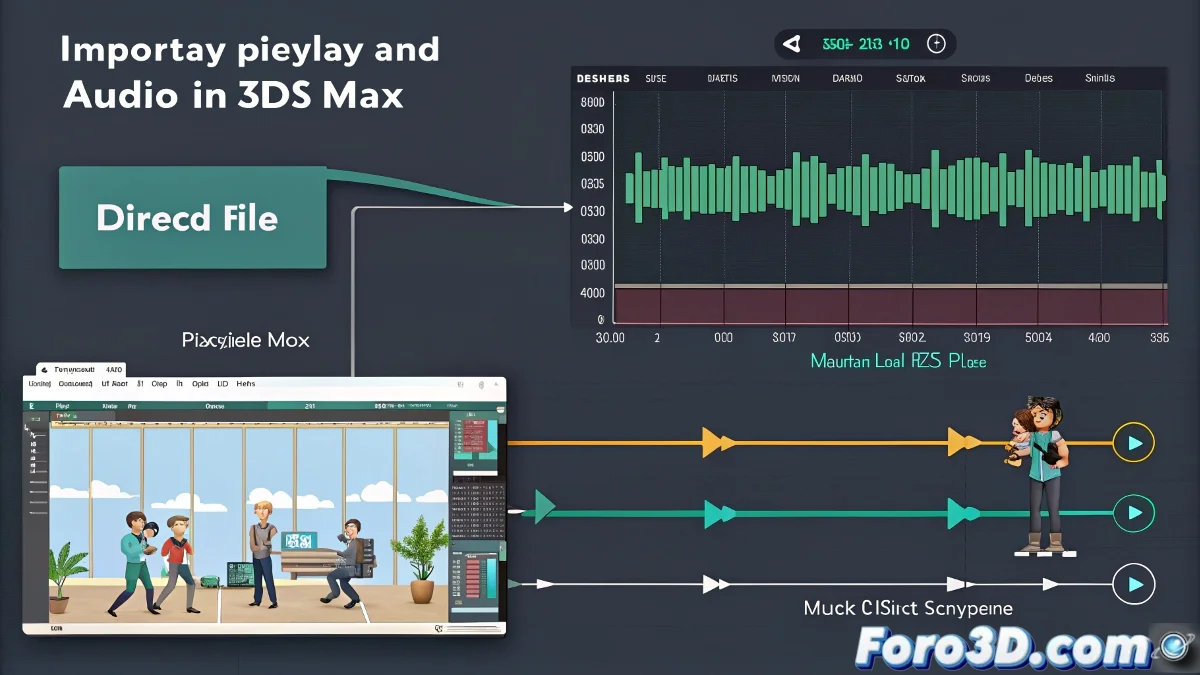
When Your Animation Needs a Soundtrack 🎵🎬
Did you know that 3ds Max can be your personal DJ while you animate? Although it's not a sound studio, it has basic but powerful tools to incorporate audio and synchronize your animations with precision. Forget counting frames by eye: here we teach you how to make your characters dance to the perfect rhythm. 💃
"An animator without audio is like a musician without an instrument: they can imagine the melody, but they can't share it"
Step by Step: From Silence to Playback
- Open Track View - Dope Sheet (Graph Editors)
- Expand your scene and look for the Sound track
- Right-click → Assign Controller → Audio
- Click Browse and select your .wav file
- Play and enjoy the synchronized sound!
Formats and Compatibility
Remember that 3ds Max is picky with formats:
- Accepts: .wav (preferably uncompressed)
- Does not accept: .mp3, .aac, .ogg (they need to be converted)
- Export: Only AVI/MOV maintain embedded audio
Professional Synchronization Tricks
For perfectly timed animations:
- Use the waveform peaks as visual reference
- Create markers at key music times
- Adjust the Offset if you need to delay/advance the audio
- For lipsync: record the audio first, then animate
Troubleshoot Like a Tech
Audio not appearing?
- Verify you're in Dope Sheet (not Curve Editor)
- Try restarting 3ds Max and reloading the audio
- Convert the file to .wav with other software if necessary
On foro3d you'll find threads with specific solutions for rare audio issues. Because we've all been through that moment of "why does it play in Max but not on export?". 😅
Recommended Workflow
For serious projects:
- Prepare the audio in a specialized editor (Audacity, Adobe Audition)
- Export as high-quality .wav (48kHz, 16/24-bit)
- Synchronize in 3ds Max using the methods above
- For final render: export video+audio separately and composite in Premiere/After Effects
As professionals say: "Audio is 50% of the visual experience". And now you have the tools to not leave your animation silent. 🎧✨