Bambu Lab Printer Bed Detection Error: How to Fix It
If your 3D printer stops and displays an error, it's likely that the bed type it automatically detects is not the same as the one you specified in the print file. This verification system aims to prevent failures from the start. 🛑
Why does this conflict happen?
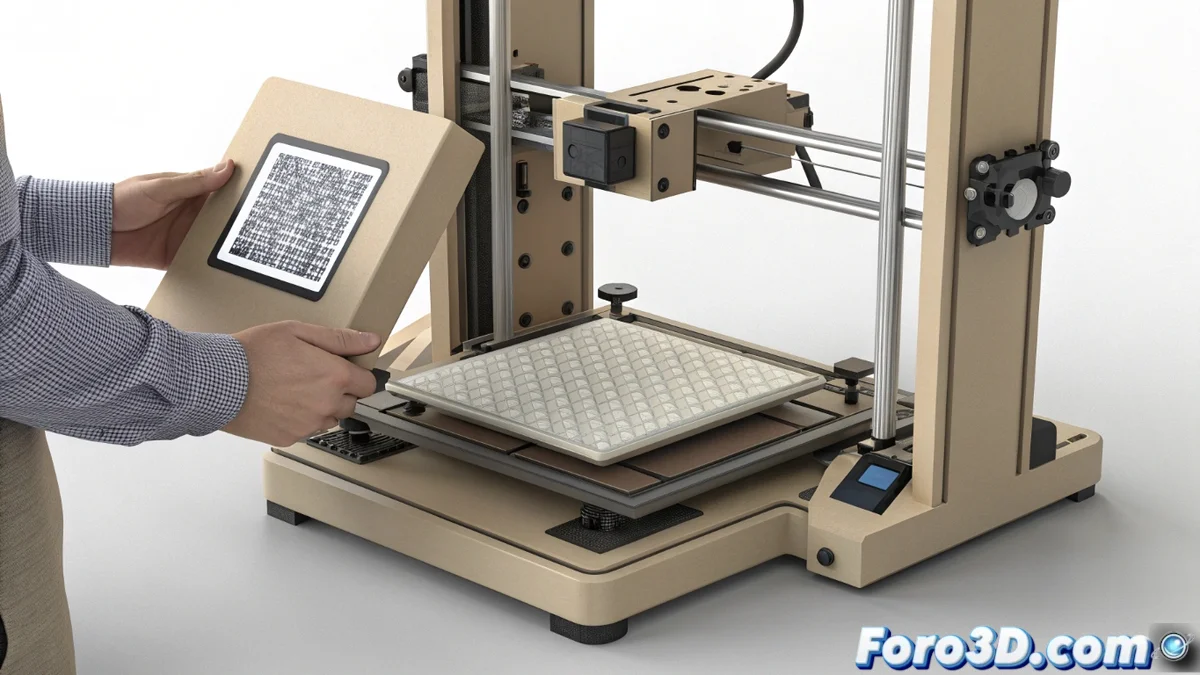
The machine scans a QR code attached to the print bed to know what model is installed, such as a Cool Plate or a Textured PEI Plate. If the temperature and speed parameters in your G-Code are set for a different surface, the process is interrupted. This measure protects your material and time.
Consequences of ignoring the warning:- The first layer may not adhere properly and the part may fail.
- Using an incorrect bed temperature can damage the bed surface.
- Filament is wasted on a print with a high probability of failure.
The system tries to prevent your creation from turning into plastic spaghetti on the wrong bed.
Steps to resolve the error
To continue with your work, you must verify and correct the configuration. The problem is almost always in the slicing software.
Procedure to follow:- Open your project in Bambu Studio or the slicer you use and check the material profile.
- Confirm that the bed type option matches the one physically installed in the printer (Cool Plate, Engineering Plate, Textured PEI Plate).
- Re-slice the model with the correct configuration and generate a new G-Code file.
The importance of matching bed and parameters
Each print surface requires a specific thermal range and speed for the first layer. A Cool Plate works with low temperature and low speed, while a Textured PEI Plate requires more heat. Using the appropriate values is key for optimal filament adhesion.
Remember that this error is a safety feature. The next time it appears, take it as a helpful warning to review your configuration and ensure a successful print from the first layer. ✅