Integrate Imported Animations Without Errors
In 3ds Max, importing animations from another scene can cause position or rotation issues 🤹. This happens because the original file's transform controllers are preserved, affecting translation, rotation, and scale. Adjusting them is essential to avoid deformations and ensure the animation fits correctly into the new scene.
Using a Dummy or Helper
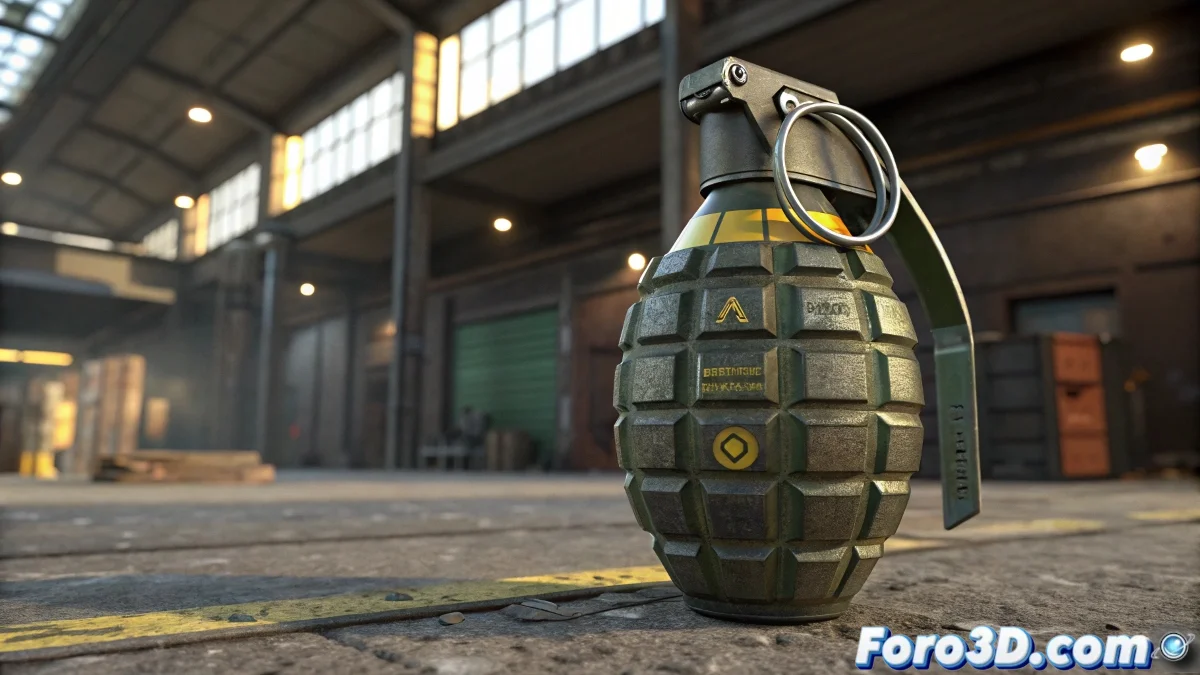
A practical technique is to link the animated object to a dummy or helper that acts as a new pivot. Rotating and translating the dummy affects the entire animation without altering the original keyframes. It's perfect for complex objects like futuristic grenades or effects with Reactor 🎇.
Manual Adjustment of Transform Controllers
Another option is to review the transform controllers in the Motion tab. Applying an Euler XYZ Offset or a Rotation/Position Offset allows you to reorient the entire animation without losing keyframe interpolations. It's ideal for aligning imported animations with the existing scene.
Recomposing Keyframes
If the animation is very complex, creating an animation layer or using the Motion Mixer allows you to adjust keyframes by sections. This helps combine imported animations with local ones, maintaining control over timing, offsets, and scale. Less redoing and more precise results 🎯.
Final Tips
Whenever possible, use a dummy or helper to move and rotate the imported animation. Combine it with transform controller adjustments and the Motion Mixer for fine-tuning. This way your animation integrates seamlessly, and your scene won't turn into a dance of uncontrolled vertices 😅.