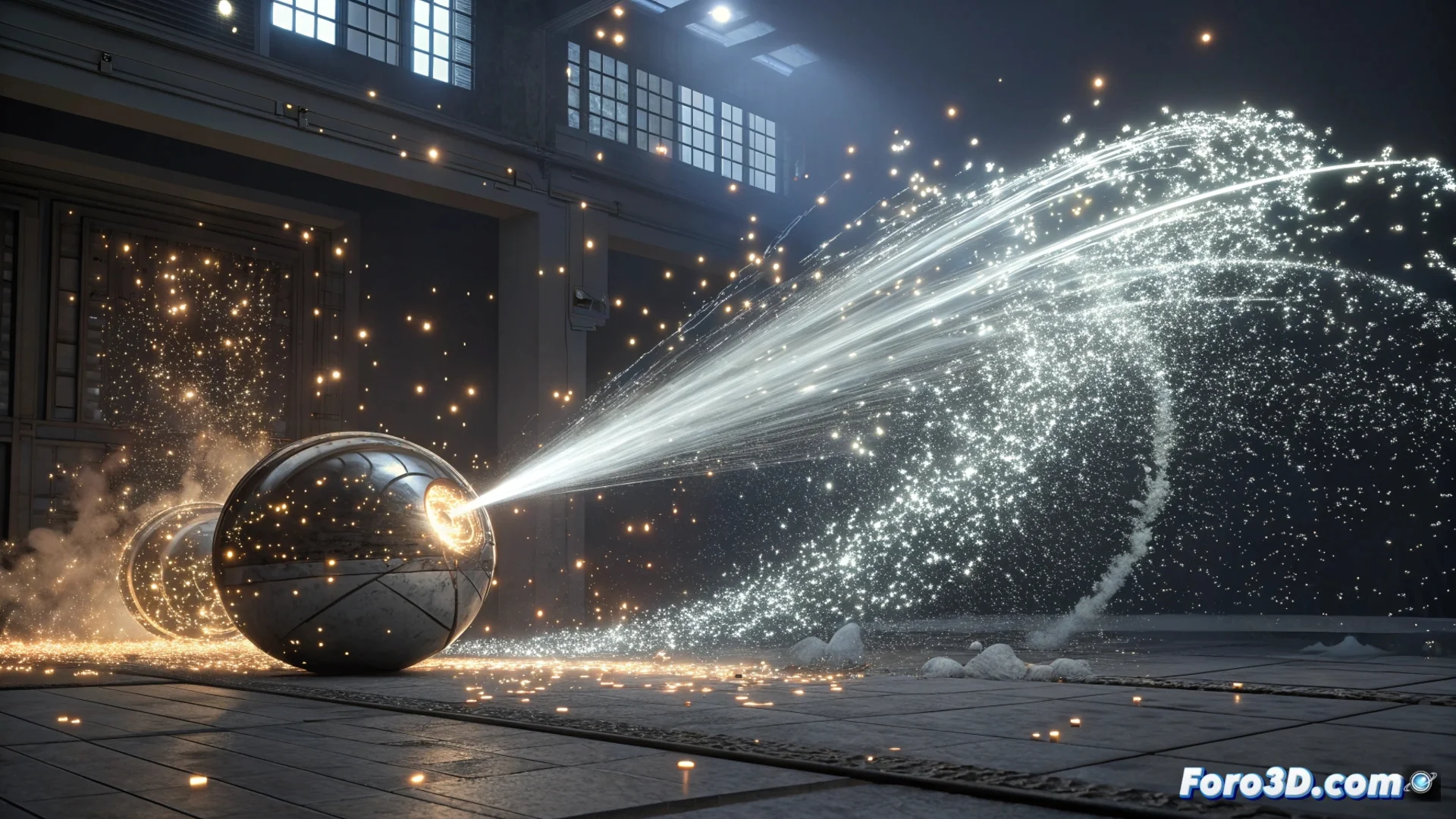
Simulate Particles That Are Deleted Upon Impact in 3ds Max
Achieving a particle system that ceases to exist upon touching a surface is a common effect in visual effects. In 3ds Max, you can achieve this efficiently using the Particle Flow tool. The strategy is based on detecting contact and then triggering an action that deletes the involved particles. 🎯
Prepare the Impact Surface
The first step is to define the object that the particles will collide with. To do this, you need to create a deflector. You can choose between a standard deflector (Deflector) or one that uses a custom object as a surface (UDeflector). This element will act as the invisible barrier that triggers the event.
Key Initial Steps:- Create a deflector from the Create > SpaceWarps > Deflectors panel.
- Adjust its size and position to match the visible object in the scene.
- This deflector will be the element you add to the particle system to track collisions.
A poorly positioned deflector will cause particles to pass through it without reacting, completely ruining the impact simulation.
Set Up Detection and Deletion
Open the Particle View window to edit your flow. This is where you will orchestrate the logic. Add a Collision operator to the main event of your particles. In its parameters, add the deflector you created to the list of colliders. Then, this operator must be connected to a new event containing a Delete operator.
Event Flow in Particle View:- The Collision operator continuously tests for contact.
- Upon detection, it passes the particles to the connected event.
- The Delete operator in that event handles their deletion. Configure it in By Particle Age with a remaining life of 0 for instant disappearance.
Refine and Control the Effect
You can customize how the particles disappear. For a progressive fade, instead of deleting them immediately, direct the collision event to a Spawn operator. Configure it to generate zero new particles and then use a Material Dynamic operator to animate the opacity from 100% to 0 over a few frames, before applying the Delete operator. This creates a more natural and visually appealing dissolution. ✨
Always remember to verify that the deflector is correctly aligned and scaled. A preview test will help ensure that the particles react as expected and do not pass through the barrier, guaranteeing that your impact disappearance effect is convincing and precise.