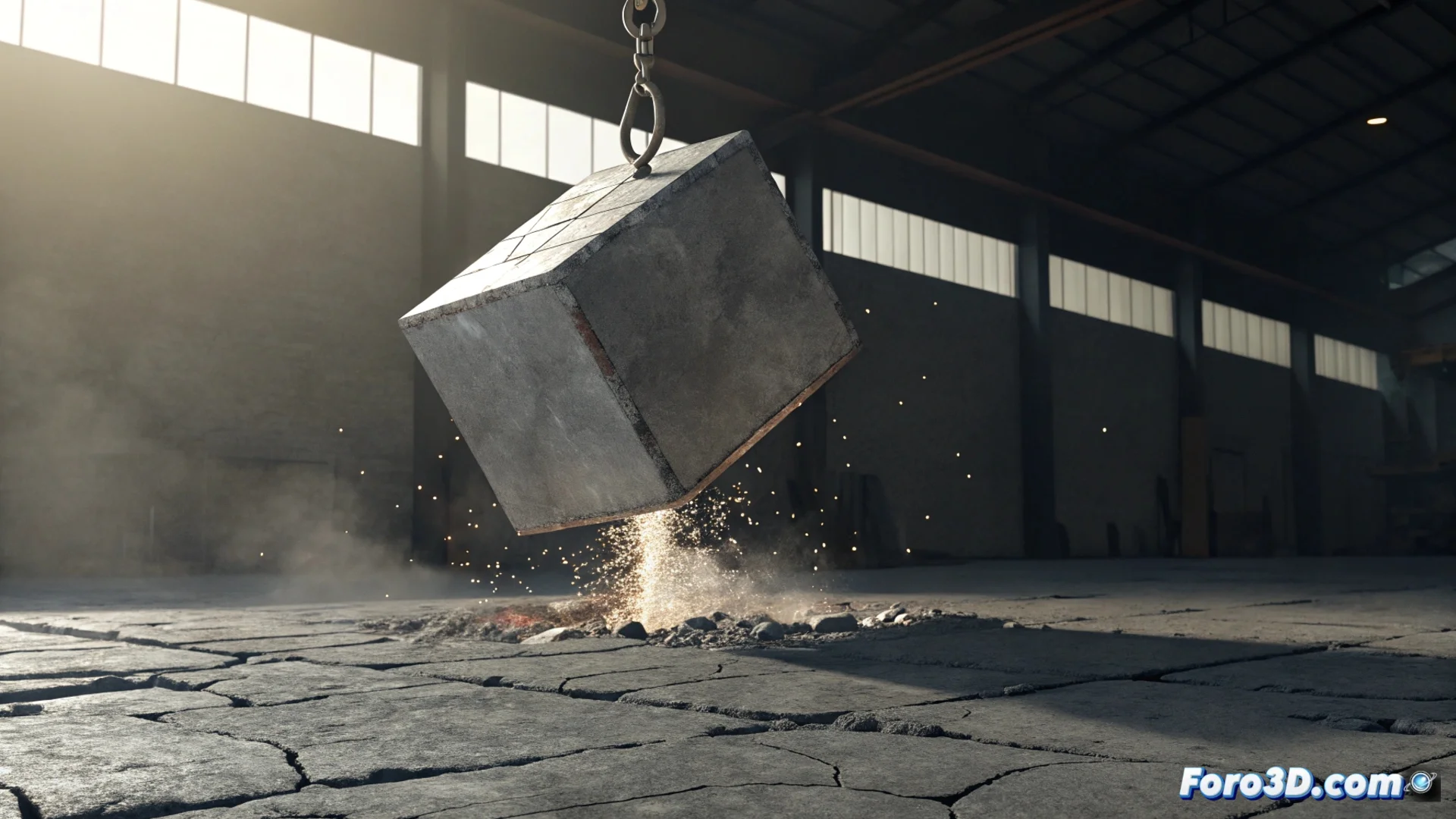
Simulate an Impact Against the Ground in Blender
Creating the illusion of an object colliding with a surface is a common task in 3D animation. In Blender, you can achieve this effectively by leveraging its built-in rigid body physics system. This method automates the calculation of collisions and movements, saving you a lot of manual work. 🎯
Set Up the Elements for the Collision
The first step is to define which object will move and which will be the static surface. Select the model that will fall, such as a sphere or a cube, and in the properties panel, add a Rigid Body modifier. Set its type to Active and assign a mass value. Then, select the plane that will act as the ground and add a rigid body to it as well, but configured as Passive, which will keep it fixed in place.
Key steps for the initial setup:- Assign an Active rigid body to the falling object and define its mass.
- Convert the ground plane into an immobile Passive body.
- Adjust the initial position of the active object, placing it in the air so it has space to fall.
The power of Blender's physics engine lies in simulating realistic interactions such as gravity, inertia, and collisions automatically.
Run and Control the Physics Simulation
To make gravity act, go to the scene properties, Scene tab, and locate the Rigid Body World section. Here you can modify the gravity strength. With everything ready, position the timeline cursor at the initial frame and press Alt + A to play and calculate the simulation. Blender will generate the animation of the fall, impact, and any bounce. 🚀
Refine the Impact Behavior:- Modify the Bounciness (bounce) and Friction (friction) values in the active body's properties to control how it interacts with the ground.
- Add realism by inserting a Shake keyframe type in the camera at the exact moment of impact.
- For a more advanced visual effect, use the Dynamic Paint modifier on the ground to generate a stain or temporary deformation at the point of contact.
Final Considerations for Your Project
It is crucial to remember that Blender must precalculate or bake the physics simulation data. The complexity of the falling object's mesh directly influences the time this process will take; a very dense geometry can slow it down significantly. Plan this calculation time in your workflow to get the best results. ✅