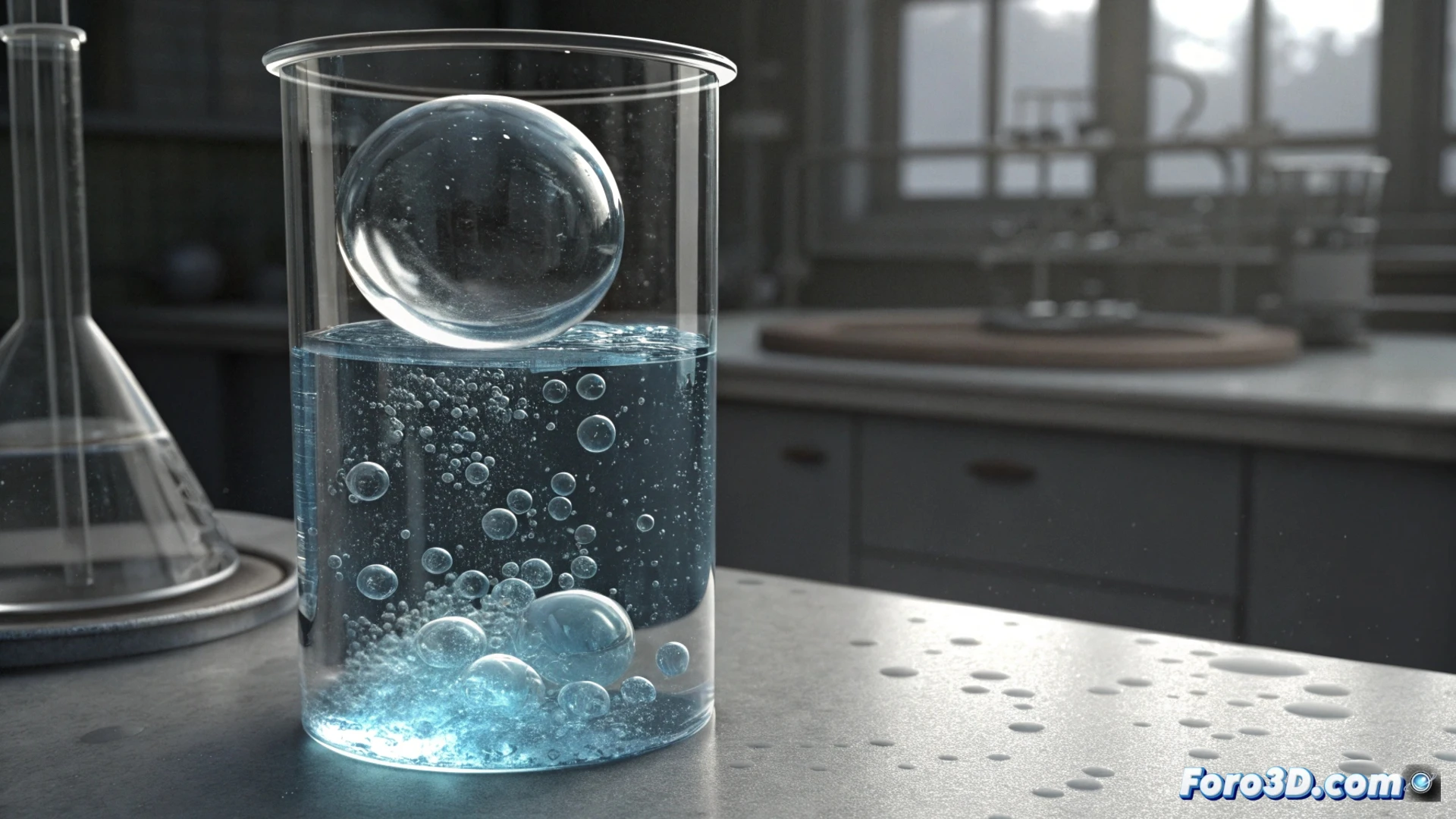
Simulate an Air Bubble in a Tube with Blender's Fluid Engine
Creating a realistic animation of a bubble moving in a liquid is possible with Blender's powerful Fluid simulation engine. This tutorial will guide you step by step to achieve it, from the basic geometry to the final adjustments of materials and physics. 🫧
Prepare the Base Geometry
The first step is to build the essential elements of the scene. You will need a hollow cylinder that represents the tube and a smaller sphere inside it, which will act as the core of the bubble. It is essential that the sphere is completely immersed in the cylinder's volume and does not touch the inner walls to prevent the simulation from failing.
Key points to check:- The cylinder must be a hollow object; you can use a Solidify modifier or model it directly.
- The sphere must have a significantly smaller size than the inner diameter of the tube.
- Leave a clear space margin between the sphere and all the inner faces of the cylinder.
A correct initial geometric arrangement is crucial for the fluid solver to calculate interactions without errors.
Set Up the Fluid Simulation
Go to the physics properties to assign the correct object types. To the cylinder, assign the Domain type, which defines the volume where the simulation occurs. To the sphere, assign the Flow type. Within the Flow settings, select whether the flow will be Inflow (continuously generates fluid) or Geometry (uses the object's shape as the initial source).
Important domain settings:- Resolution: Controls the detail of the simulation. Values between 64 and 128 offer a good balance between quality and processing time.
- Time Scale: You can adjust it to speed up or slow down the simulated physical phenomenon.
Define Appearance and Physical Behavior
To make the tube appear to contain a liquid, create a transparent material using the Principled BSDF node in the shading editor, similar to glass or water. For the bubble, apply a similar material, but modify its index of refraction (IOR) to a value close to 1.0, which is that of air. This will create the correct visual distortion.
In the Fluid > Settings tab of the domain, you can fine-tune parameters such as the density and viscosity of the fluid to control how the bubble moves. To add dynamism, incorporate a force field like Turbulence. Always remember to check the direction and strength of gravity in the scene properties; if it is inverted or disabled, the bubble will not rise realistically. ⬆️