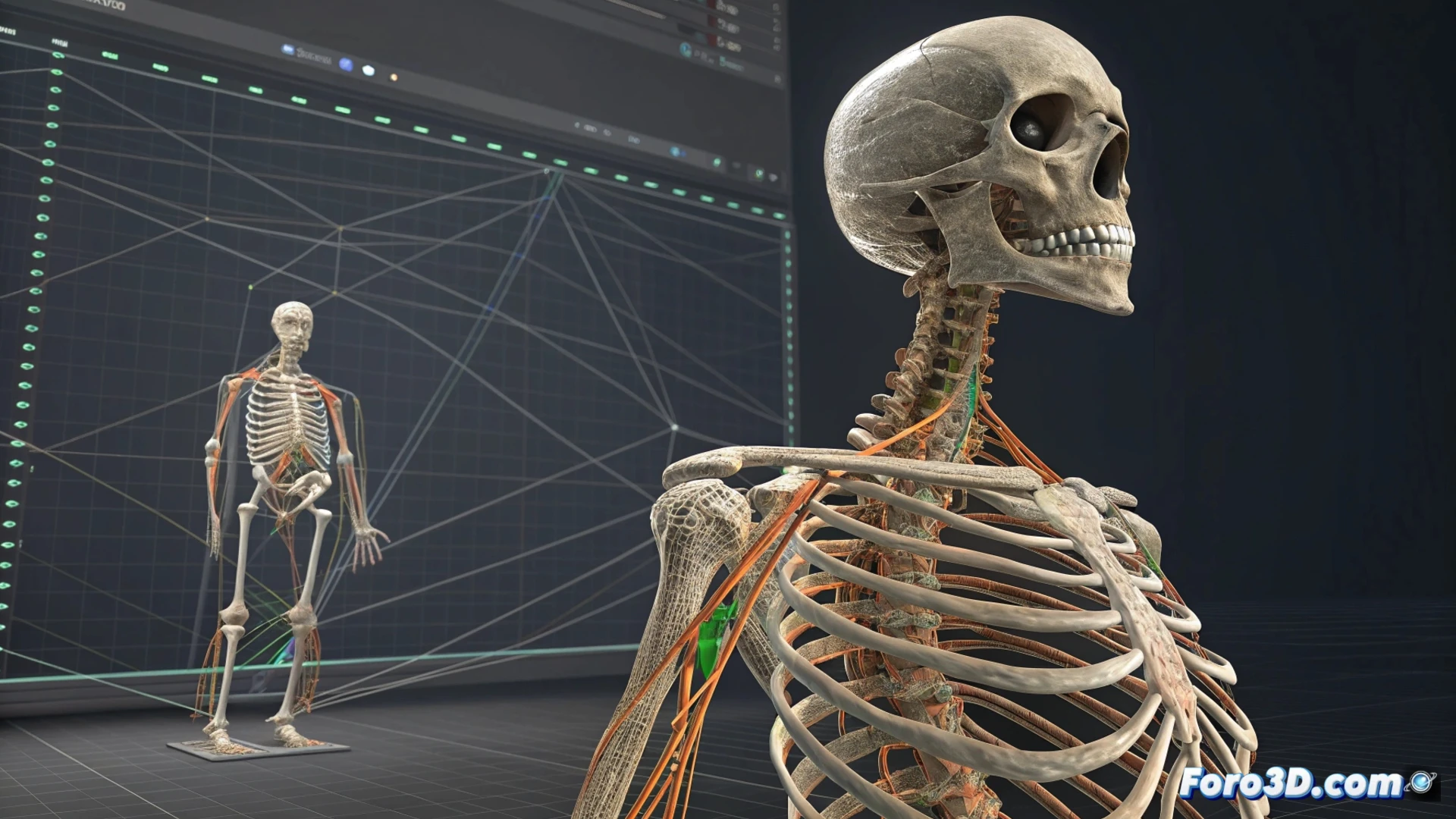
Rebuild a Bone Chain in 3ds Max
When working with characters in 3ds Max, sometimes you need to rebuild the structure of a bone chain that has become unlinked. This process is essential for the animation to work correctly. 🦴
Using the Schematic View
An effective method for rebuilding bones is through the Schematic View panel. Access it from the main menu. This view allows you to observe the entire node hierarchy of your scene clearly and connect elements visually.
Steps to follow in Schematic View:- Select all the bones that form the chain you want to restore.
- In the window, drag the child bone directly onto the parent bone to create the link.
- This graphical approach minimizes errors that can occur when selecting in the main graphical window.
The Schematic View offers a global perspective that greatly simplifies the handling of complex hierarchies.
Using the Bone Tools Utility
Another powerful alternative is the Bone Tools utility. You find it in the Animation menu. This tool is specifically designed to manage and adjust bone systems.
Procedure with Bone Tools:- Open the utility and first select the bone that will act as the parent.
- Click the Link button in the Object Properties section.
- Then, click on the bone that will be the child. Repeat this action for each link in the chain.
- In addition to linking, Bone Tools allows you to modify the color or shape of the bones to better organize your project.
Confirm and Correct the Structure
After linking the bones, it is crucial to verify that the hierarchy is correct. Use the Select From Scene dialog or return to the Schematic View to inspect it. Ensure that the root bone is at the top level.
If any element is in the wrong position, use the Unlink button to undo that connection and then relink it properly. To move the entire chain at once, you only need to select the parent bone; the children will follow automatically. 🕵️♂️
Sometimes, some bones seem not to follow the rules and "rebel." A quick look at the Schematic View usually reveals which element decided not to follow the leader, solving the mystery of the lost hierarchy in moments.