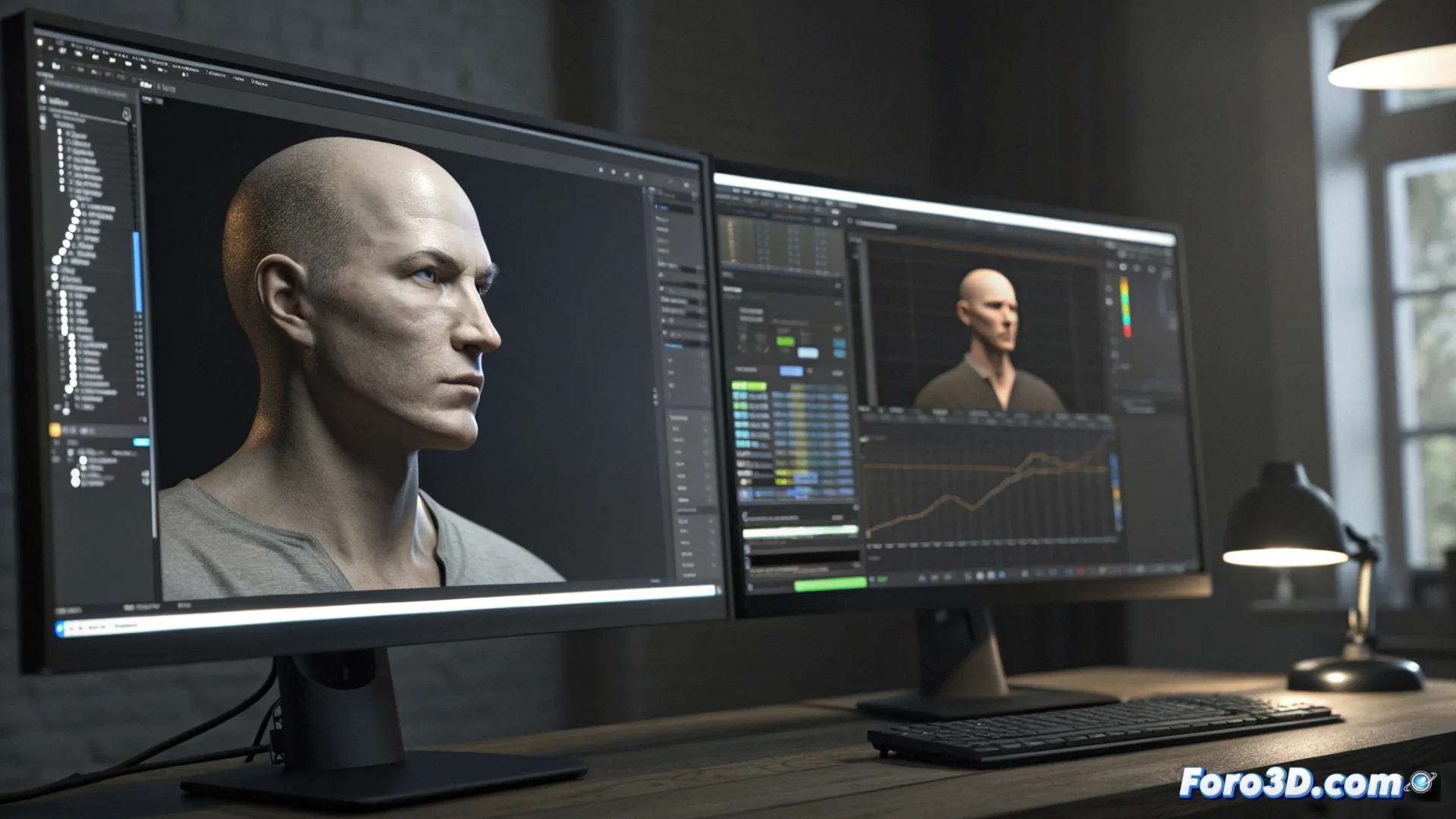
Import Facial Animations from Magpie to 3ds Max
Integrating facial tracking captured in Magpie into 3ds Max is an effective workflow for animating characters. The core process consists of exporting the data from one software and importing it into the other, maintaining temporal coherence. 🎭
Export the Data from Magpie Pro
The first step takes place in Magpie Pro. You must go to the designated export tab and select the specific 3ds Max CSV format. It is crucial to verify that the frame rate in the Magpie scene is identical to that set in your 3ds Max project. This ensures that the animation plays back with the correct synchronization when transferring the information.
Key points when exporting:- Select the correct export format: 3ds Max CSV.
- Ensure the frame rate matches in both environments.
- Review that the tracking data is clean and complete.
Precision in exporting defines the smoothness of the final animation in 3ds Max.
Set Up the Target in 3ds Max
In 3ds Max, apply the Morpher modifier to your character's model. Each channel within this modifier must represent a specific facial expression, such as raising an eyebrow or pursing the lip. For seamless linking of the data later, the nomenclature of these channels must be clear and, preferably, match the names generated by Magpie in its CSV file.
Prepare the Morpher modifier:- Apply the Morpher modifier to the character object.
- Define channels for each specific facial movement or expression.
- Organize and name the channels in a logical and identifiable manner.
Perform the Import with MaxScript
To transfer the data, open the MaxScript window in 3ds Max and execute the script file included with Magpie Pro, typically named MagpiePro_3dsMax_Import.ms. This action will open an interface where you can load the CSV file you exported. The next step is to manually associate each movement track from the list with its corresponding channel in your object's Morpher modifier. Finalize by clicking the import button; the script will automatically apply the animation along the timeline. ✨
Seeing a spreadsheet full of numbers turn into an expressive facial animation is one of those rewards that justify the work of manually assigning channels. Mastering this workflow between Magpie and 3ds Max allows you to produce complex and natural facial animations more efficiently.