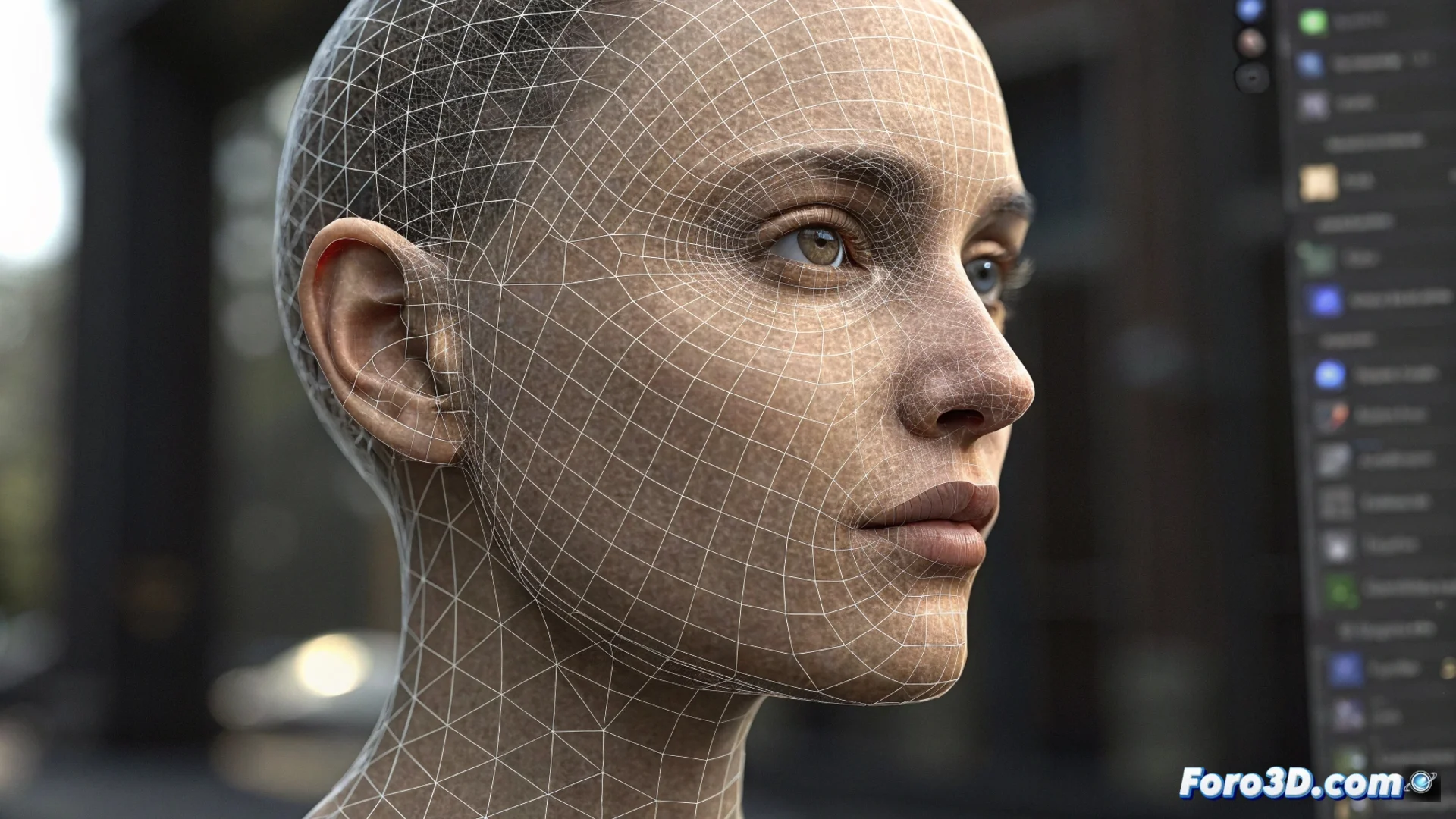
How to Create a Sphere to Face Morph in 3ds Max
Achieving a visual metamorphosis between a sphere and a face is a classic 3D animation technique. This process, known as morphing, relies on a fundamental rule: the involved objects must share the same mesh structure. Here's how to master this effect in 3ds Max. 🎭
Prepare the Base Models
The first step is to model a sphere with an adequate level of subdivision to sculpt facial details. Then, using the Edit Poly modifier, transform this sphere into the face you want to obtain. The absolutely critical condition is that both models—the initial sphere and the final face—have exactly the same number of vertices, edges, and faces. If the topology differs, the morph will not work correctly.
Essential Steps for Preparation:- Create a sphere with sufficient subdivisions to define facial features.
- Sculpt the face shape directly on the sphere using polygon editing tools.
- Thoroughly verify that the mesh element count is identical in both model states.
The magic of morphing lies in vertex-to-vertex correspondence. Without it, the transformation becomes geometric chaos.
Set Up the Morpher Modifier
Once your two models are ready, save the original sphere as a separate object. Select the model representing the face. Go to the Utilities panel (hammer icon) and click on Morpher. In the channel list, press the Pick Object from Scene button and select the sphere you saved. This way, the face will adopt the sphere as its morph target, defining the initial state of the transformation.
Key Settings in the Panel:- Select the face object as the modifier carrier.
- Use Pick Object from Scene to assign the base sphere to an empty channel.
- The value 0 in the channel represents the face, 100% represents the full sphere.
Animate the Transformation
With the modifier applied, you can animate the shape change. Activate the Auto Key button, move the time cursor to a later frame, and adjust the morph channel value from 0 to 100. This generates an animation where the face progressively turns into a sphere. To refine the movement, edit the animation curve in the curve editor, allowing you to control acceleration and smooth the transition. A common mistake is not aligning both objects in space; poor alignment causes the transformation to look like an uncontrolled melting instead of an elegant evolution. 🌀