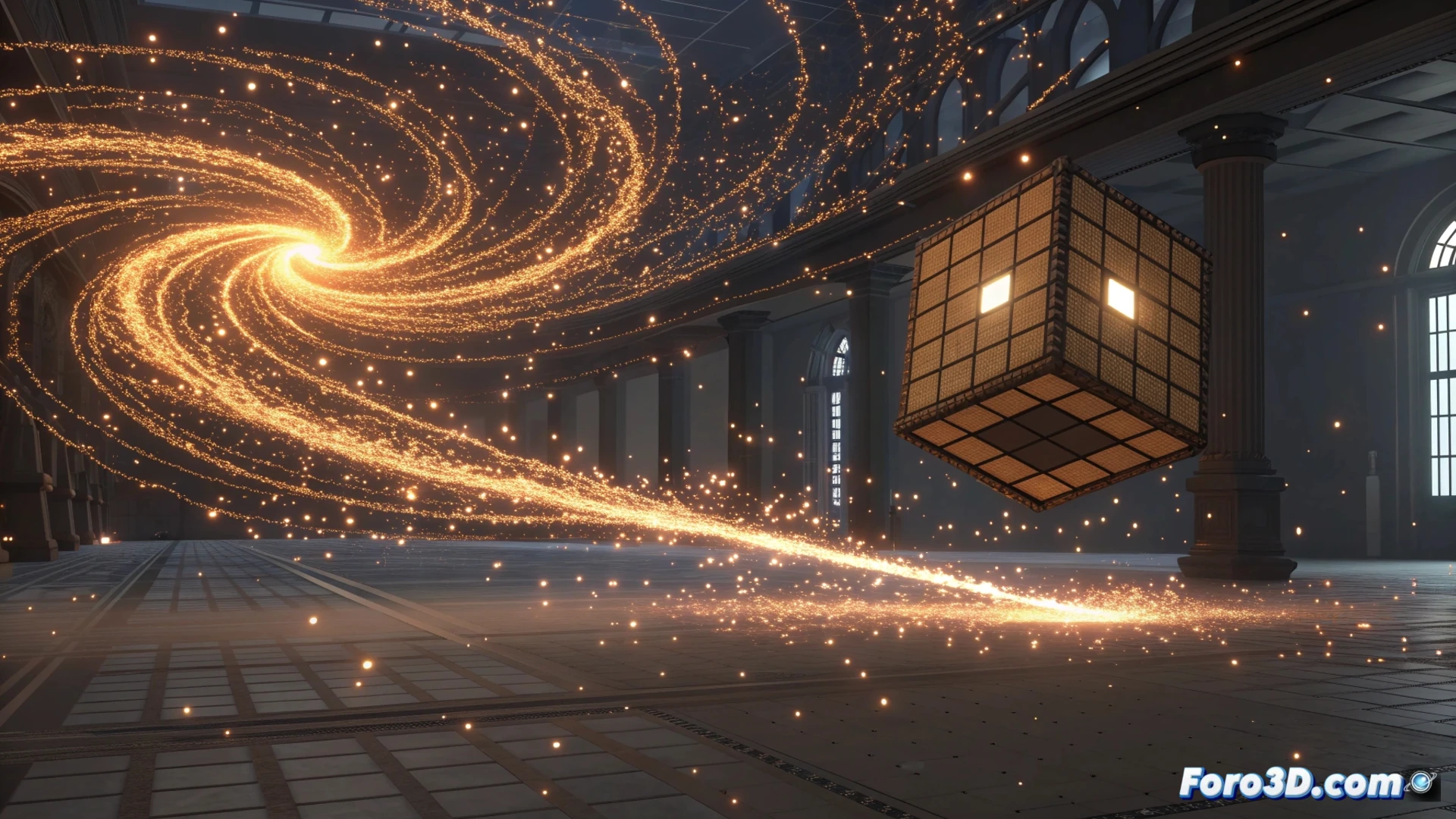
How to Animate Particle Systems in Cinema 4D
Creating dynamic effects with particles is a fundamental technique in motion graphics and visual effects. In Cinema 4D, this process is based on combining a generator, physical forces, and behavior controls to achieve results from rain to complex explosions. 🎬
Start the simulation with an emitter
The first step is to generate the particles. For this, you need an Emitter object, which you can find in the Simulation menu, or the Particles generator within MoGraph. Once added, adjust parameters such as the amount released per second and its initial speed in the object's attributes. These values define the base of your simulation.
Key steps to configure the emitter:- Select Emitter from Simulation or Particles from MoGraph.
- Modify the emission rate and speed in the corresponding attributes tab.
- Define the shape and initial direction from which the particles will emerge.
The power of a particle system lies in how they interact with their environment. Don't let them fly uncontrolled.
Direct the movement with forces
To prevent particles from moving in a straight line, add external influences. In the same Simulation menu, incorporate objects like Gravity, Wind, or Turbulence. Drag them into the scene and adjust their intensity and direction. These forces simulate natural phenomena and are essential for guiding the trajectory realistically. 🌪️
Modify behavior using fields
More precise control is achieved with fields. Tools like Linear Field or Radial Field allow affecting specific particle parameters. To use them, drag the field inside the emitter in the Object Manager. This way, you can restrict emission to an area, vary speed, or animate scale over time. Animating the intensity of these fields is crucial for creating dynamic sequences.
Advantages of using fields:- Limit emission to specific geometric areas of the scene.
- Vary attributes like speed, rotation, or size progressively.
- Create smooth transitions by animating the field's position or strength.
Customize the visual appearance
By default, particles are simple sprites. To replace them with 3D geometry, use the MoGraph Instancer. Place both your emitter and the object you want to clone inside the Instancer. In its options tab, choose the On Particles mode and assign the emitter as the source. Each particle will then display a copy of your model. You can manipulate the rotation, scale, and color of these instances by adding tags like Randomize. 🎨
It's important to consider that simulating thousands of particles with complex geometry can demand a lot from your machine. Plan the complexity of your scene to maintain a smooth workflow and avoid your computer surrendering to a digital confetti storm.