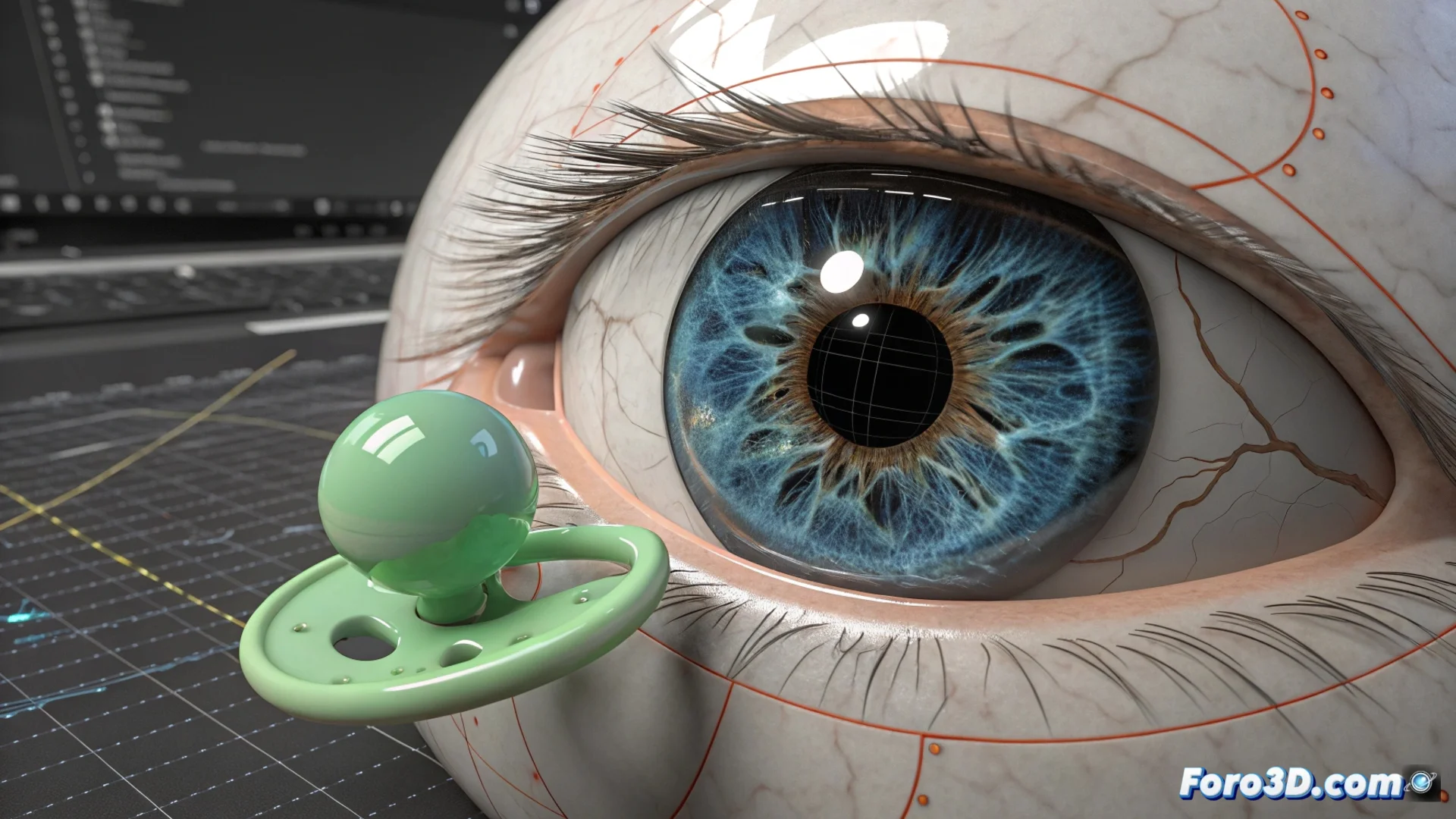
How to Animate Eyes and Pupils in 3ds Max
Giving expressiveness to a character's gaze is key in 3D animation. In 3ds Max, you can achieve this effectively by using constraint controllers that direct the movement of the pupils. This method allows you to simulate the character looking at different points in a convincing and natural way. 👁️
Using the LookAt Constraint Controller
The first step is to model the eyeball and the pupil as independent elements. Then, apply a LookAt Constraint to the pupil's geometry. This controller requires an auxiliary object, such as a Point Helper or a Dummy, which will serve as its reference for orientation. By linking them, the pupil will automatically rotate to "look" always toward that target. 🎯
Steps to set up the gaze:- Position the auxiliary object (Dummy) in front of the character's face.
- Apply the LookAt Constraint controller to the pupil and select the Dummy as the target.
- To control the eyes separately, use two auxiliaries and then link them to a master control that synchronizes them.
Animating the target object is the most direct way to simulate the character changing their visual focus from one place to another.
Incorporate Blinking and Organic Movement
To avoid a static and lifeless gaze, it is essential to add secondary details. Blinking can be easily animated using keyframes on the eyelid scale parameter or through morph modifiers. Likewise, introducing slight random variations in the target's position when the character is at rest eliminates the feeling of a fixed gaze. 😉
Techniques for greater realism:- Use the Noise controller on the Dummy object's animation track to generate automatic micro-movements.
- Adjust the amplitude and frequency of the noise so that the movements are subtle and believable.
- Manually animate blinks at specific moments to accentuate expressions.
Avoid Unrealistic Rotations
A common problem occurs if the target object moves behind the character's head, which can force the eyes to rotate unnaturally. To prevent this, access the LookAt Constraint controller settings and define appropriate rotation limits on the axes. This restricts eye movement to a plausible range, ensuring the animation always stays within realistic parameters. ⚙️