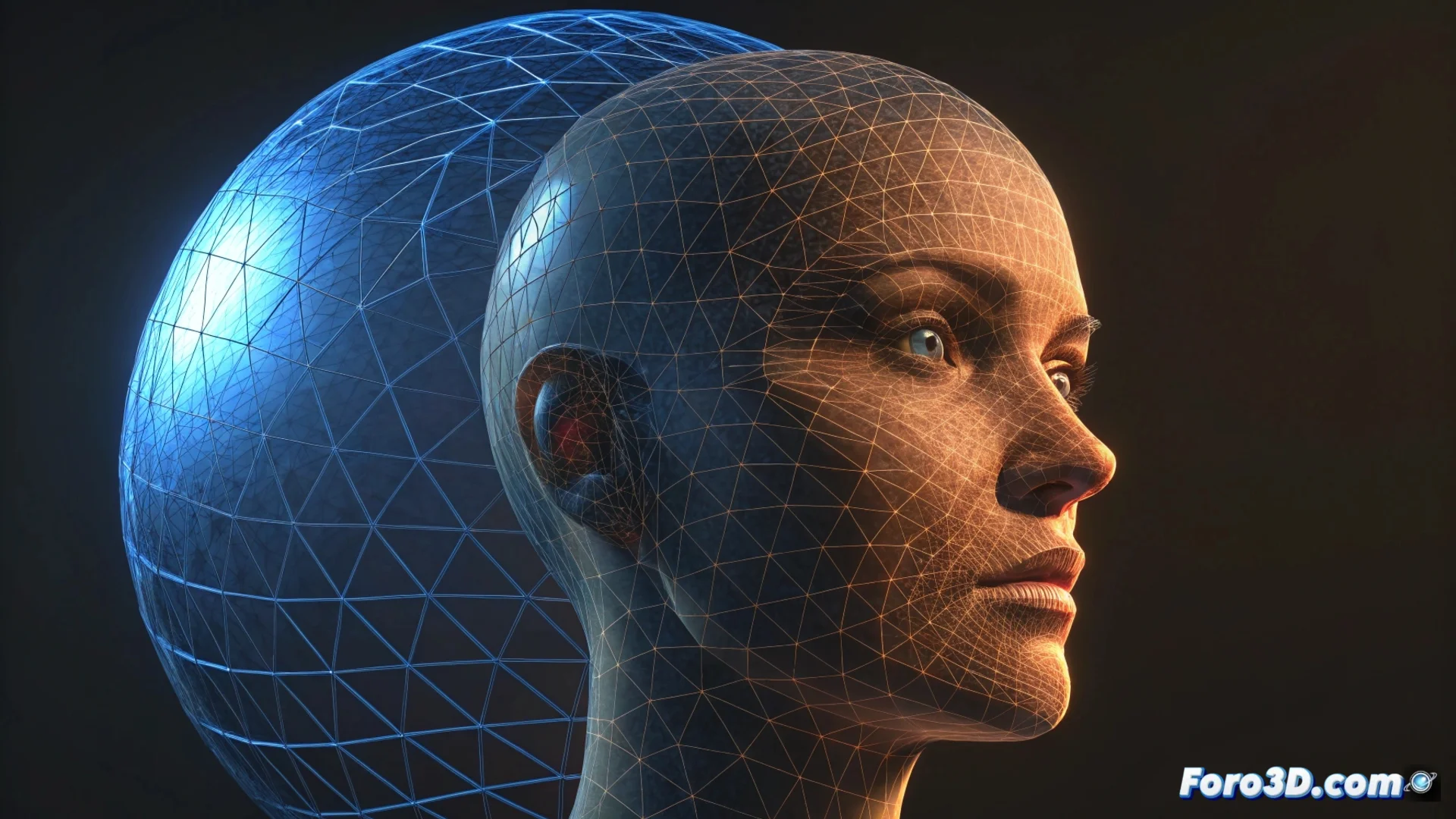
Generate a Sphere to Face Morph in Blender
Creating a smooth transition between a spherical shape and a human face is a fascinating visual effect. Achieving it in Blender involves preparing the geometry and using the right tool to animate the vertices. This tutorial guides you step by step to achieve it. 🌀➡️👤
Prepare the Base Models
The first step, and the most important, is to ensure that both objects, the sphere and the face, share exactly the same number of vertices and a similar mesh structure. Without this, the interpolation will fail. To smooth the shapes, apply the Subdivision Surface modifier to both. If the topology does not match, you must use Retopology techniques or the Remesh function to match the model structures before continuing.
Key steps for preparation:- Model a basic sphere and a face with a comparable level of detail.
- Apply Subdivision Surface to both to obtain a denser and smoother mesh.
- Verify and correct the topology to make it identical, vertex by vertex.
The key to a perfect morph lies in meticulous mesh preparation. Without identical topology, the result will have artifacts.
Set Up the Animation with Shape Keys
With the models ready, select the sphere object. In its properties, add a Shape Key modifier. First create the base key (Basis) and then a new shape key. In this new key, assign the face object as the target in the Key field. To animate, simply vary the value of this shape key on the timeline, from 0 (sphere) to 1 (face). To control the pace, access the Graph Editor and modify the interpolation curves. 🎬
Workflow for animating:- Add the Shape Key modifier to the source object (the sphere).
- Create a new key and assign the face as the deformation target.
- Animate the Shape Key value on the timeline and refine the animation curve.
Add Final Touches and Export
To better visualize the transformation, assign materials. A good starting point is the Principled BSDF, adjusting its base color and roughness. Set up the scene lighting. To produce the final video, define the frame range and choose a render engine like Cycles or Eevee. Export the sequence in MP4 format or as a series of PNG images. Before finishing, review that the transition does not generate distortions or visual jumps. Patience is essential; sometimes the render is quick, other times the computer processes each frame very calmly. 🧑💻